> ## Documentation Index
> Fetch the complete documentation index at: https://docs.knowlix.ai/llms.txt
> Use this file to discover all available pages before exploring further.
# AI Invoicing
> Streamline your billing workflow with intelligent invoice management, payment tracking, and real-time analytics
Knowlix AI Invoicing streamlines your billing workflow with intelligent invoice management, payment tracking, and real-time analytics. Manage your entire invoicing process from creation to collection.
 ### 1. Invoice Management
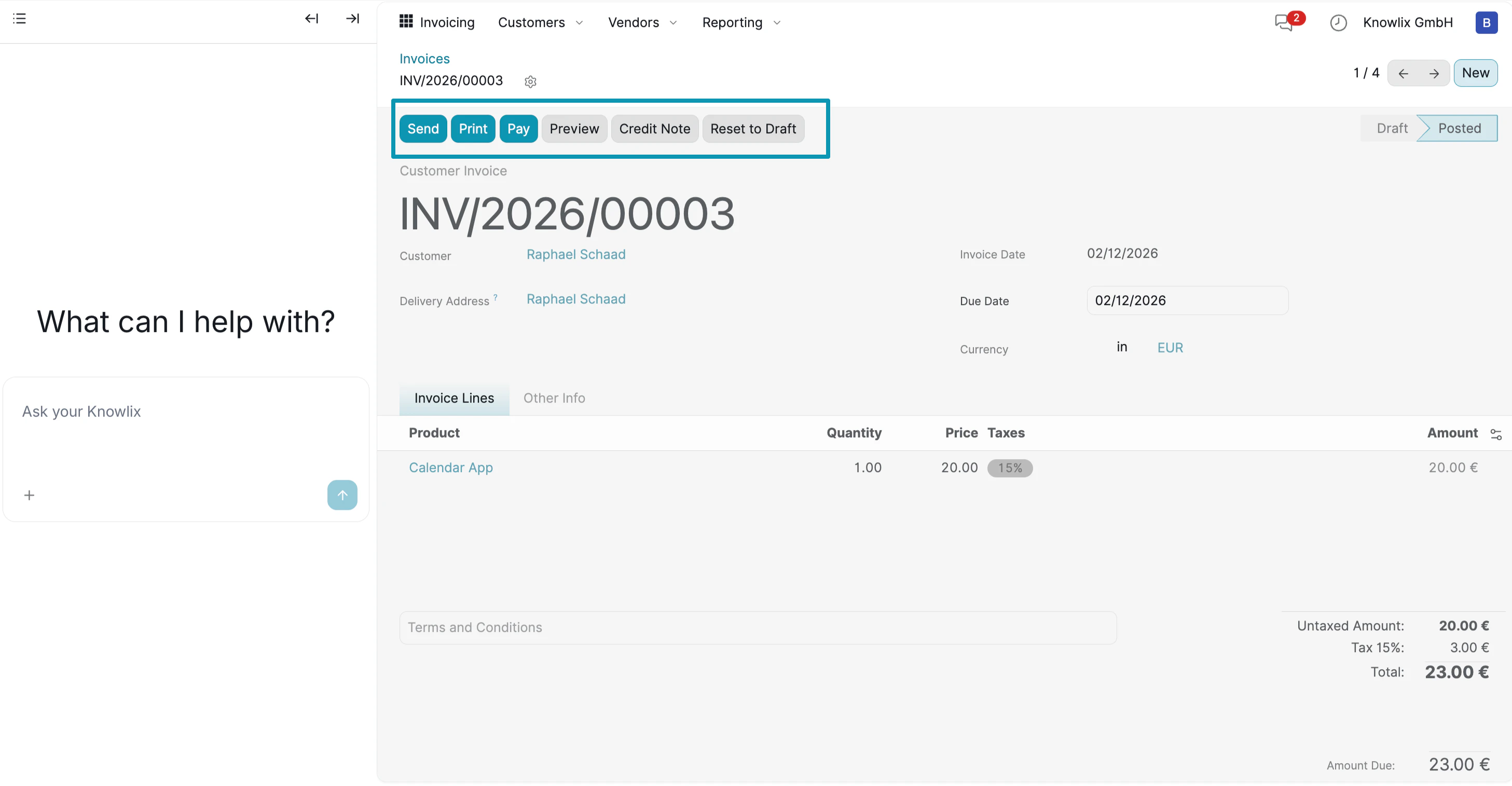
The Invoice Detail View provides complete control over individual invoices, allowing you to manage payments, send documents, and track status.
* **Invoice Header:** Displays the invoice number (e.g., *INV/2026/00003*), customer name, and current status (**Draft** or **Posted**).
* **Customer Details:** Shows customer information including name, delivery address, invoice date, and due date.
* **Line Items:** Lists all products or services with quantity, price, and tax calculation. In this example: Calendar App at 20.00 € with 15% tax.
* **Totals:** Automatically calculates untaxed amount, tax, and final total (23.00 €).
**Quick Actions:**
Click the action buttons at the top to manage the invoice:
* **Send:** Email the invoice directly to the customer with a PDF attachment.
* **Print:** Generate a printable PDF version.
* **Pay:** Register a payment when the customer pays.
* **Preview:** See how the invoice looks before sending.
* **Credit Note:** Create a credit note if you need to refund or adjust.
* **Reset to Draft:** Return a posted invoice to draft status for editing.
### 2. Payment Tracking
Navigate to **Customers** → **Payments** to view all recorded payments and their status.
### 1. Invoice Management
The Invoice Detail View provides complete control over individual invoices, allowing you to manage payments, send documents, and track status.
* **Invoice Header:** Displays the invoice number (e.g., *INV/2026/00003*), customer name, and current status (**Draft** or **Posted**).
* **Customer Details:** Shows customer information including name, delivery address, invoice date, and due date.
* **Line Items:** Lists all products or services with quantity, price, and tax calculation. In this example: Calendar App at 20.00 € with 15% tax.
* **Totals:** Automatically calculates untaxed amount, tax, and final total (23.00 €).
**Quick Actions:**
Click the action buttons at the top to manage the invoice:
* **Send:** Email the invoice directly to the customer with a PDF attachment.
* **Print:** Generate a printable PDF version.
* **Pay:** Register a payment when the customer pays.
* **Preview:** See how the invoice looks before sending.
* **Credit Note:** Create a credit note if you need to refund or adjust.
* **Reset to Draft:** Return a posted invoice to draft status for editing.
### 2. Payment Tracking
Navigate to **Customers** → **Payments** to view all recorded payments and their status.
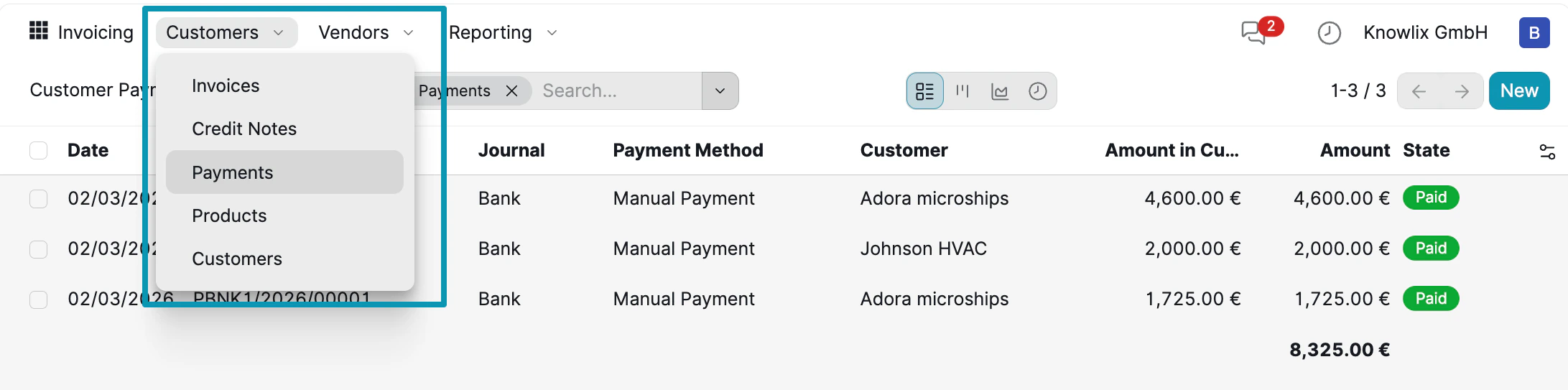 The Payments view shows a complete record of all customer transactions:
* **Date Column:** When the payment was recorded (e.g., 02/03/2026).
* **Journal:** The payment method used (Bank, Cash, etc.).
* **Payment Method:** How the payment was processed (Manual Payment, Online, etc.).
* **Customer:** Which customer made the payment (Adora microships, Johnson HVAC).
* **Amount in Currency:** The original payment amount.
* **Amount:** The converted amount in your base currency.
* **State:** Payment status with color-coded badges (**Paid** in green).
The total at the bottom (8,325.00 €) shows the sum of all displayed payments.
**Navigation Menu:**
Click the **Customers** dropdown to access:
* **Invoices:** View all customer invoices
* **Credit Notes:** Manage refunds and adjustments
* **Payments:** Track all payment records
* **Products:** Manage your product catalog
* **Customers:** View customer database
### 3. Products & Pricing
Navigate to **Vendors** → **Products** to manage your product catalog and pricing.
The Payments view shows a complete record of all customer transactions:
* **Date Column:** When the payment was recorded (e.g., 02/03/2026).
* **Journal:** The payment method used (Bank, Cash, etc.).
* **Payment Method:** How the payment was processed (Manual Payment, Online, etc.).
* **Customer:** Which customer made the payment (Adora microships, Johnson HVAC).
* **Amount in Currency:** The original payment amount.
* **Amount:** The converted amount in your base currency.
* **State:** Payment status with color-coded badges (**Paid** in green).
The total at the bottom (8,325.00 €) shows the sum of all displayed payments.
**Navigation Menu:**
Click the **Customers** dropdown to access:
* **Invoices:** View all customer invoices
* **Credit Notes:** Manage refunds and adjustments
* **Payments:** Track all payment records
* **Products:** Manage your product catalog
* **Customers:** View customer database
### 3. Products & Pricing
Navigate to **Vendors** → **Products** to manage your product catalog and pricing.
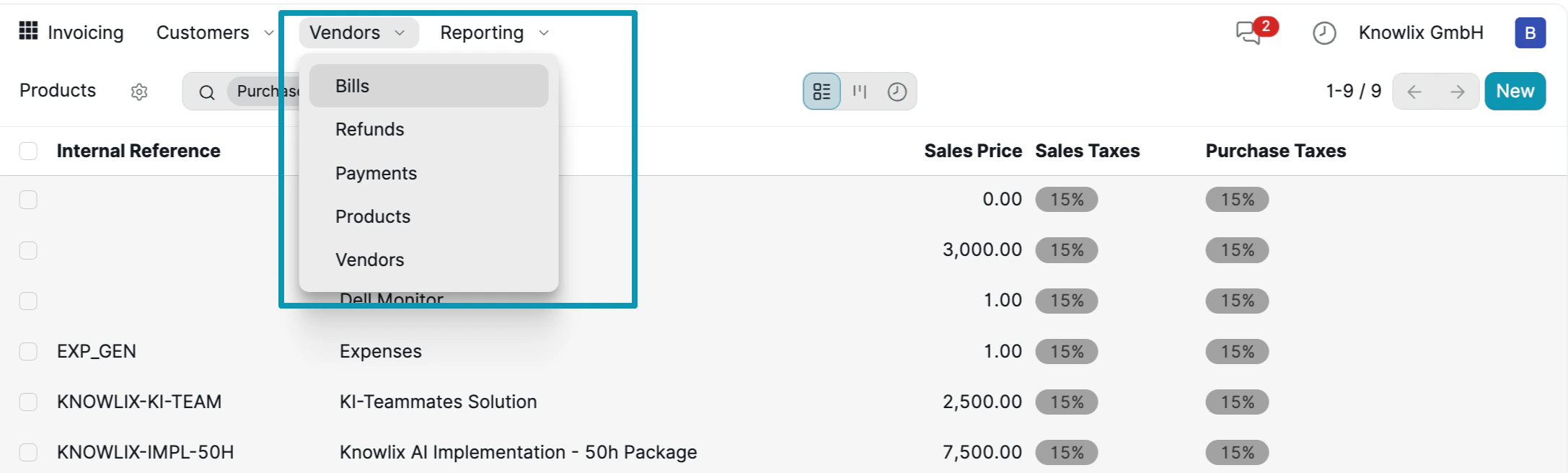 The Products view displays all your sellable items with pricing details:
* **Internal Reference:** Product code for internal tracking (e.g., KNOWLIX-KI-TEAM, KNOWLIX-IMPL-50H).
* **Product Name:** Descriptive name shown on invoices (KI-Teammates Solution, Knowlix AI Implementation - 50h Package).
* **Sales Price:** The default price charged to customers (2,500.00 €, 7,500.00 €).
* **Sales Taxes:** Tax rate applied to the product (15%).
* **Purchase Taxes:** Tax rate for vendor purchases.
**Vendor Menu:**
Click the **Vendors** dropdown to access:
* **Bills:** View and manage vendor bills
* **Refunds:** Track vendor refunds
* **Payments:** Record payments to vendors
* **Products:** Manage product catalog
* **Vendors:** View vendor database
### 4. Reporting & Analytics
Navigate to **Reporting** → **Invoice Analysis** to view financial trends and insights.
The Products view displays all your sellable items with pricing details:
* **Internal Reference:** Product code for internal tracking (e.g., KNOWLIX-KI-TEAM, KNOWLIX-IMPL-50H).
* **Product Name:** Descriptive name shown on invoices (KI-Teammates Solution, Knowlix AI Implementation - 50h Package).
* **Sales Price:** The default price charged to customers (2,500.00 €, 7,500.00 €).
* **Sales Taxes:** Tax rate applied to the product (15%).
* **Purchase Taxes:** Tax rate for vendor purchases.
**Vendor Menu:**
Click the **Vendors** dropdown to access:
* **Bills:** View and manage vendor bills
* **Refunds:** Track vendor refunds
* **Payments:** Record payments to vendors
* **Products:** Manage product catalog
* **Vendors:** View vendor database
### 4. Reporting & Analytics
Navigate to **Reporting** → **Invoice Analysis** to view financial trends and insights.
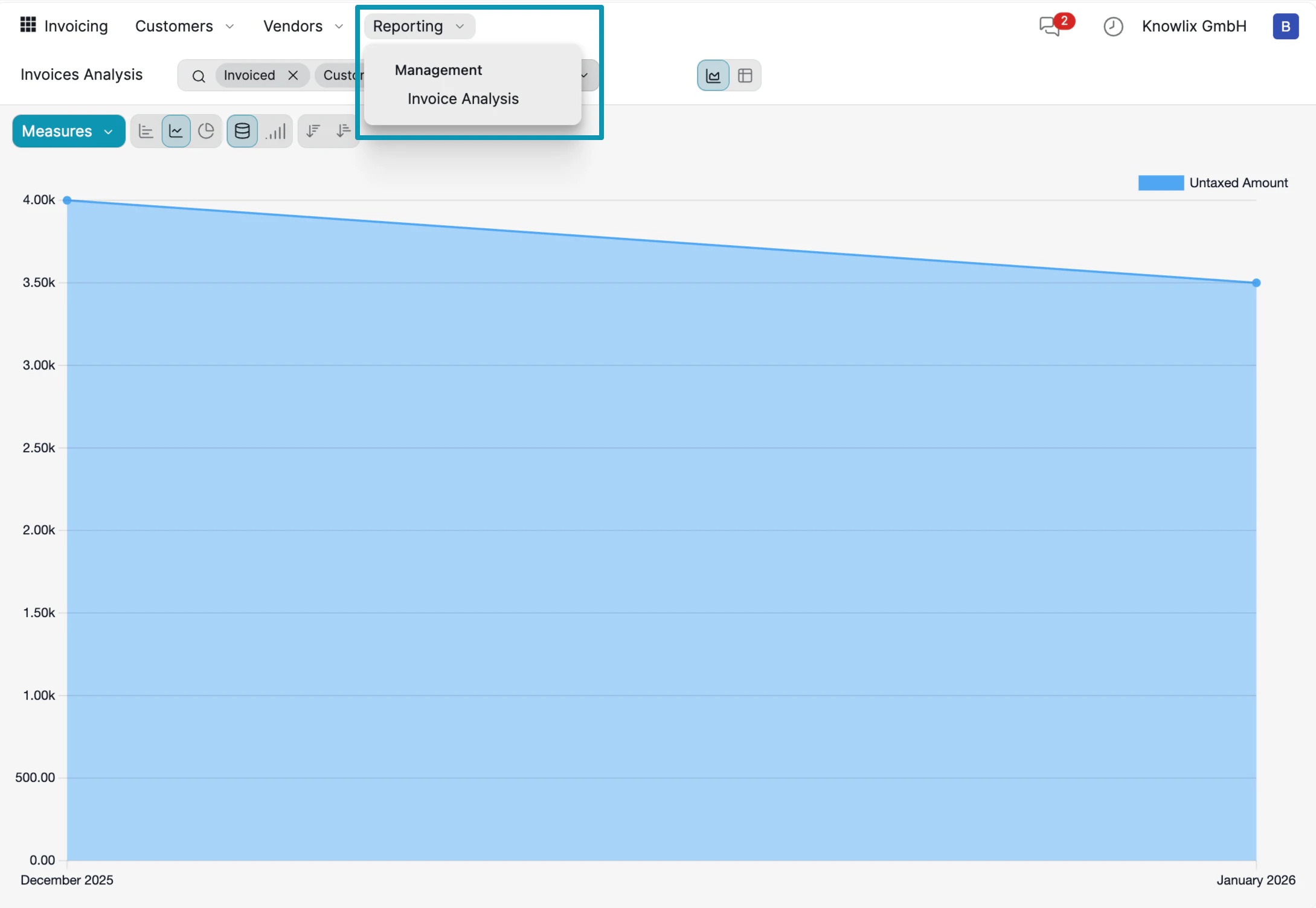 The Invoice Analysis dashboard provides visual insights into your invoicing performance:
* **Trend Chart:** The line graph shows **Untaxed Amount** over time, helping you identify revenue patterns. In this example, revenue trends from approximately 4,000 € in December 2025 to 3,500 € in January 2026.
* **Measures Button:** Click to change what metric is displayed (Untaxed Amount, Total, Count, etc.).
* **Chart Types:** Toggle between line, bar, pie, and other chart formats using the toolbar icons.
* **Filters:** Use the search bar with tags like "Invoiced" and "Customer" to filter the data.
**Reporting Menu:**
Click the **Reporting** dropdown to access:
* **Management:** Overview of key financial metrics
* **Invoice Analysis:** Detailed invoice trends and breakdowns
**AI Shortcut:**
Instead of manually navigating through reports, ask the Assistant: *"Show me invoice trends for last quarter"* or *"What's our average invoice value this month?"* to get instant insights.
***
## More Information
Double-entry bookkeeping system and financial reporting
Online payment integrations and gateway configuration
AI assistant tips for the Finance module
The Invoice Analysis dashboard provides visual insights into your invoicing performance:
* **Trend Chart:** The line graph shows **Untaxed Amount** over time, helping you identify revenue patterns. In this example, revenue trends from approximately 4,000 € in December 2025 to 3,500 € in January 2026.
* **Measures Button:** Click to change what metric is displayed (Untaxed Amount, Total, Count, etc.).
* **Chart Types:** Toggle between line, bar, pie, and other chart formats using the toolbar icons.
* **Filters:** Use the search bar with tags like "Invoiced" and "Customer" to filter the data.
**Reporting Menu:**
Click the **Reporting** dropdown to access:
* **Management:** Overview of key financial metrics
* **Invoice Analysis:** Detailed invoice trends and breakdowns
**AI Shortcut:**
Instead of manually navigating through reports, ask the Assistant: *"Show me invoice trends for last quarter"* or *"What's our average invoice value this month?"* to get instant insights.
***
## More Information
Double-entry bookkeeping system and financial reporting
Online payment integrations and gateway configuration
AI assistant tips for the Finance module