> ## Documentation Index
> Fetch the complete documentation index at: https://docs.knowlix.ai/llms.txt
> Use this file to discover all available pages before exploring further.
# AI Events
> Event planning and calendar management with AI-powered scheduling, attendee management, and meeting coordination
The Knowlix calendar acts as your central hub for time management, seamlessly integrated with your daily workflows. It combines a familiar, intuitive visual interface with the speed of AI-assisted scheduling.
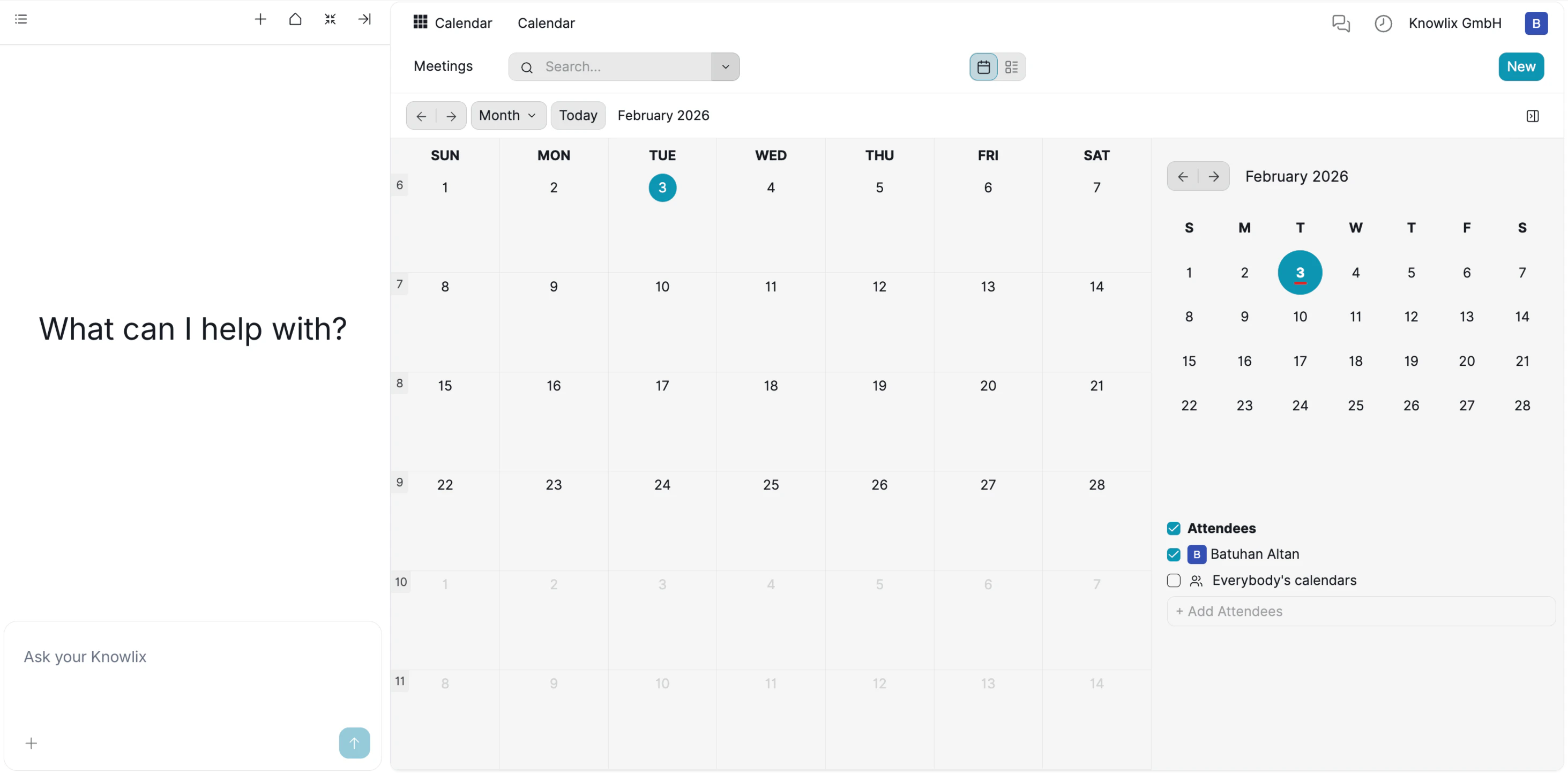 ### 1. Calendar Interface Overview
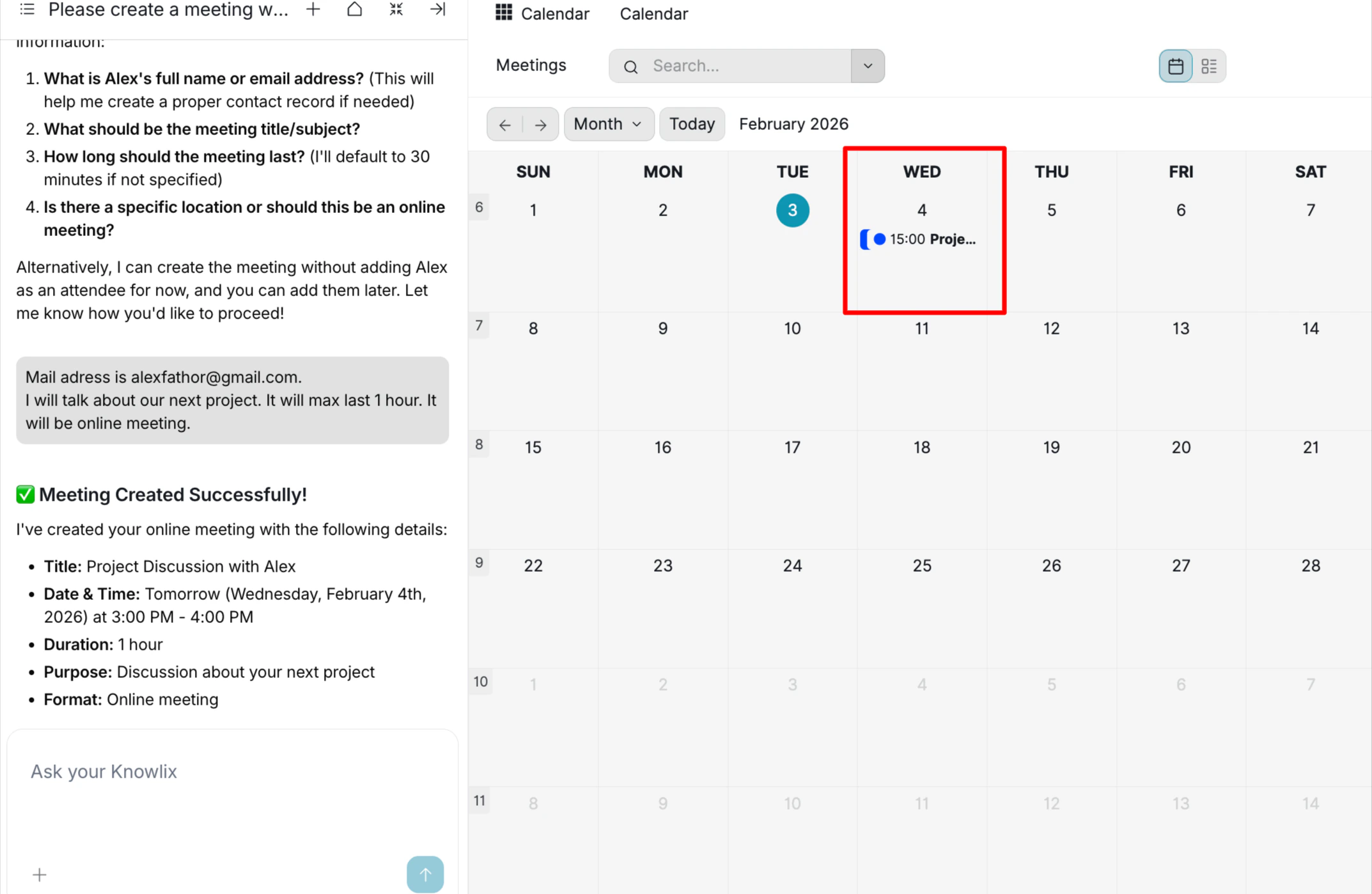
**The Workspace (Right Panel):**
A robust calendar view that supports Monthly, Weekly, and Daily perspectives. It allows you to visualize your schedule, filter by attendees (e.g., specific team members), and manage appointments via drag-and-drop.
**The Assistant (Left Panel):**
Your scheduling coordinator. Instead of manually hunting for open slots, you can instruct the AI to "Find time for a meeting" or "Reschedule my morning calls," and watch the calendar update instantly.
**Key Capabilities:**
* **Unified Scheduling:** Manage client meetings, internal syncs, and deadlines in one place.
* **Team Visibility:** Filter views to see colleagues' availability using the "Attendees" sidebar.
* **Smart Coordination:** Use the AI to draft meeting invites and check availability without leaving the chat.
### 2. Flexible Viewing Options
Knowlix provides versatile viewing modes to suit different planning needs, allowing you to zoom in for daily details or zoom out for long-term strategy.
**Switching Perspectives:**
By clicking the view dropdown menu in the top navigation bar, you can instantly toggle between four distinct layouts:
### 1. Calendar Interface Overview
**The Workspace (Right Panel):**
A robust calendar view that supports Monthly, Weekly, and Daily perspectives. It allows you to visualize your schedule, filter by attendees (e.g., specific team members), and manage appointments via drag-and-drop.
**The Assistant (Left Panel):**
Your scheduling coordinator. Instead of manually hunting for open slots, you can instruct the AI to "Find time for a meeting" or "Reschedule my morning calls," and watch the calendar update instantly.
**Key Capabilities:**
* **Unified Scheduling:** Manage client meetings, internal syncs, and deadlines in one place.
* **Team Visibility:** Filter views to see colleagues' availability using the "Attendees" sidebar.
* **Smart Coordination:** Use the AI to draft meeting invites and check availability without leaving the chat.
### 2. Flexible Viewing Options
Knowlix provides versatile viewing modes to suit different planning needs, allowing you to zoom in for daily details or zoom out for long-term strategy.
**Switching Perspectives:**
By clicking the view dropdown menu in the top navigation bar, you can instantly toggle between four distinct layouts:
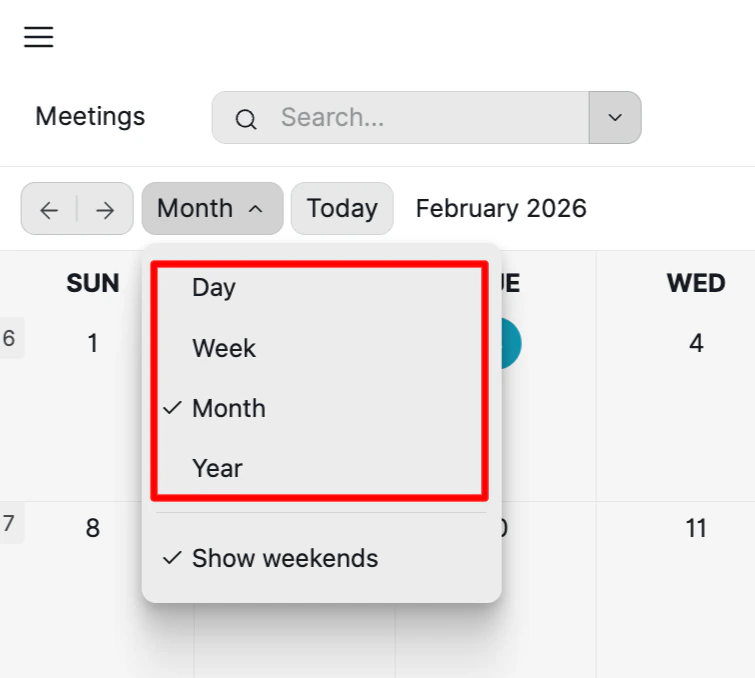
**Day:** A granular, hourly breakdown perfect for managing a packed schedule of back-to-back meetings.
**Week:** The ideal view for balancing workload and coordinating team availability over the upcoming days.
**Month:** The standard strategic overview to track deadlines and key milestones (Default view).
**Year:** A high-level perspective to visualize annual goals and long-term projects.
**Customization:**
* **Show/Hide Weekends:** You can easily toggle the **"Show weekends"** option to focus strictly on business days or include personal time in your schedule.
 ### 3. Conversational Meeting Scheduling
Scheduling a meeting usually involves clicking specific time slots, searching for contacts, and typing out descriptions manually. Knowlix simplifies this into a quick conversation. You simply tell the Assistant what you need, and it handles the logistics.
**Intelligent Clarification:**
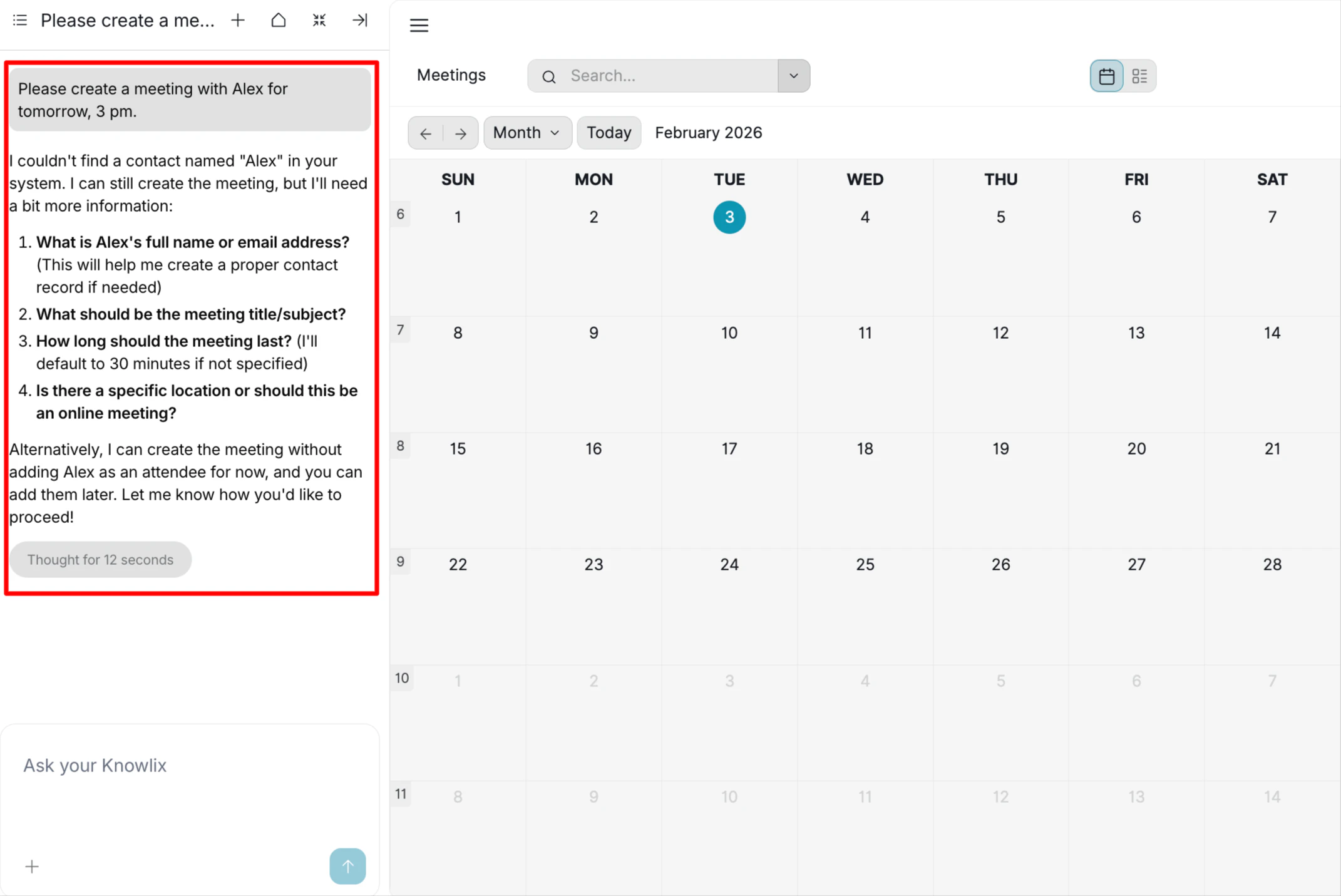
The Assistant understands that a meeting requires specific details to be effective. If your initial request is vague, the AI will not guess; it will ask for the missing pieces.
* **Scenario:** You ask to *"create a meeting with Alex for tomorrow, 3 pm"*.
* **AI Detection:** The system recognizes "Alex" is ambiguous or missing from your contacts. Instead of failing, it prompts you for:
* Full Name or Email Address
* Meeting Subject
* Duration
* Location (Online vs. Physical)
**Automated Event Creation:**
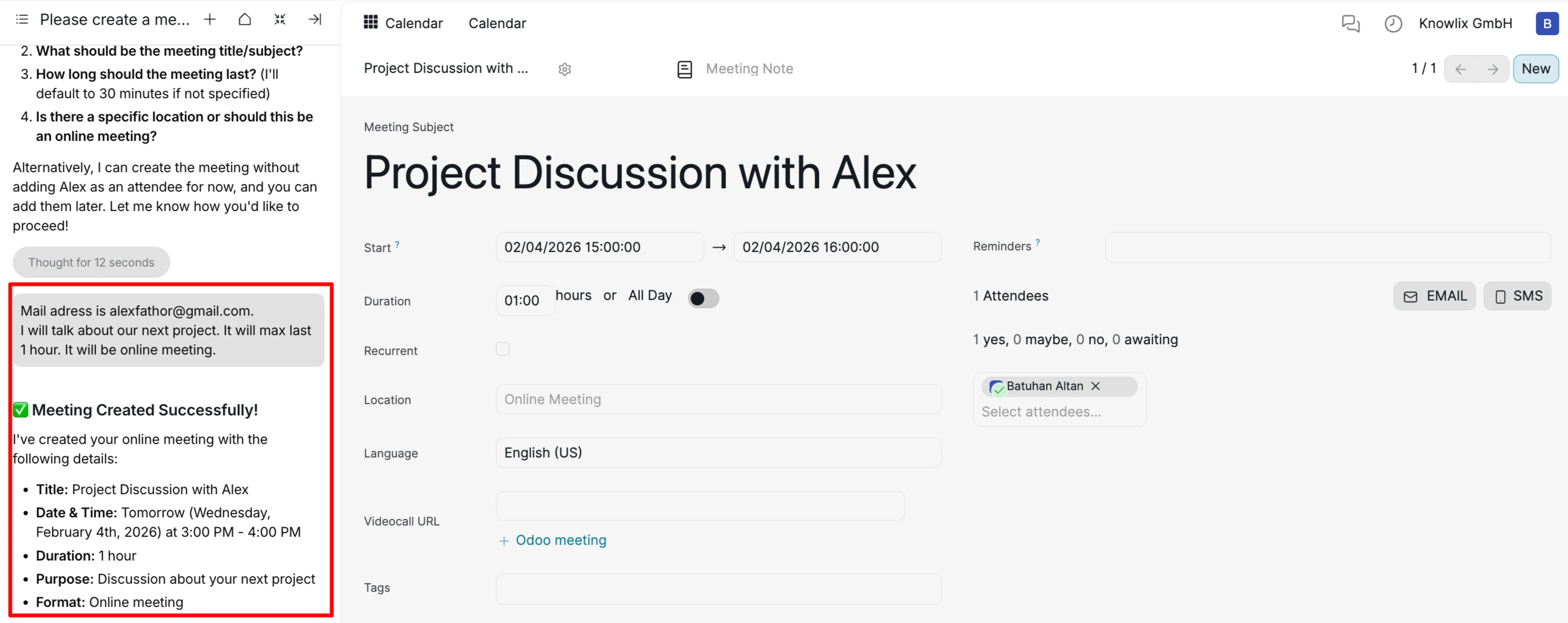
Once you provide the details (e.g., *"Mail address is [alexfathor@gmail.com](mailto:alexfathor@gmail.com)... max last 1 hour"*), the Assistant instantly compiles them into a complete calendar event.
* **Smart Parsing:** The AI extracts key data points from your natural language input:
* **Attendees:** Automatically links the provided email to the invite.
* **Contextual Title:** Generates a professional subject line, *"Project Discussion with Alex"*, based on your description.
* **Timing:** Sets the correct Start and End times (3:00 PM - 4:00 PM) based on your "1 hour" input.
### 3. Conversational Meeting Scheduling
Scheduling a meeting usually involves clicking specific time slots, searching for contacts, and typing out descriptions manually. Knowlix simplifies this into a quick conversation. You simply tell the Assistant what you need, and it handles the logistics.
**Intelligent Clarification:**
The Assistant understands that a meeting requires specific details to be effective. If your initial request is vague, the AI will not guess; it will ask for the missing pieces.
* **Scenario:** You ask to *"create a meeting with Alex for tomorrow, 3 pm"*.
* **AI Detection:** The system recognizes "Alex" is ambiguous or missing from your contacts. Instead of failing, it prompts you for:
* Full Name or Email Address
* Meeting Subject
* Duration
* Location (Online vs. Physical)
**Automated Event Creation:**
Once you provide the details (e.g., *"Mail address is [alexfathor@gmail.com](mailto:alexfathor@gmail.com)... max last 1 hour"*), the Assistant instantly compiles them into a complete calendar event.
* **Smart Parsing:** The AI extracts key data points from your natural language input:
* **Attendees:** Automatically links the provided email to the invite.
* **Contextual Title:** Generates a professional subject line, *"Project Discussion with Alex"*, based on your description.
* **Timing:** Sets the correct Start and End times (3:00 PM - 4:00 PM) based on your "1 hour" input.
 ### 4. Event Details & Management Panel
After the Assistant creates the meeting, the Right Panel instantly opens the detailed event card. This gives you a comprehensive view of the booking, allowing you to review all specifics before the meeting starts.
**Key Information:**
* **Meeting Context:** Clearly displays the **Subject** and the specific **Date/Time** so you know exactly what was booked.
* **Attendee Status:** The **Attendees** section lists everyone invited, confirming that the correct contacts were linked.
* **Fine-Tuning:** While the AI handles the setup, this panel allows you to manually add **Reminders**, insert a **Video Call URL**, or attach **Tags** for better organization.
### 4. Event Details & Management Panel
After the Assistant creates the meeting, the Right Panel instantly opens the detailed event card. This gives you a comprehensive view of the booking, allowing you to review all specifics before the meeting starts.
**Key Information:**
* **Meeting Context:** Clearly displays the **Subject** and the specific **Date/Time** so you know exactly what was booked.
* **Attendee Status:** The **Attendees** section lists everyone invited, confirming that the correct contacts were linked.
* **Fine-Tuning:** While the AI handles the setup, this panel allows you to manually add **Reminders**, insert a **Video Call URL**, or attach **Tags** for better organization.
 ### 5. Quick Event Preview & Actions
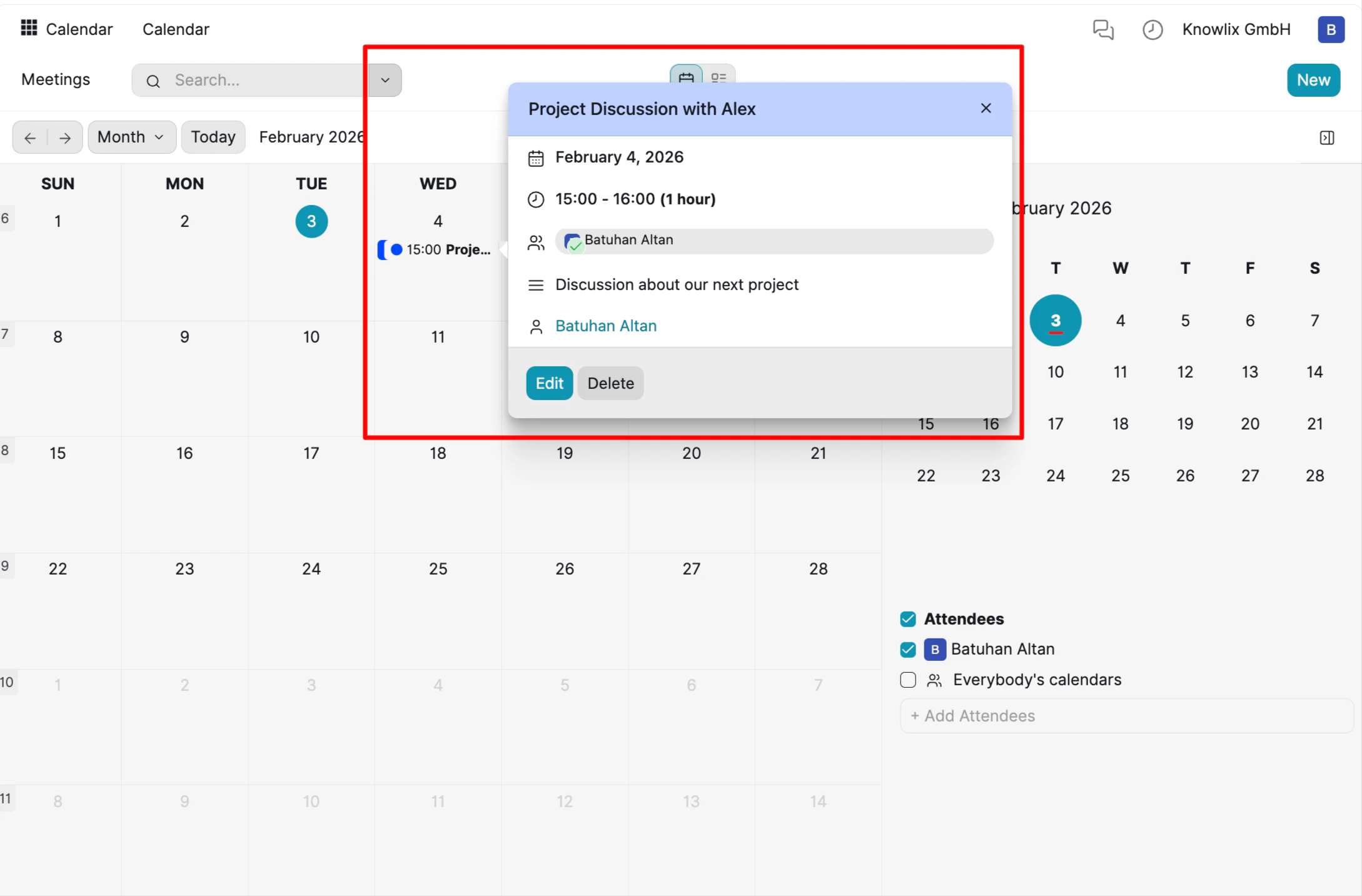
You do not need to open the full event page just to check a time or verify an attendee. Knowlix allows you to access a "Quick View" summary directly from the calendar grid.
**At-a-Glance Details:**
By simply interacting with an event on your calendar, a summary card pops up to display the most critical information immediately:
* **Timing:** Instantly verify the Date and Duration.
* **Context:** Read the meeting description without leaving the view.
* **Attendees:** See who is joining at a glance.
**Rapid Management:**
This pop-up is not just for viewing; it is actionable:
* **Edit:** Click to modify details if plans change.
* **Delete:** Remove cancelled meetings instantly.
### 5. Quick Event Preview & Actions
You do not need to open the full event page just to check a time or verify an attendee. Knowlix allows you to access a "Quick View" summary directly from the calendar grid.
**At-a-Glance Details:**
By simply interacting with an event on your calendar, a summary card pops up to display the most critical information immediately:
* **Timing:** Instantly verify the Date and Duration.
* **Context:** Read the meeting description without leaving the view.
* **Attendees:** See who is joining at a glance.
**Rapid Management:**
This pop-up is not just for viewing; it is actionable:
* **Edit:** Click to modify details if plans change.
* **Delete:** Remove cancelled meetings instantly.
 ### 6. List View & Custom Reporting
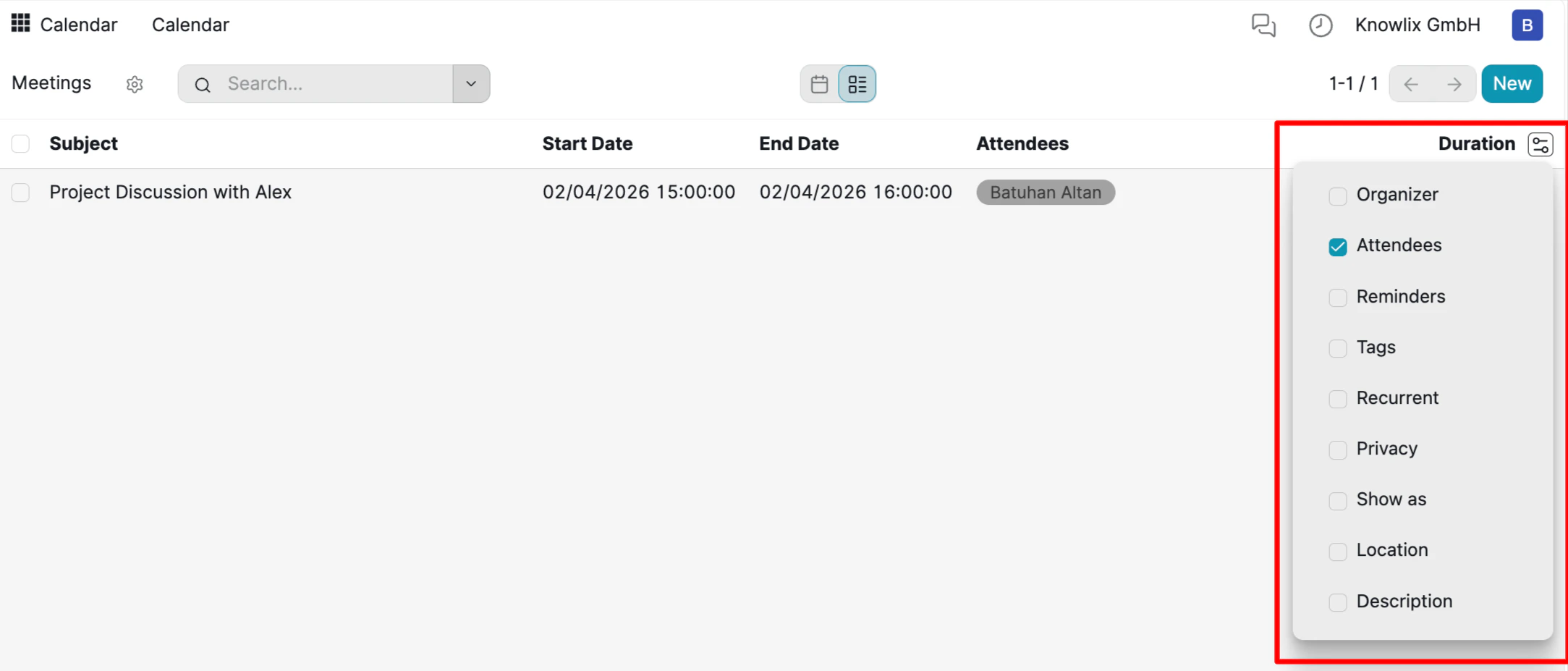
For times when you need to analyze your schedule as data rather than a visual timeline, Knowlix offers a powerful **List View**. This transforms your calendar into a structured table, making it easy to sort, filter, and customize the information you see.
**Column Customization:**
You are not stuck with a default view. You can tailor the table to show exactly the data points relevant to you.
* **Select Fields:** Click the **Settings/Slider icon** on the far right of the column headers. A dropdown menu will appear, allowing you to check or uncheck fields such as **Privacy**, **Reminders**, **Location**, or **Description**.
* **Dynamic Update:** As you toggle these options, the list updates in real-time, allowing you to build a custom report.
### 6. List View & Custom Reporting
For times when you need to analyze your schedule as data rather than a visual timeline, Knowlix offers a powerful **List View**. This transforms your calendar into a structured table, making it easy to sort, filter, and customize the information you see.
**Column Customization:**
You are not stuck with a default view. You can tailor the table to show exactly the data points relevant to you.
* **Select Fields:** Click the **Settings/Slider icon** on the far right of the column headers. A dropdown menu will appear, allowing you to check or uncheck fields such as **Privacy**, **Reminders**, **Location**, or **Description**.
* **Dynamic Update:** As you toggle these options, the list updates in real-time, allowing you to build a custom report.

 ***
## More Information
Event planning and attendee management
Survey creation and response analysis
AI assistant tips for the Marketing module
***
## More Information
Event planning and attendee management
Survey creation and response analysis
AI assistant tips for the Marketing module