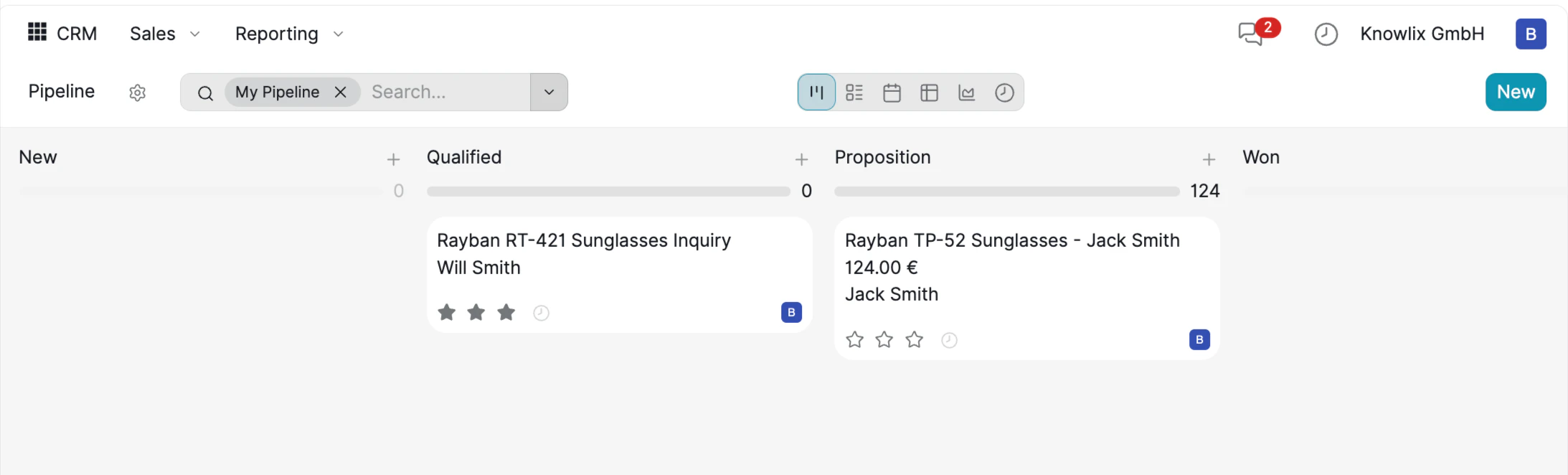
 The central dashboard organizes your active deals into a Kanban board with four stages: **New**, **Qualified**, **Proposition**, and **Won**. Each card shows the lead title, expected revenue, and assigned customer. The progress bar at the top of each column indicates the total value of deals in that stage.
* **Pipeline Cards**: Click any card to open the full lead detail view.
* **My Pipeline Filter**: Use the **My Pipeline** tag in the search bar to see only leads assigned to you.
* **View Options**: Switch between Kanban, List, Calendar, Pivot, Graph, and Activity views using the toolbar icons.
## Creating Leads with AI
One of Knowlix's most powerful features is the **Ask your Knowlix** AI assistant. Instead of filling out forms manually, describe what you need in natural language and the AI handles everything.
The central dashboard organizes your active deals into a Kanban board with four stages: **New**, **Qualified**, **Proposition**, and **Won**. Each card shows the lead title, expected revenue, and assigned customer. The progress bar at the top of each column indicates the total value of deals in that stage.
* **Pipeline Cards**: Click any card to open the full lead detail view.
* **My Pipeline Filter**: Use the **My Pipeline** tag in the search bar to see only leads assigned to you.
* **View Options**: Switch between Kanban, List, Calendar, Pivot, Graph, and Activity views using the toolbar icons.
## Creating Leads with AI
One of Knowlix's most powerful features is the **Ask your Knowlix** AI assistant. Instead of filling out forms manually, describe what you need in natural language and the AI handles everything.
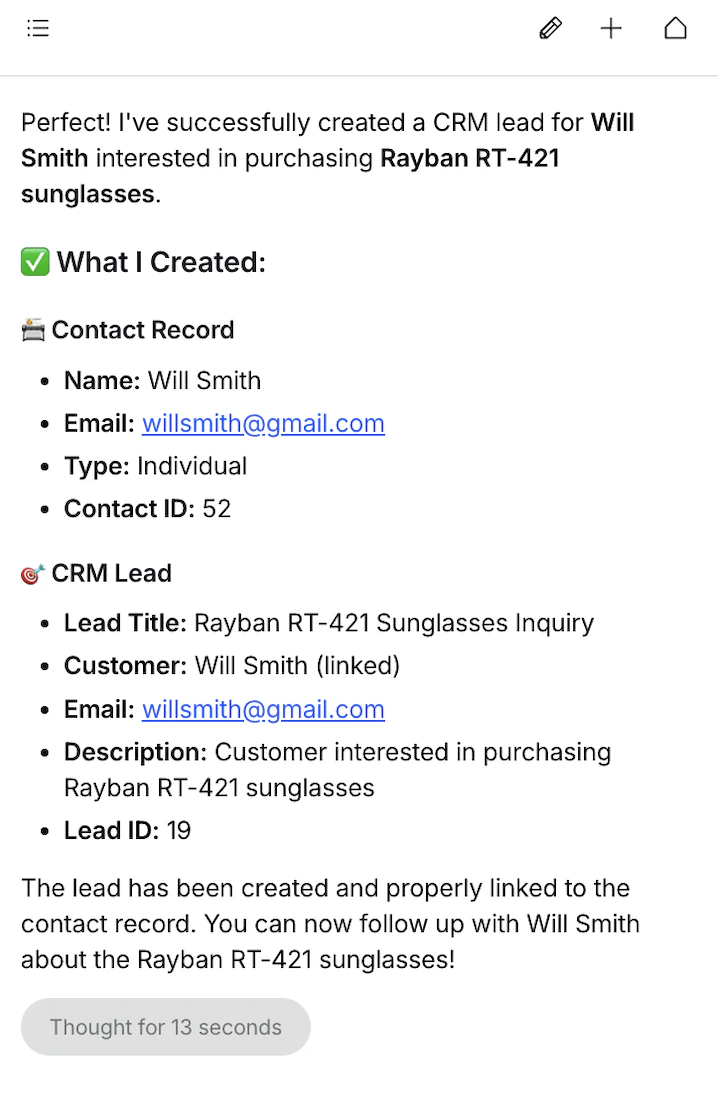
The AI identifies and creates:
* **Contact Record**: Name, email, type (Individual/Company), and a unique Contact ID.
* **CRM Lead**: Lead title, linked customer, product interest, description, and Lead ID.
The system checks for existing contacts to avoid duplicates. If the contact already exists, it links the new lead to the existing record instead of creating a duplicate.
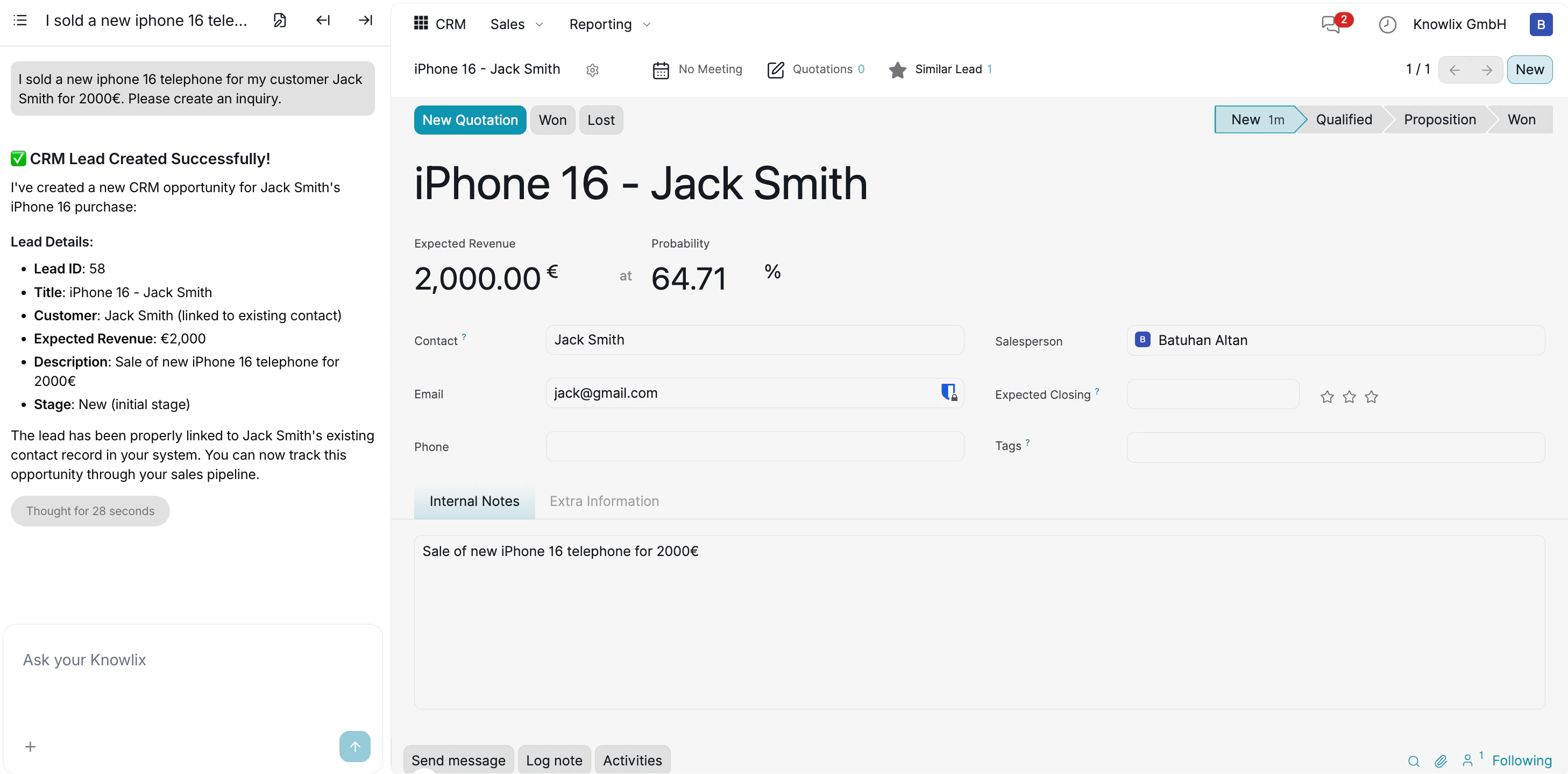 After the AI creates the lead, you land on the lead detail view. The left panel displays the assistant's summary — Lead ID, title, customer, expected revenue, description, and current stage. The right panel shows the full lead form where you can review and edit:
* **Contact & Email**: The linked customer and their contact details.
* **Salesperson**: Automatically assigned to you, editable if needed.
* **Expected Closing**: Set a target close date for pipeline forecasting.
* **Stage Bar**: The breadcrumb at the top right (**New** → **Qualified** → **Proposition** → **Won**) shows exactly where this deal stands.
* **Internal Notes**: The AI auto-fills a description based on your original message.
At the bottom, use **Send message**, **Log note**, or **Activities** to collaborate with your team on this lead.
After the AI creates the lead, you land on the lead detail view. The left panel displays the assistant's summary — Lead ID, title, customer, expected revenue, description, and current stage. The right panel shows the full lead form where you can review and edit:
* **Contact & Email**: The linked customer and their contact details.
* **Salesperson**: Automatically assigned to you, editable if needed.
* **Expected Closing**: Set a target close date for pipeline forecasting.
* **Stage Bar**: The breadcrumb at the top right (**New** → **Qualified** → **Proposition** → **Won**) shows exactly where this deal stands.
* **Internal Notes**: The AI auto-fills a description based on your original message.
At the bottom, use **Send message**, **Log note**, or **Activities** to collaborate with your team on this lead.
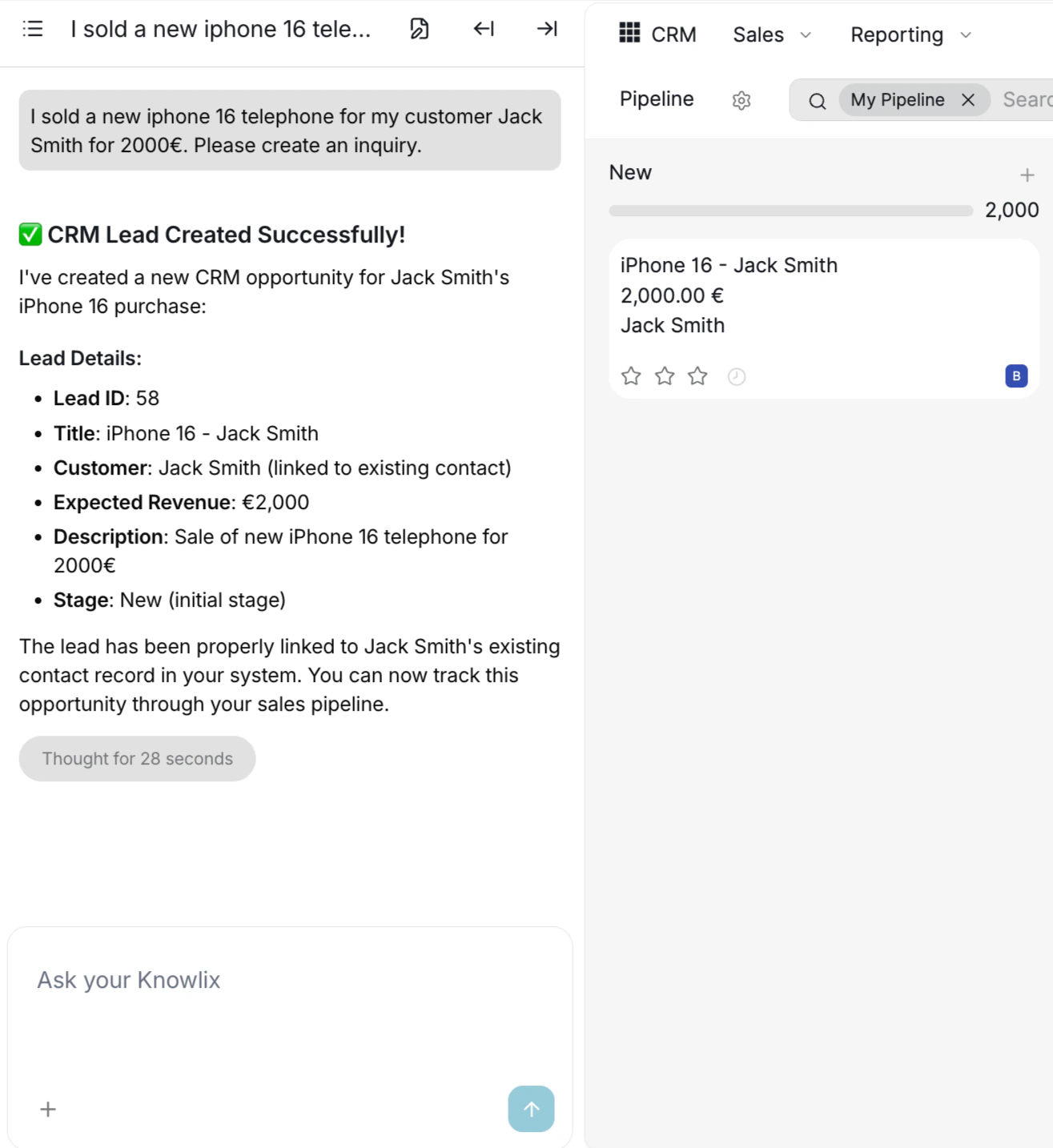 The new lead card appears immediately in the **New** column of your pipeline. You can see the lead title, expected revenue (2,000.00 €), and customer name right on the card — confirming the AI successfully processed your request.
## Progressing through the Pipeline
Track your deals visually by dragging cards between columns or using the stage bar within the lead detail view.
The new lead card appears immediately in the **New** column of your pipeline. You can see the lead title, expected revenue (2,000.00 €), and customer name right on the card — confirming the AI successfully processed your request.
## Progressing through the Pipeline
Track your deals visually by dragging cards between columns or using the stage bar within the lead detail view.
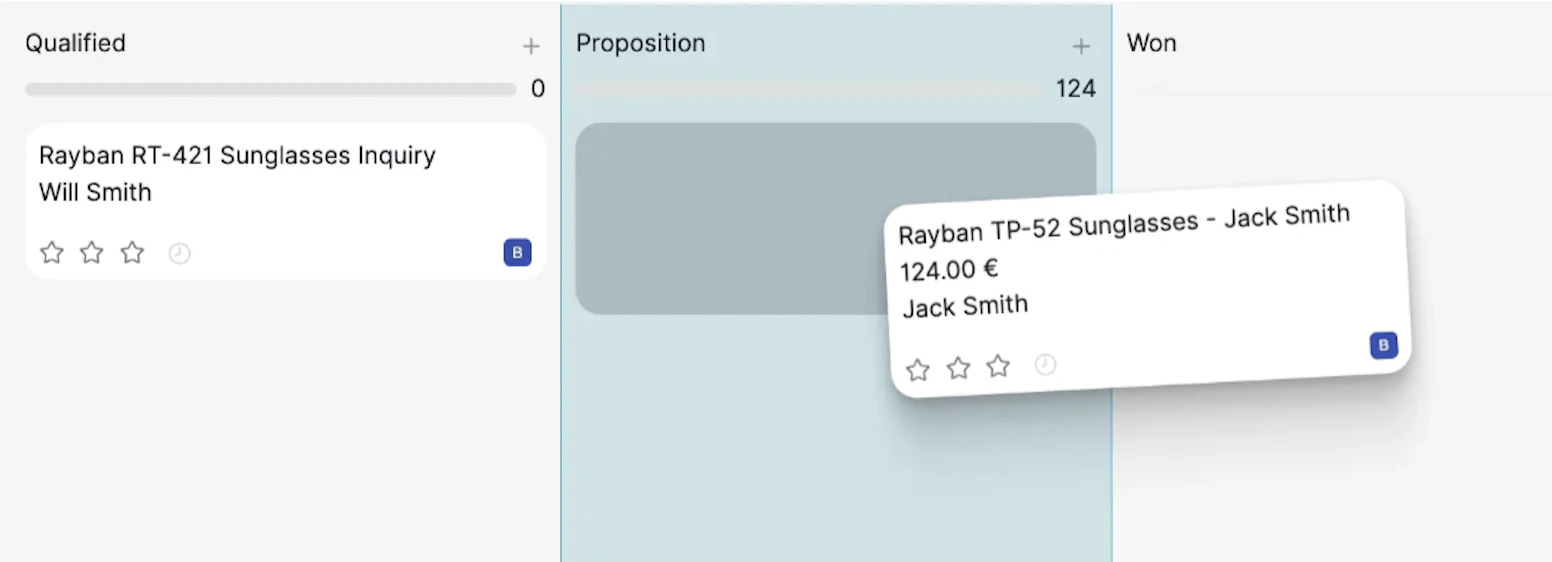 Drag a deal card from one stage to another — for example from **Qualified** to **Proposition**. The highlighted column indicates the target stage. As the deal moves forward, the expected revenue and probability update accordingly.
## Closing the Deal
### Marking as Won
Drag a deal card from one stage to another — for example from **Qualified** to **Proposition**. The highlighted column indicates the target stage. As the deal moves forward, the expected revenue and probability update accordingly.
## Closing the Deal
### Marking as Won
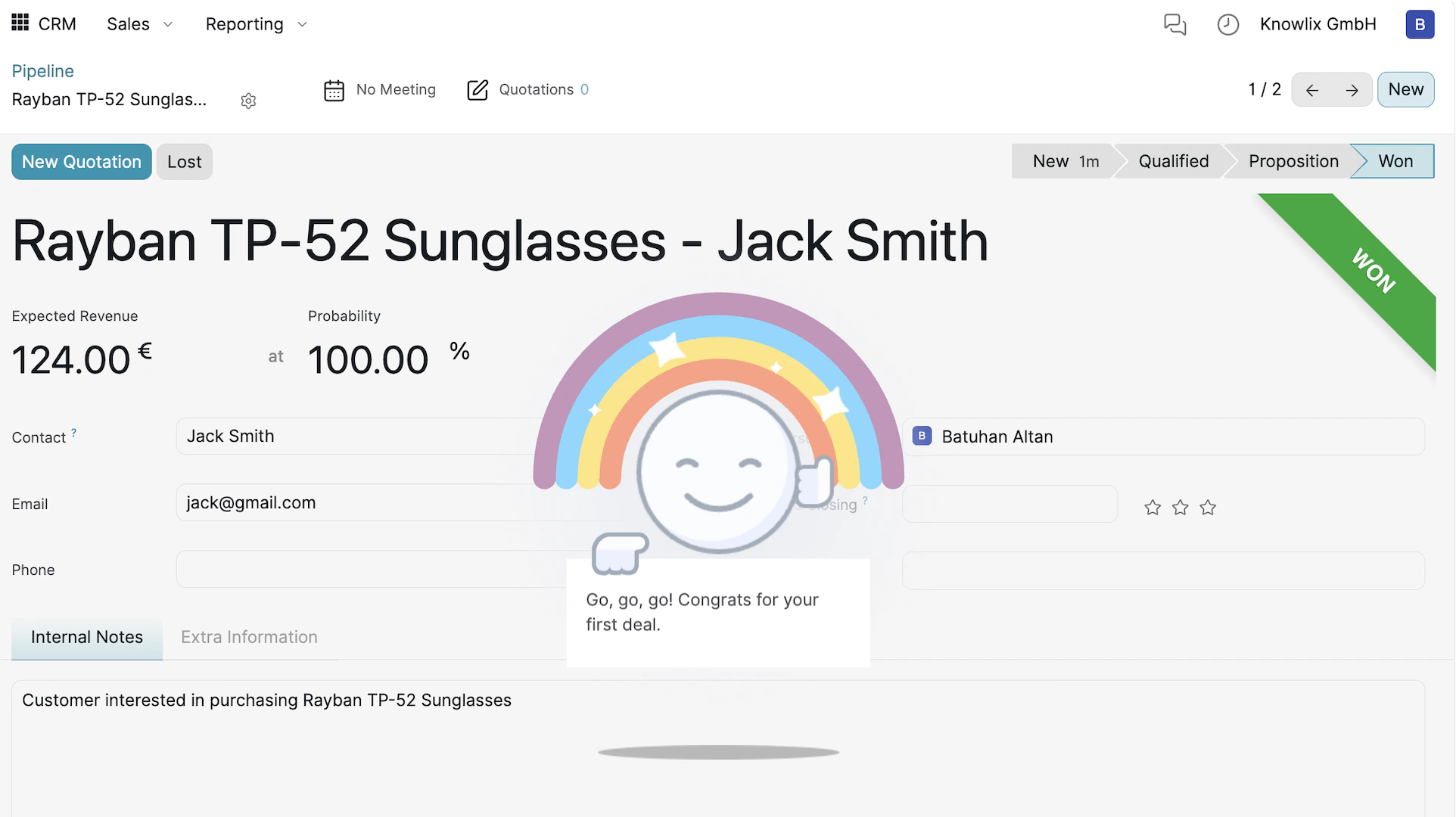 When a sale is finalized, click the **Won** button in the stage bar. Knowlix celebrates the win with a rainbow animation and a "Congrats for your first deal!" message. The green **WON** badge appears in the top-right corner, and the probability updates to **100.00%**.
### Marking as Lost
If a deal doesn't work out, click the **Lost** button. A dialog appears where you can select a **Lost Reason** from the dropdown and add a **Closing Note** describing what went wrong. Click **Mark as Lost** to archive the opportunity. This data helps you analyze why deals are lost and improve your approach over time.
## Importing Records
When a sale is finalized, click the **Won** button in the stage bar. Knowlix celebrates the win with a rainbow animation and a "Congrats for your first deal!" message. The green **WON** badge appears in the top-right corner, and the probability updates to **100.00%**.
### Marking as Lost
If a deal doesn't work out, click the **Lost** button. A dialog appears where you can select a **Lost Reason** from the dropdown and add a **Closing Note** describing what went wrong. Click **Mark as Lost** to archive the opportunity. This data helps you analyze why deals are lost and improve your approach over time.
## Importing Records
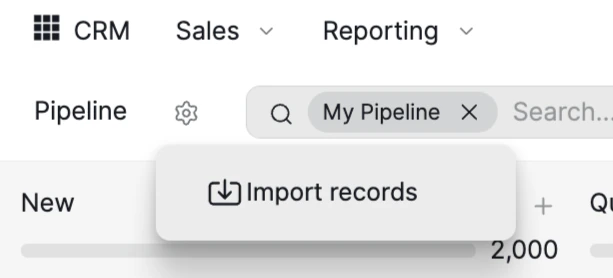 To bulk-import leads or contacts, click the **gear icon** next to the Pipeline header and select **Import records**. Upload a CSV or Excel file with your existing data to populate the pipeline instantly — no need to create entries one by one.
## Reporting & Lead Analytics
To bulk-import leads or contacts, click the **gear icon** next to the Pipeline header and select **Import records**. Upload a CSV or Excel file with your existing data to populate the pipeline instantly — no need to create entries one by one.
## Reporting & Lead Analytics
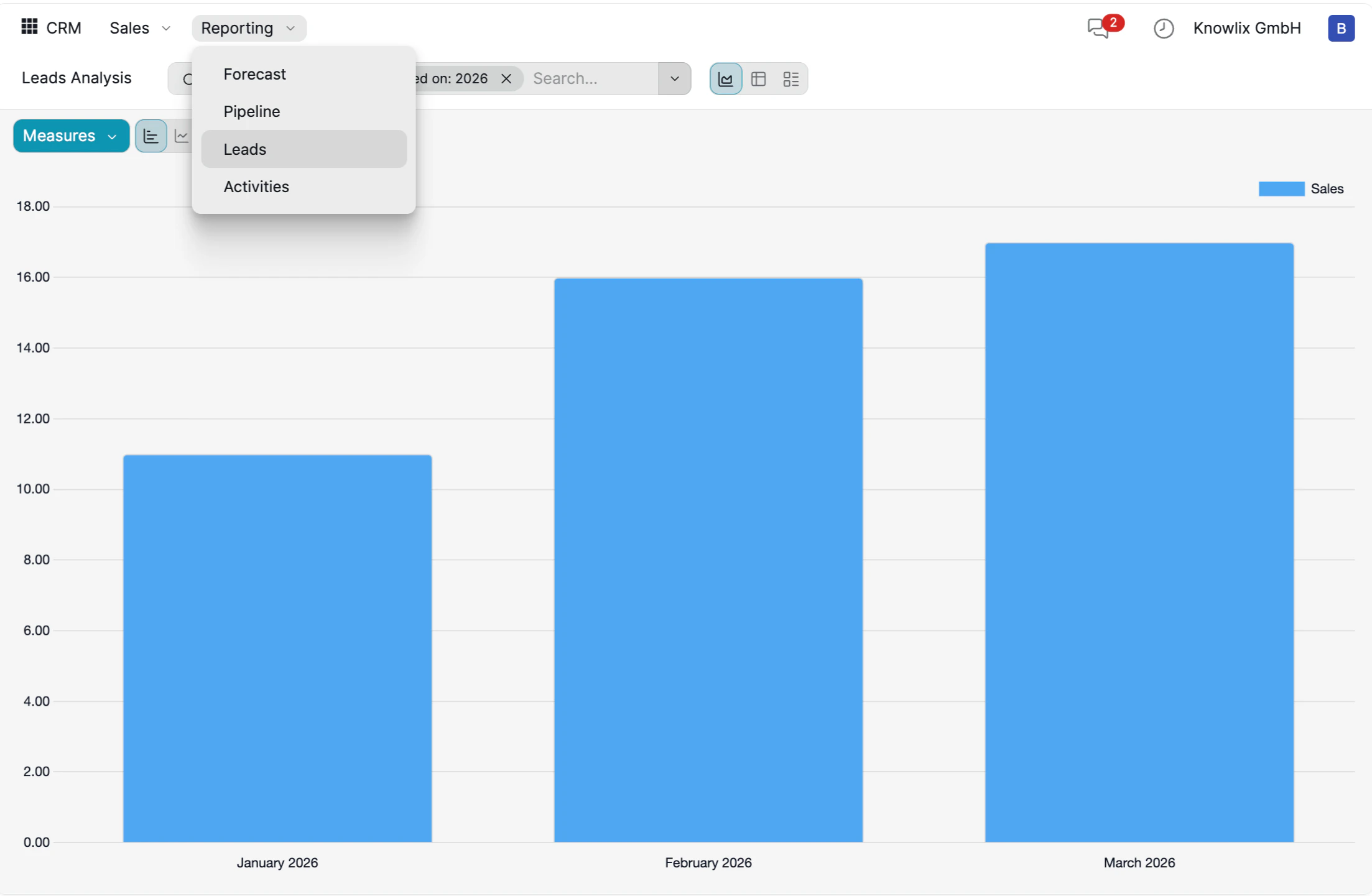 Navigate to **Reporting** in the top menu to access built-in analytics. The **Leads Analysis** dashboard displays your lead volume as a bar chart grouped by month. Use the **Reporting** dropdown to switch between report types:
* **Forecast**: Projected revenue based on pipeline stage and probability.
* **Pipeline**: Distribution of deals across stages.
* **Leads**: Total number of leads created over time.
* **Activities**: Follow-up actions like calls, emails, and meetings.
You can filter by year, salesperson, or team to drill into specific performance metrics.
## Customizing Your Workspace
* **Flexible Layouts**: Switch between a visual **Kanban (Grid)** pipeline and a detailed **List View** to see more data at once.
* **Powerful Filtering**: Use the filter menu to drill down into **My Pipeline**, **Unassigned** leads, or **Open Opportunities**.
* **Advanced Grouping**: Group your deals by **Salesperson**, **Sales Team**, **City**, **Country**, **Lost Reason**, **Campaign**, **Medium**, or **Source** to analyze where your best business is coming from.
* **Communication Shortcuts**: In List View, you can trigger **Email** or **SMS** follow-ups directly from the dashboard without opening each lead.
***
## More Information
Navigate to **Reporting** in the top menu to access built-in analytics. The **Leads Analysis** dashboard displays your lead volume as a bar chart grouped by month. Use the **Reporting** dropdown to switch between report types:
* **Forecast**: Projected revenue based on pipeline stage and probability.
* **Pipeline**: Distribution of deals across stages.
* **Leads**: Total number of leads created over time.
* **Activities**: Follow-up actions like calls, emails, and meetings.
You can filter by year, salesperson, or team to drill into specific performance metrics.
## Customizing Your Workspace
* **Flexible Layouts**: Switch between a visual **Kanban (Grid)** pipeline and a detailed **List View** to see more data at once.
* **Powerful Filtering**: Use the filter menu to drill down into **My Pipeline**, **Unassigned** leads, or **Open Opportunities**.
* **Advanced Grouping**: Group your deals by **Salesperson**, **Sales Team**, **City**, **Country**, **Lost Reason**, **Campaign**, **Medium**, or **Source** to analyze where your best business is coming from.
* **Communication Shortcuts**: In List View, you can trigger **Email** or **SMS** follow-ups directly from the dashboard without opening each lead.
***
## More Information