> ## Documentation Index
> Fetch the complete documentation index at: https://docs.knowlix.ai/llms.txt
> Use this file to discover all available pages before exploring further.
# AI POS
> Intelligent point of sale system with fast checkout, offline mode, and real-time inventory sync
Knowlix AI POS (Point of Sale) transforms retail operations with an intelligent, cloud-based system that processes transactions, manages inventory, and provides real-time insights—all while working seamlessly online and offline.
The AI POS module provides:
* **Fast Checkout:** Process transactions in seconds
* **Offline Mode:** Continue selling without internet connection
* **Inventory Sync:** Real-time stock updates across all locations
* **Multiple Payment Methods:** Cash, card, mobile wallets, contactless
* **Customer Management:** Track purchase history and loyalty programs
* **Sales Analytics:** AI-powered insights into patterns and trends
***
## Setting Up Your POS
Configure hardware and software for optimal performance.
**Hardware Requirements:**
* **Tablet or Computer:** iPad, Android tablet, or Windows PC
* **Receipt Printer:** Thermal printer (Star Micronics, Epson TM-series)
* **Barcode Scanner:** Handheld or presentation scanner (optional)
* **Card Reader:** Stripe Terminal, Square Reader, or Clover
**Software Installation:**
* Navigate to **Settings** → **POS** → **Download POS Application**
* Choose platform and sign in
* Name the terminal (e.g., "Register 1")
### Choosing Your Store Type
When you first set up your POS, you'll be prompted to choose a store type with sample products or create your own from scratch.
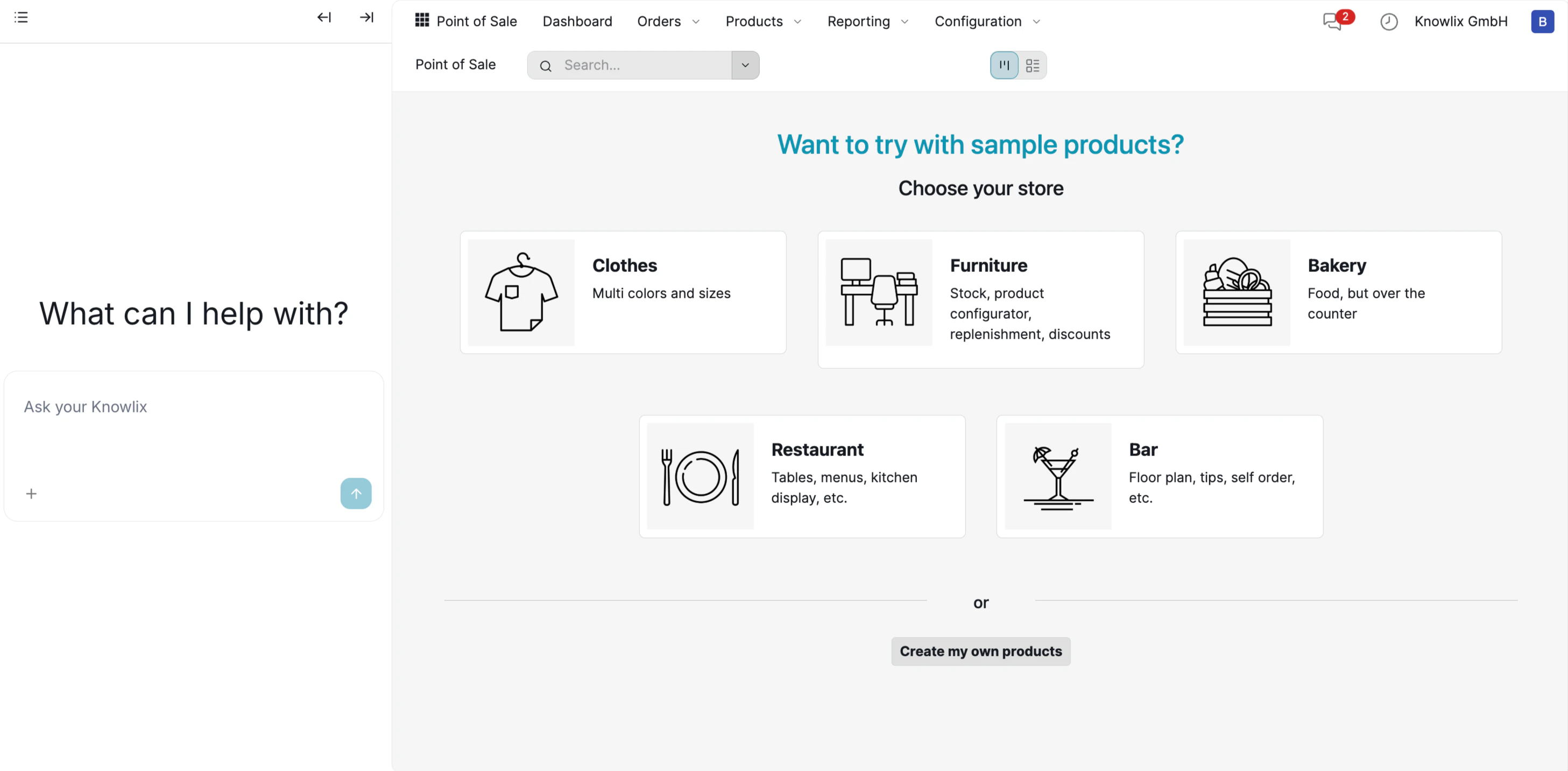 Select from pre-configured templates:
* **Clothes:** Multi colors and sizes with variants
* **Furniture:** Stock management, product configurator, replenishment
* **Bakery:** Food items, over-the-counter service
* **Restaurant:** Tables, menus, kitchen display integration
* **Bar:** Floor plan, tips, self-order capabilities
Or click **Create my own products** to start with a blank catalog and build your inventory manually.
**Payment Processing:**
* Connect payment processor: Stripe, Square, PayPal
* Pair card reader via Bluetooth
* Test swipe, chip, and tap payments
***
## Table Management (Restaurant Mode)
For restaurants and bars, AI POS includes a visual floor plan to manage tables and seating.
Select from pre-configured templates:
* **Clothes:** Multi colors and sizes with variants
* **Furniture:** Stock management, product configurator, replenishment
* **Bakery:** Food items, over-the-counter service
* **Restaurant:** Tables, menus, kitchen display integration
* **Bar:** Floor plan, tips, self-order capabilities
Or click **Create my own products** to start with a blank catalog and build your inventory manually.
**Payment Processing:**
* Connect payment processor: Stripe, Square, PayPal
* Pair card reader via Bluetooth
* Test swipe, chip, and tap payments
***
## Table Management (Restaurant Mode)
For restaurants and bars, AI POS includes a visual floor plan to manage tables and seating.
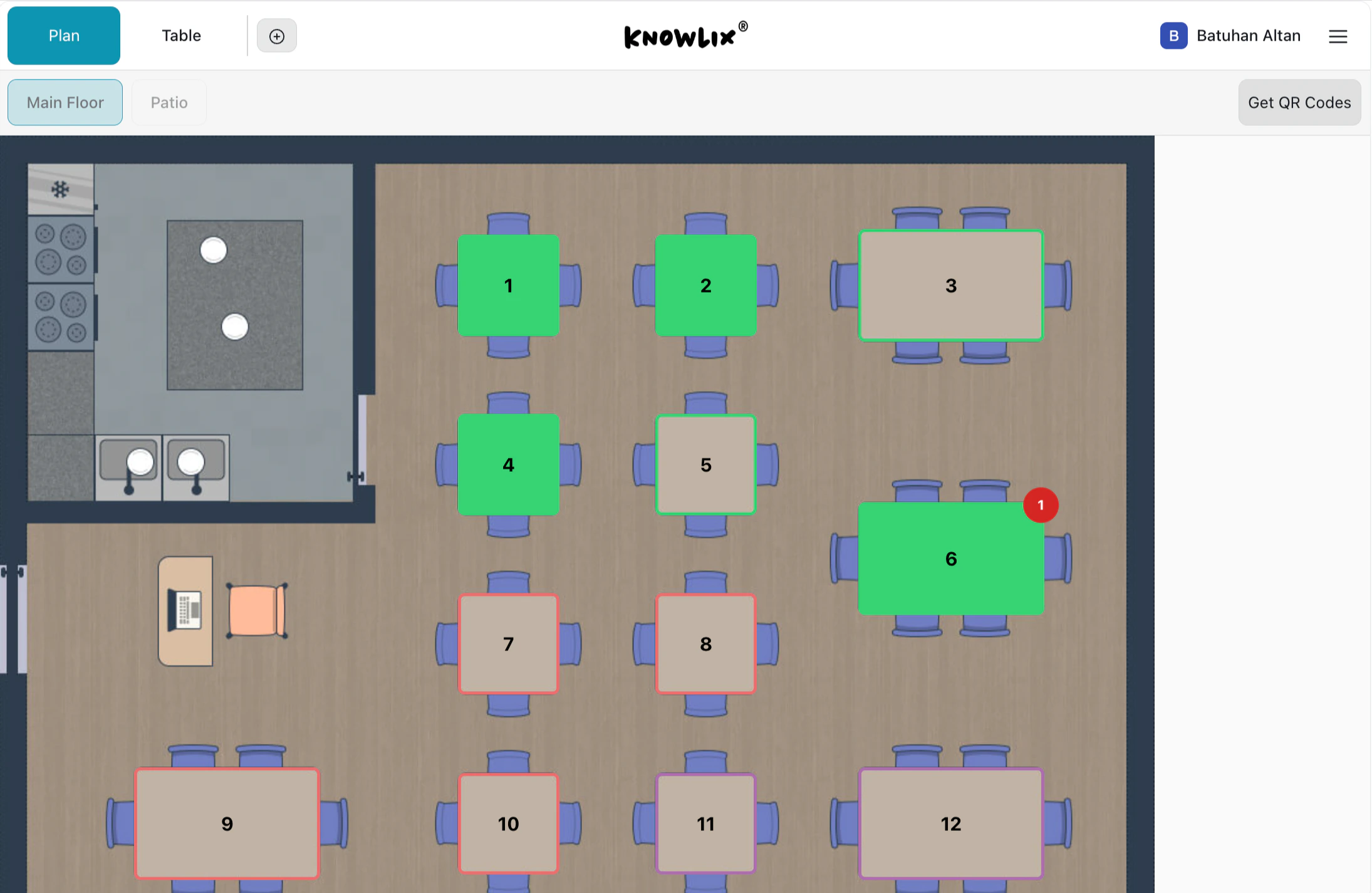 The floor plan view shows your entire restaurant layout:
* **Green tables:** Currently occupied with active orders
* **Grey tables:** Available for seating
* **Red border:** Requires attention (e.g., waiting for payment)
* **Numbered badges:** Table identifiers for easy reference
**Key Features:**
* Switch between **Plan** (visual) and **Table** (list) views
* Manage multiple floors (Main Floor, Patio, etc.)
* Click **Get QR Codes** to generate table-specific ordering codes
* Drag and drop to rearrange tables in edit mode
Click any table to open its order or start a new one.
***
## Product Management and Checkout
Set up products and process sales efficiently.
**Adding Products:**
* Click **Products** → **Add Product**
* Enter name, price, SKU, category, tax
* Bulk import via CSV
**Product Categories:**
* Create categories (Apparel, Electronics, Food)
* Categories appear as tiles in POS
* Assign colors for recognition
**Barcode Scanning:**
* Add barcode (UPC, EAN, SKU) to products
* Generate custom barcodes
* Scan to add items to cart
### Processing Sales
The main POS interface provides a fast, visual way to build orders.
The floor plan view shows your entire restaurant layout:
* **Green tables:** Currently occupied with active orders
* **Grey tables:** Available for seating
* **Red border:** Requires attention (e.g., waiting for payment)
* **Numbered badges:** Table identifiers for easy reference
**Key Features:**
* Switch between **Plan** (visual) and **Table** (list) views
* Manage multiple floors (Main Floor, Patio, etc.)
* Click **Get QR Codes** to generate table-specific ordering codes
* Drag and drop to rearrange tables in edit mode
Click any table to open its order or start a new one.
***
## Product Management and Checkout
Set up products and process sales efficiently.
**Adding Products:**
* Click **Products** → **Add Product**
* Enter name, price, SKU, category, tax
* Bulk import via CSV
**Product Categories:**
* Create categories (Apparel, Electronics, Food)
* Categories appear as tiles in POS
* Assign colors for recognition
**Barcode Scanning:**
* Add barcode (UPC, EAN, SKU) to products
* Generate custom barcodes
* Scan to add items to cart
### Processing Sales
The main POS interface provides a fast, visual way to build orders.
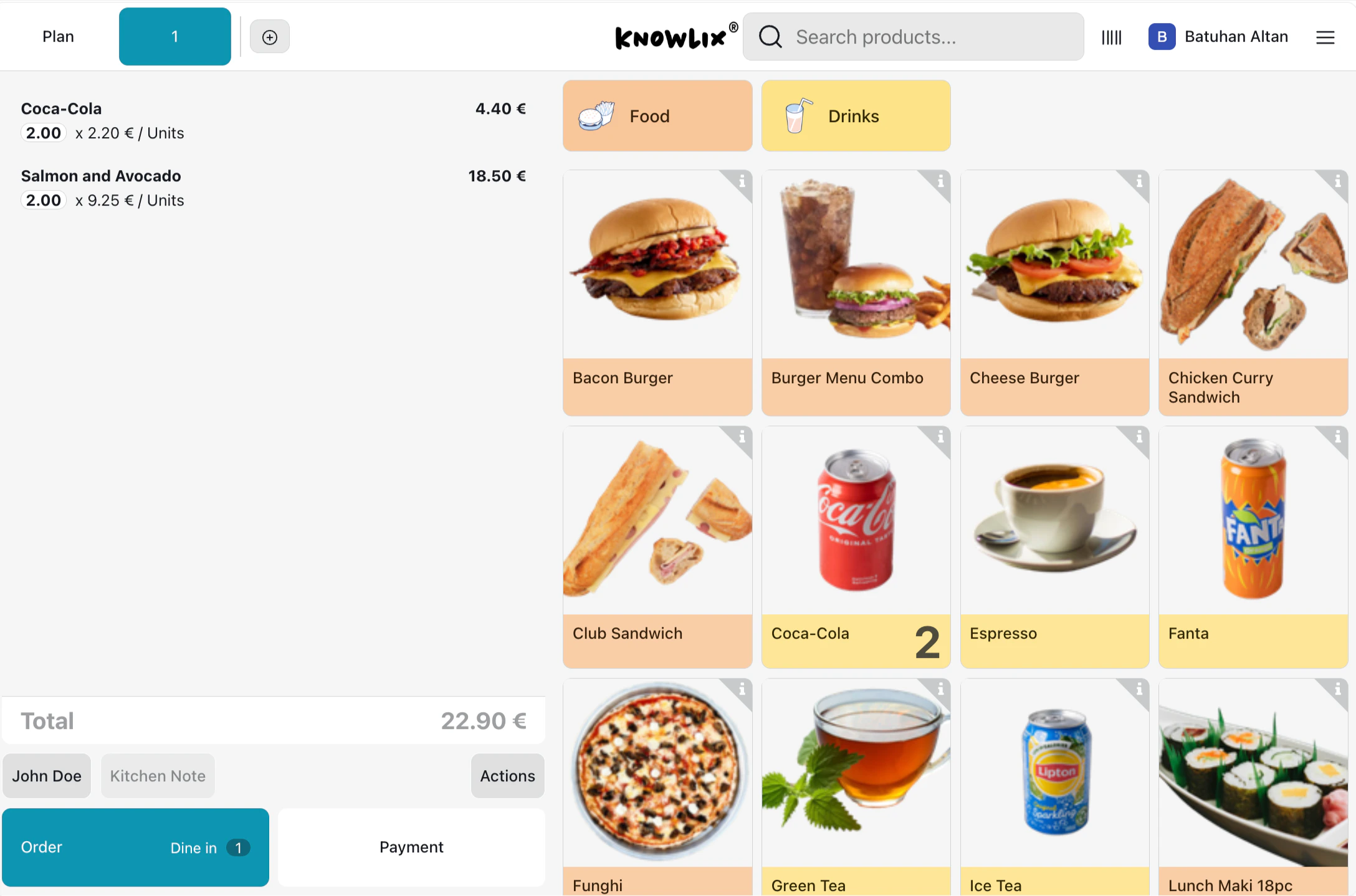 **Interface Layout:**
* **Left panel:** Current order with items, quantities, and running total
* **Top tabs:** Filter by category (Food, Drinks, etc.)
* **Product grid:** Visual tiles with images and prices
* **Search bar:** Find products quickly by name
**To process a sale:**
1. Tap product tiles to add items to the cart
2. Use **+/-** buttons to adjust quantities
3. Assign a customer name for the order
4. Select **Order**, **Dine in**, or go directly to **Payment**
### Product Customization
Many products support attribute selection for customization.
**Interface Layout:**
* **Left panel:** Current order with items, quantities, and running total
* **Top tabs:** Filter by category (Food, Drinks, etc.)
* **Product grid:** Visual tiles with images and prices
* **Search bar:** Find products quickly by name
**To process a sale:**
1. Tap product tiles to add items to the cart
2. Use **+/-** buttons to adjust quantities
3. Assign a customer name for the order
4. Select **Order**, **Dine in**, or go directly to **Payment**
### Product Customization
Many products support attribute selection for customization.
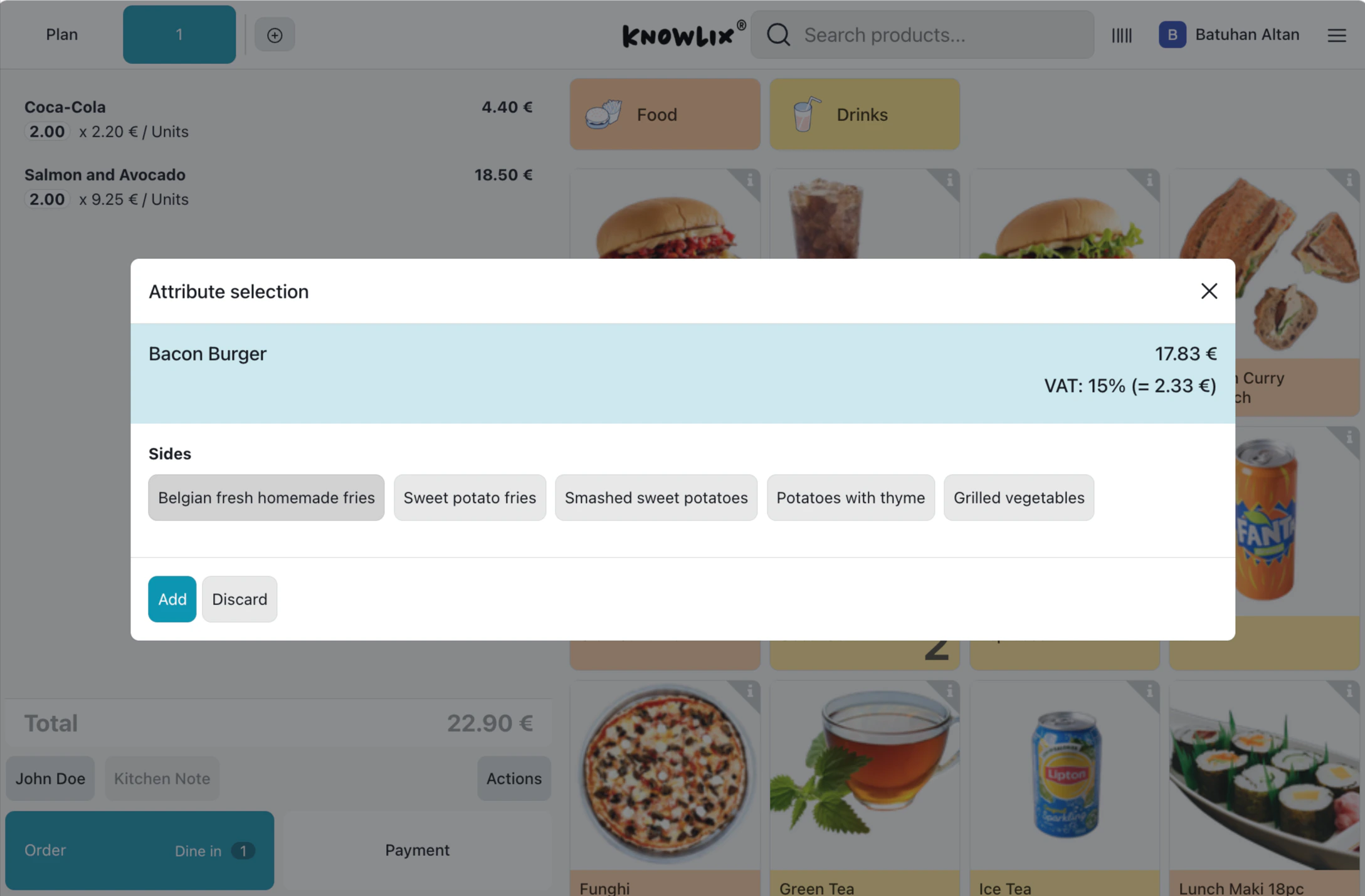 When you select a configurable product (like a burger with sides), a modal appears:
* View the base price and VAT breakdown
* Select from available options (e.g., Belgian fries, Sweet potato fries)
* Click **Add** to confirm or **Discard** to cancel
This ensures orders are accurate and kitchen staff receive complete instructions.
### Payment Processing
When ready to checkout, tap **Payment** to open the payment screen.
When you select a configurable product (like a burger with sides), a modal appears:
* View the base price and VAT breakdown
* Select from available options (e.g., Belgian fries, Sweet potato fries)
* Click **Add** to confirm or **Discard** to cancel
This ensures orders are accurate and kitchen staff receive complete instructions.
### Payment Processing
When ready to checkout, tap **Payment** to open the payment screen.
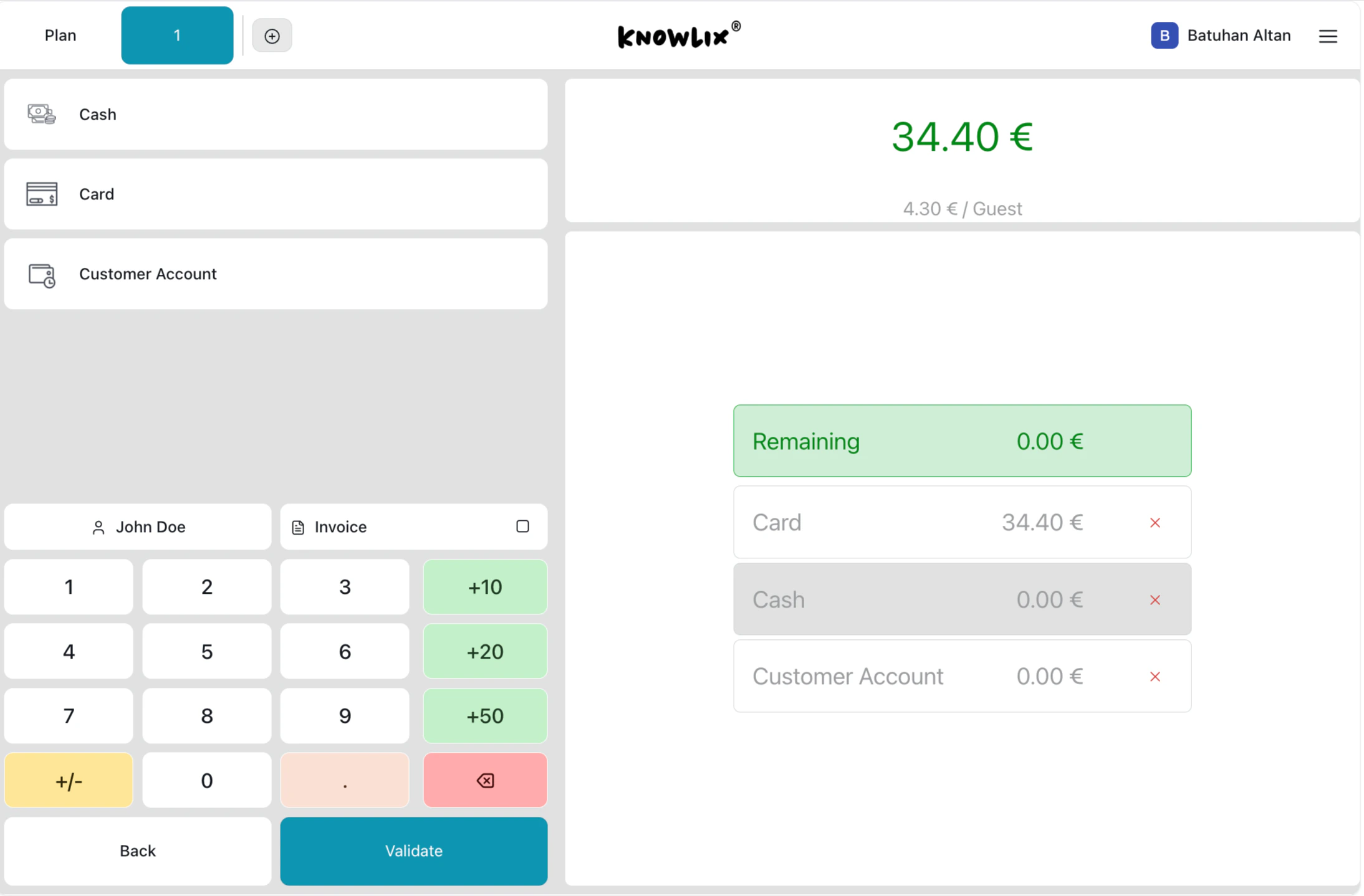 **Payment Methods:**
* **Cash:** Use the numeric keypad to enter amount received; system calculates change
* **Card:** Customer inserts, taps, or swipes on connected reader
* **Customer Account:** Charge to a customer's store credit or tab
**Payment Screen Features:**
* Total amount displayed prominently (e.g., 34.40€)
* **Remaining** shows outstanding balance
* Quick-add buttons (+10, +20, +50) for cash payments
* Split payments across multiple methods
* Click **Validate** to complete the transaction
**Receipt Options:**
* **Digital:** Email or SMS
* **Printed:** Automatic with branded template
***
## Managing Your POS
Access backend management options to configure and monitor your point of sale.
**Payment Methods:**
* **Cash:** Use the numeric keypad to enter amount received; system calculates change
* **Card:** Customer inserts, taps, or swipes on connected reader
* **Customer Account:** Charge to a customer's store credit or tab
**Payment Screen Features:**
* Total amount displayed prominently (e.g., 34.40€)
* **Remaining** shows outstanding balance
* Quick-add buttons (+10, +20, +50) for cash payments
* Split payments across multiple methods
* Click **Validate** to complete the transaction
**Receipt Options:**
* **Digital:** Email or SMS
* **Printed:** Automatic with branded template
***
## Managing Your POS
Access backend management options to configure and monitor your point of sale.
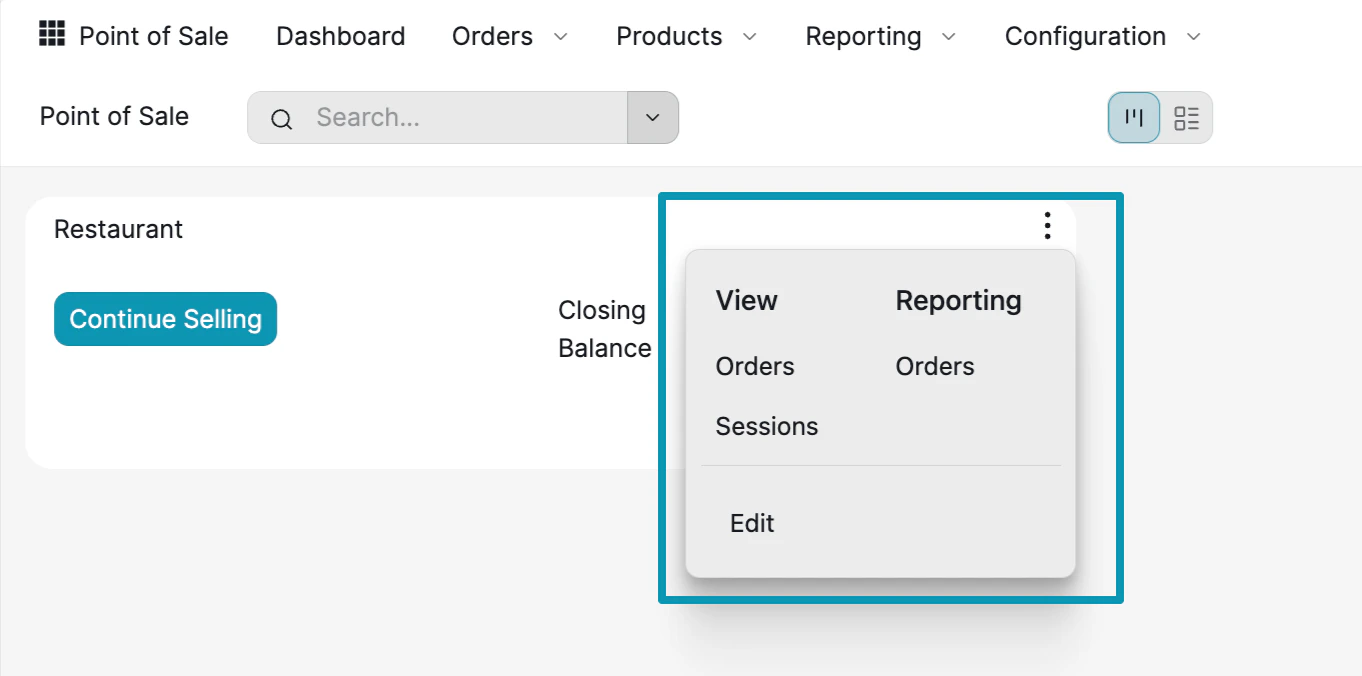 From the Point of Sale dashboard, click the **three-dot menu** on any POS to access:
**View:**
* **Orders:** See all orders processed through this POS
* **Sessions:** View cashier sessions with opening/closing balances
**Reporting:**
* **Orders:** Detailed order analytics and reports
**Edit:**
* Configure POS settings, payment methods, and receipt templates
***
## Customer Management and Analytics
Track customers and gain insights into your business performance.
**Customer Lookup:**
* Click **Customer** in cart
* Search by name, phone, email
* View purchase history and loyalty points
**Quick Customer Creation:**
* Click **New Customer** during checkout
* Customer syncs to CRM automatically
**Loyalty Programs:**
* Customers earn points on purchases
* Redeem points for discounts
* AI suggests personalized offers
**Real-Time Inventory:**
* Inventory decreases when sale completes
* Updates across all terminals and e-commerce
* Low stock warnings
* Works in offline mode (syncs when reconnected)
### Order History
View and manage all orders from the Orders screen.
From the Point of Sale dashboard, click the **three-dot menu** on any POS to access:
**View:**
* **Orders:** See all orders processed through this POS
* **Sessions:** View cashier sessions with opening/closing balances
**Reporting:**
* **Orders:** Detailed order analytics and reports
**Edit:**
* Configure POS settings, payment methods, and receipt templates
***
## Customer Management and Analytics
Track customers and gain insights into your business performance.
**Customer Lookup:**
* Click **Customer** in cart
* Search by name, phone, email
* View purchase history and loyalty points
**Quick Customer Creation:**
* Click **New Customer** during checkout
* Customer syncs to CRM automatically
**Loyalty Programs:**
* Customers earn points on purchases
* Redeem points for discounts
* AI suggests personalized offers
**Real-Time Inventory:**
* Inventory decreases when sale completes
* Updates across all terminals and e-commerce
* Low stock warnings
* Works in offline mode (syncs when reconnected)
### Order History
View and manage all orders from the Orders screen.
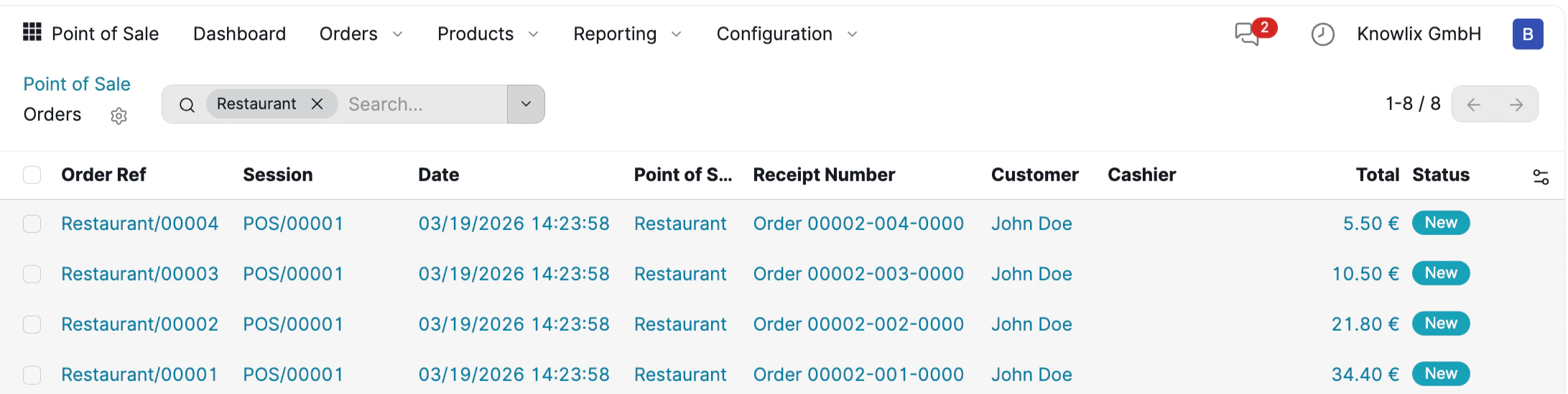 The orders table displays:
* **Order Ref:** Unique identifier (e.g., Restaurant/00004)
* **Session:** POS session ID
* **Date:** Transaction timestamp
* **Point of Sale:** Which terminal processed the order
* **Receipt Number:** For customer reference
* **Customer & Cashier:** Who was involved
* **Total:** Order amount
* **Status:** Current state (New, Paid, etc.)
Click any order to view details, reprint receipt, or process refunds.
### Sales Analytics
AI-powered analytics help you understand sales patterns and optimize operations.
The orders table displays:
* **Order Ref:** Unique identifier (e.g., Restaurant/00004)
* **Session:** POS session ID
* **Date:** Transaction timestamp
* **Point of Sale:** Which terminal processed the order
* **Receipt Number:** For customer reference
* **Customer & Cashier:** Who was involved
* **Total:** Order amount
* **Status:** Current state (New, Paid, etc.)
Click any order to view details, reprint receipt, or process refunds.
### Sales Analytics
AI-powered analytics help you understand sales patterns and optimize operations.
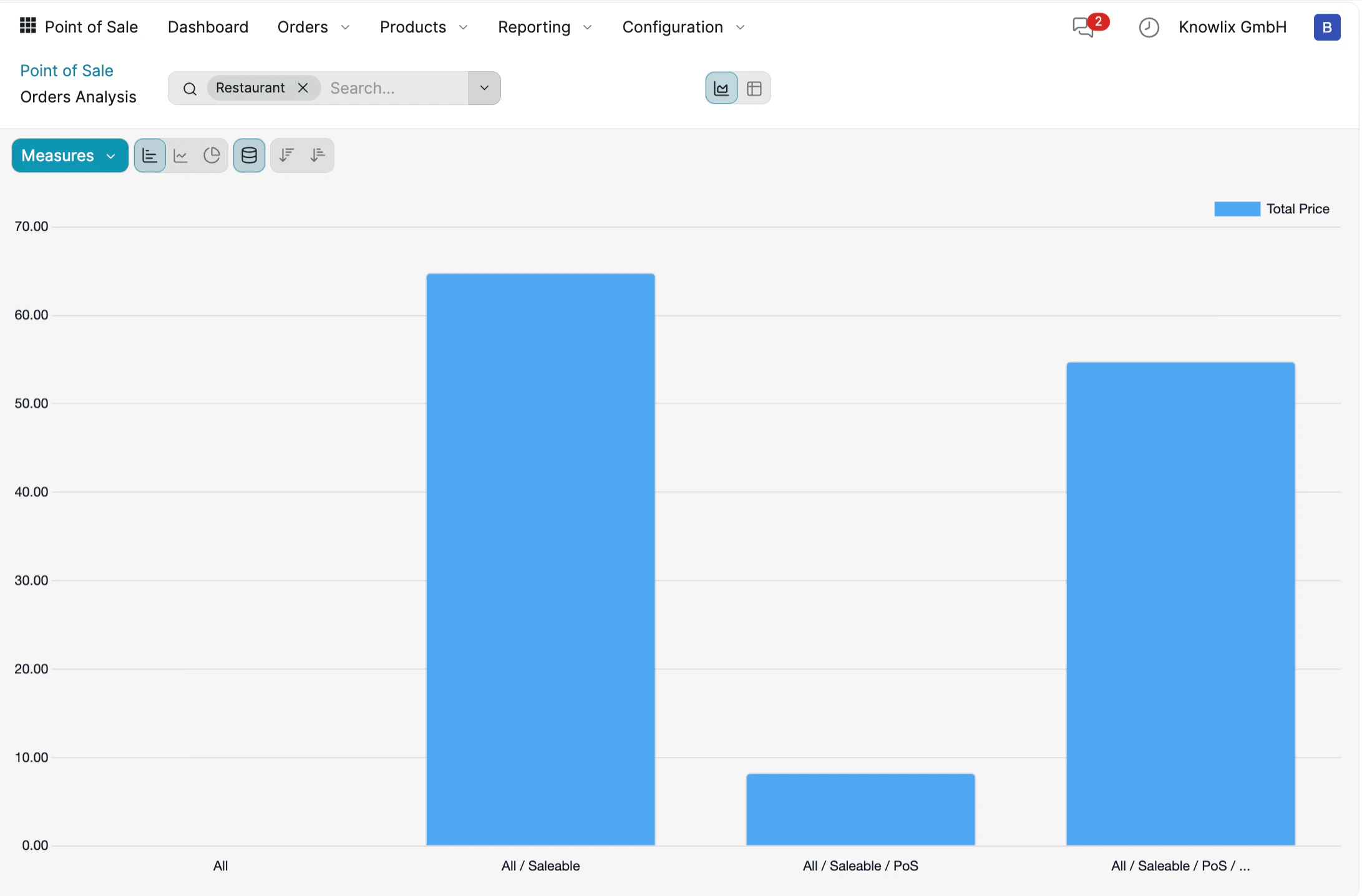 The Orders Analysis dashboard provides:
* **Visual charts:** Bar graphs showing sales by category
* **Measures dropdown:** Switch between Total Price, Quantity, Count
* **Filters:** Filter by POS location, date range, product category
* **Export options:** Download reports for further analysis
**AI Insights:**
* Today's revenue, transactions, average value
* Top-selling products
* Sales trends and hourly patterns
* AI predicts busy periods and suggests optimal pricing
***
## More Information
Retail sales and payment processing
AI assistant tips for the Sales module
The Orders Analysis dashboard provides:
* **Visual charts:** Bar graphs showing sales by category
* **Measures dropdown:** Switch between Total Price, Quantity, Count
* **Filters:** Filter by POS location, date range, product category
* **Export options:** Download reports for further analysis
**AI Insights:**
* Today's revenue, transactions, average value
* Top-selling products
* Sales trends and hourly patterns
* AI predicts busy periods and suggests optimal pricing
***
## More Information
Retail sales and payment processing
AI assistant tips for the Sales module