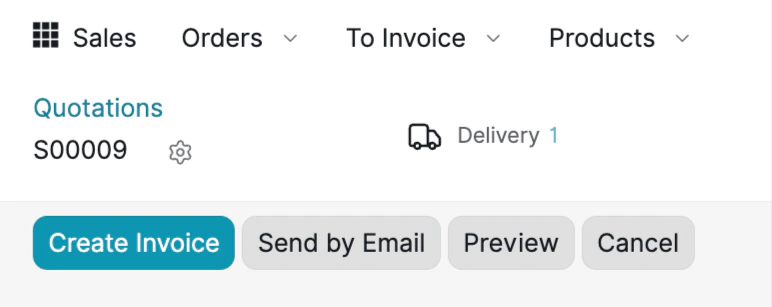
Once a quotation is confirmed as a Sales Order, you can create an invoice directly from the order view. At the top of the confirmed order, you will see action buttons.
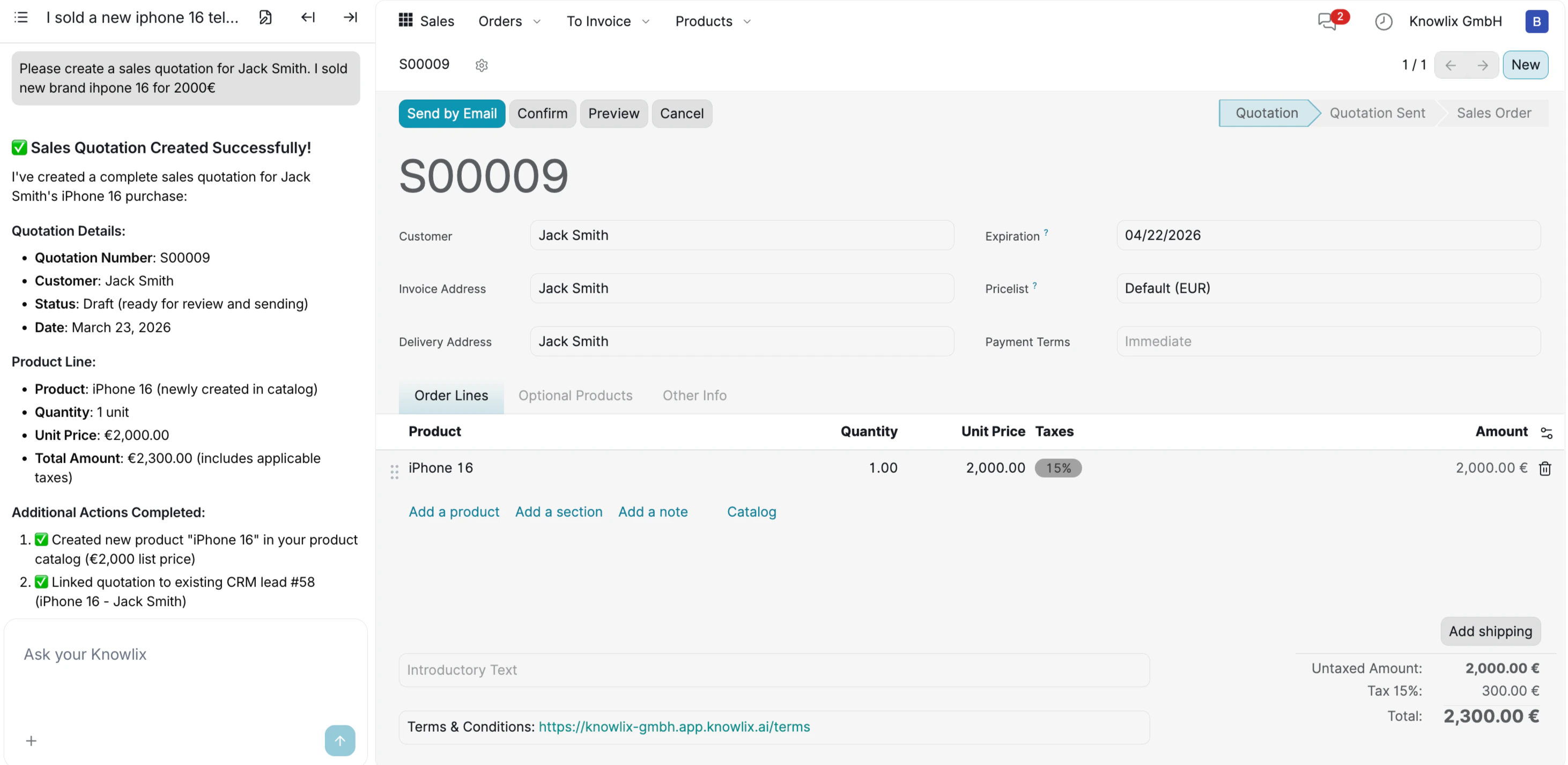 The AI processes your request and generates a complete quotation. The left panel shows a detailed summary of what was created:
* **Quotation Details**: Number (S00009), customer, status, and date.
* **Product Line**: Product name, quantity, unit price, and total amount including taxes.
* **Additional Actions**: The system automatically creates new products in your catalog and links the quotation to existing CRM leads.
The right panel displays the generated quotation form with all fields populated — Customer, Invoice Address, Delivery Address, Expiration date, Pricelist, and Payment Terms. The **Order Lines** tab shows each product with its quantity, unit price, tax rate (15%), and calculated amount. At the bottom, the Untaxed Amount, Tax, and Total are displayed.
You can click **Send by Email**, **Confirm**, **Preview**, or **Cancel** using the action buttons at the top.
## Managing Quotations
The AI processes your request and generates a complete quotation. The left panel shows a detailed summary of what was created:
* **Quotation Details**: Number (S00009), customer, status, and date.
* **Product Line**: Product name, quantity, unit price, and total amount including taxes.
* **Additional Actions**: The system automatically creates new products in your catalog and links the quotation to existing CRM leads.
The right panel displays the generated quotation form with all fields populated — Customer, Invoice Address, Delivery Address, Expiration date, Pricelist, and Payment Terms. The **Order Lines** tab shows each product with its quantity, unit price, tax rate (15%), and calculated amount. At the bottom, the Untaxed Amount, Tax, and Total are displayed.
You can click **Send by Email**, **Confirm**, **Preview**, or **Cancel** using the action buttons at the top.
## Managing Quotations
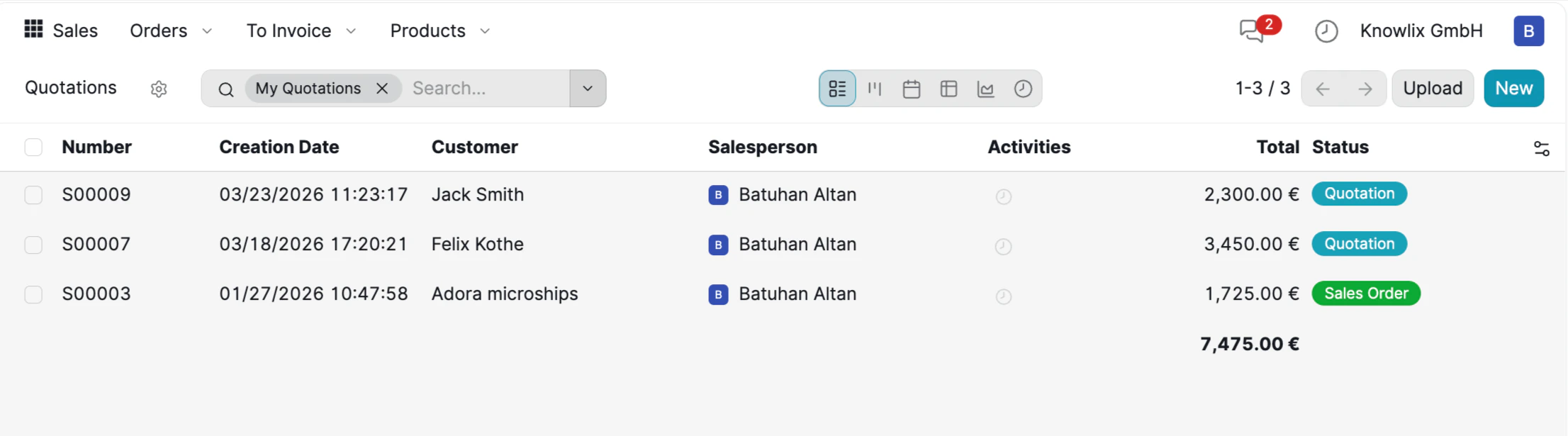 Navigate to **Orders** → **Quotations** to view all your sales quotes. The list displays each quotation's Number, Creation Date, Customer, Salesperson, Activities, Total amount, and Status. Use the **My Quotations** filter to see only your own quotes.
Each quotation is color-coded by status:
* **Quotation** (blue): Draft quotations ready for review or sending.
* **Sales Order** (green): Confirmed orders that have moved to the fulfillment stage.
Click any row to open the full quotation detail, or use the **Upload** button to import quotations from a file.
## From Order to Invoice
Navigate to **Orders** → **Quotations** to view all your sales quotes. The list displays each quotation's Number, Creation Date, Customer, Salesperson, Activities, Total amount, and Status. Use the **My Quotations** filter to see only your own quotes.
Each quotation is color-coded by status:
* **Quotation** (blue): Draft quotations ready for review or sending.
* **Sales Order** (green): Confirmed orders that have moved to the fulfillment stage.
Click any row to open the full quotation detail, or use the **Upload** button to import quotations from a file.
## From Order to Invoice
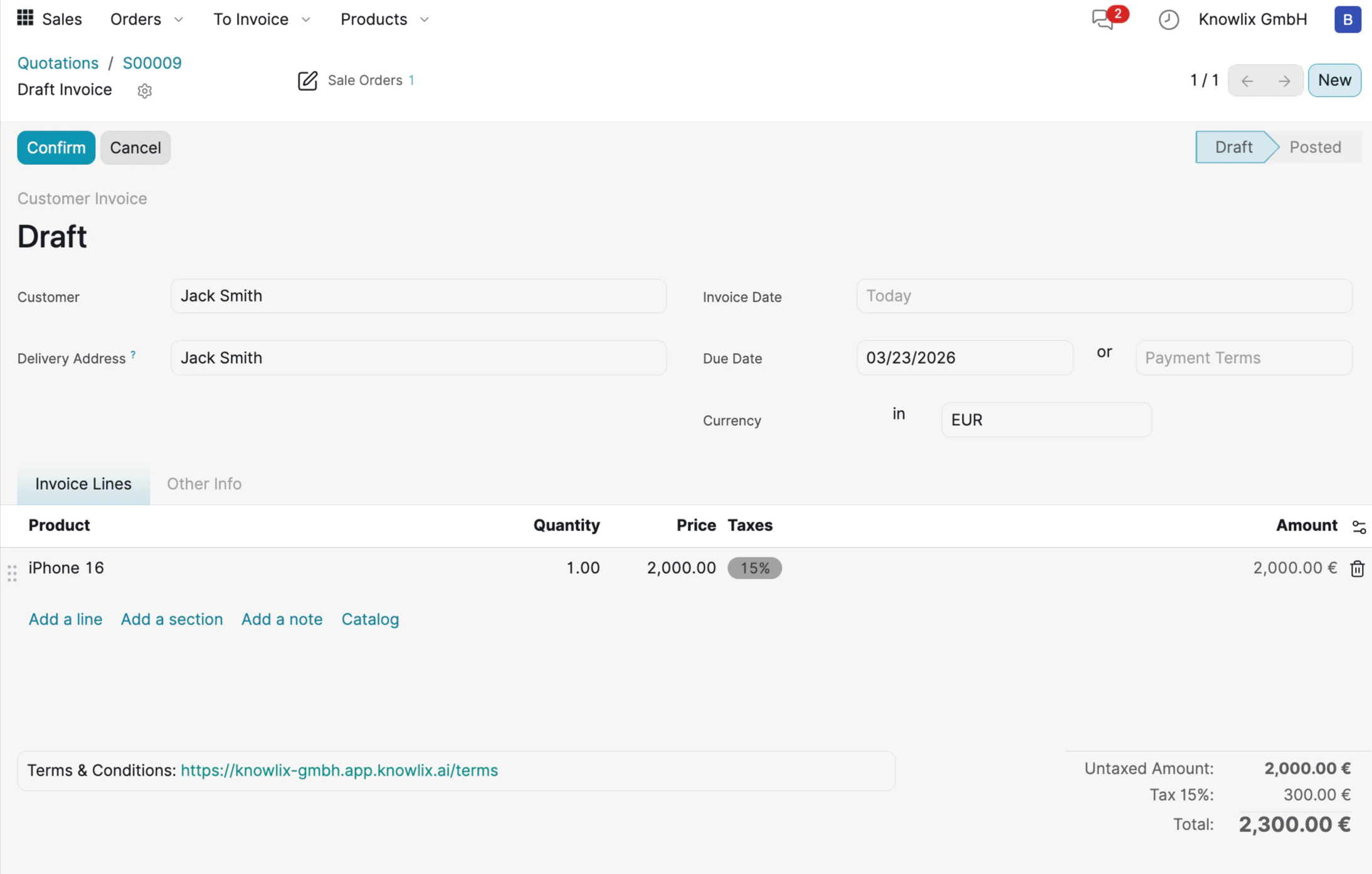 After clicking **Create Invoice**, you land on the Draft Invoice view. Here you can review all billing details before posting:
* **Customer & Address**: Customer name and delivery address.
* **Dates**: Invoice Date, Due Date, and optional Payment Terms.
* **Currency**: The invoice currency (EUR by default).
* **Invoice Lines**: Each product with quantity, price, tax rate, and calculated amount.
* **Totals**: Untaxed Amount, Tax breakdown, and final Total.
Use **Confirm** to post the invoice or **Cancel** to discard it. The status indicator in the top-right corner shows the current state (**Draft** → **Posted**).
## Preview Invoices
Before sending, click the **Preview** button to see exactly what your client will see in the Customer Portal.
After clicking **Create Invoice**, you land on the Draft Invoice view. Here you can review all billing details before posting:
* **Customer & Address**: Customer name and delivery address.
* **Dates**: Invoice Date, Due Date, and optional Payment Terms.
* **Currency**: The invoice currency (EUR by default).
* **Invoice Lines**: Each product with quantity, price, tax rate, and calculated amount.
* **Totals**: Untaxed Amount, Tax breakdown, and final Total.
Use **Confirm** to post the invoice or **Cancel** to discard it. The status indicator in the top-right corner shows the current state (**Draft** → **Posted**).
## Preview Invoices
Before sending, click the **Preview** button to see exactly what your client will see in the Customer Portal.
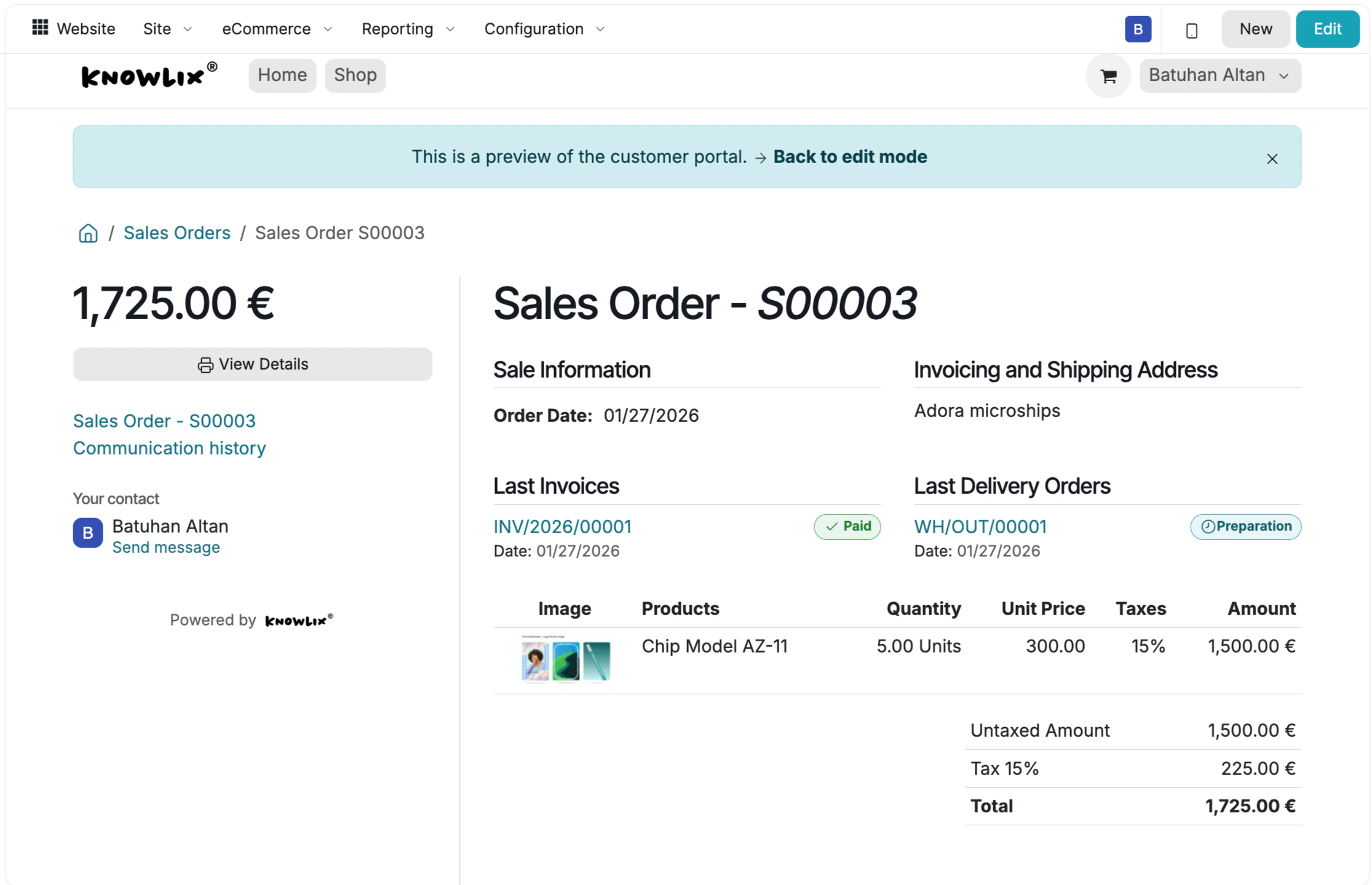 The Customer Portal displays the Sales Order with complete details:
* **Sale Information**: Order Date and Invoicing & Shipping Address.
* **Last Invoices**: Shows linked invoices with their payment status (Paid/Not Paid).
* **Last Delivery Orders**: Lists associated deliveries with preparation status.
* **Product Table**: Image, product name, quantity, unit price, taxes, and amount for each line item.
* **Totals**: Untaxed Amount, Tax, and final Total.
Click **Back to edit mode** to return to the workspace and make adjustments if needed.
## Send Invoices by Mail
Once your invoice is ready, click **Send by Email** to dispatch it to the customer.
The Customer Portal displays the Sales Order with complete details:
* **Sale Information**: Order Date and Invoicing & Shipping Address.
* **Last Invoices**: Shows linked invoices with their payment status (Paid/Not Paid).
* **Last Delivery Orders**: Lists associated deliveries with preparation status.
* **Product Table**: Image, product name, quantity, unit price, taxes, and amount for each line item.
* **Totals**: Untaxed Amount, Tax, and final Total.
Click **Back to edit mode** to return to the workspace and make adjustments if needed.
## Send Invoices by Mail
Once your invoice is ready, click **Send by Email** to dispatch it to the customer.
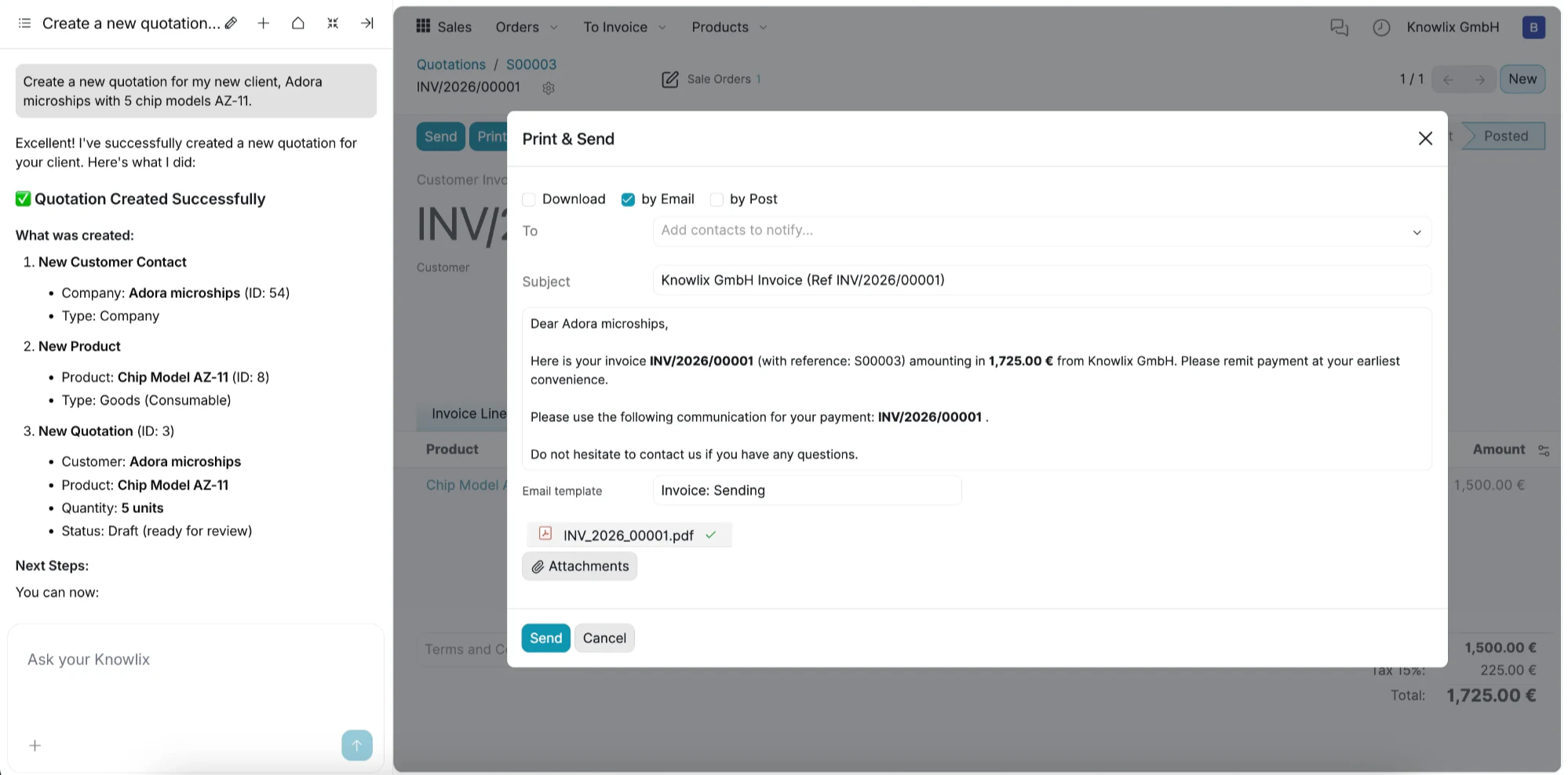 The **Print & Send** dialog lets you choose between **Download**, **by Email**, or **by Post**. The email is pre-filled with a professional message referencing the invoice number, amount, and company name. The invoice PDF is automatically attached. Simply review the message and click **Send**.
***
## More Information
The **Print & Send** dialog lets you choose between **Download**, **by Email**, or **by Post**. The email is pre-filled with a professional message referencing the invoice number, amount, and company name. The invoice PDF is automatically attached. Simply review the message and click **Send**.
***
## More Information