
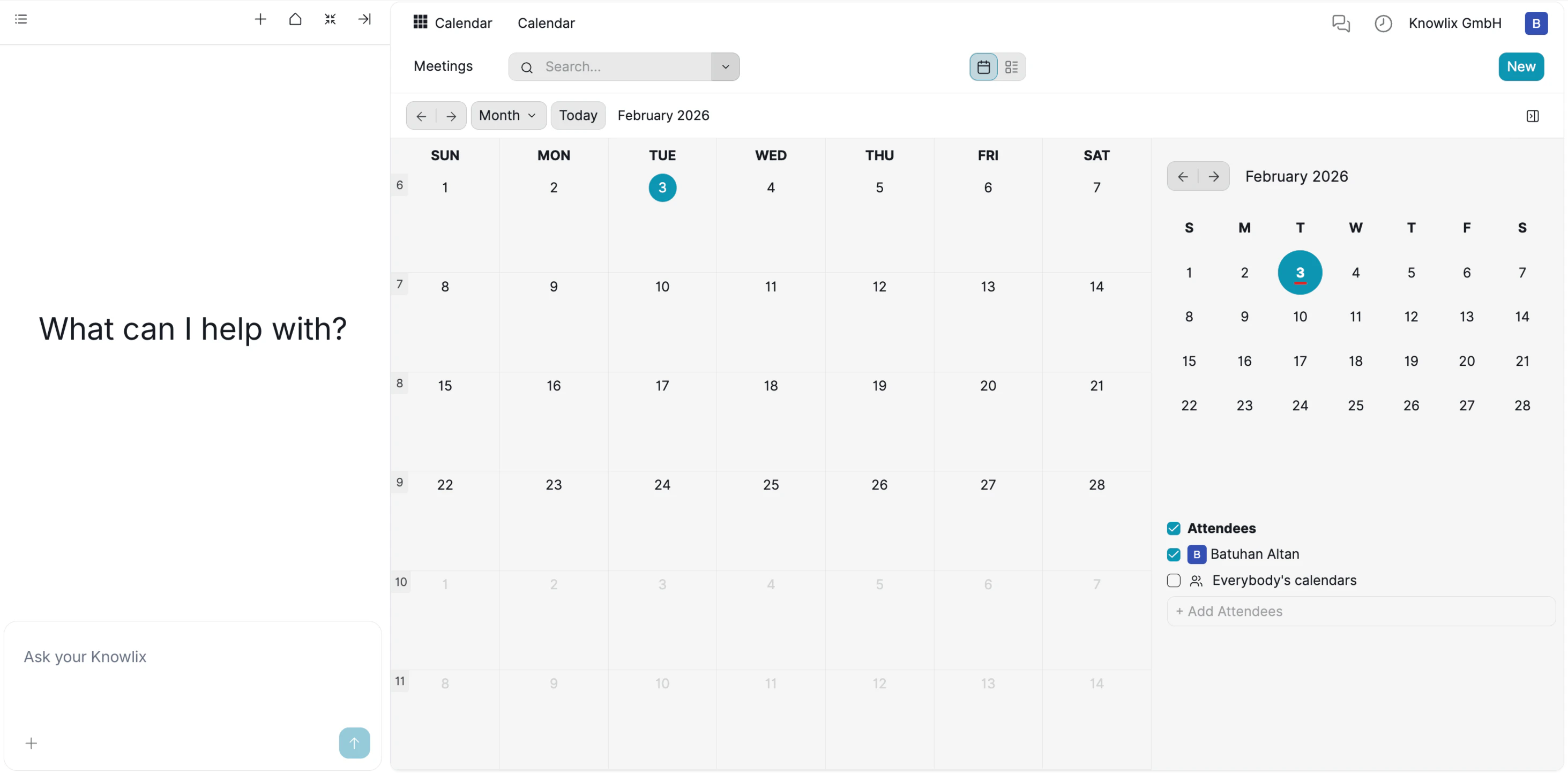
1. Calendar Interface Overview
The Workspace (Right Panel): A robust calendar view that supports Monthly, Weekly, and Daily perspectives. It allows you to visualize your schedule, filter by attendees (e.g., specific team members), and manage appointments via drag-and-drop. The Assistant (Left Panel): Your scheduling coordinator. Instead of manually hunting for open slots, you can instruct the AI to “Find time for a meeting” or “Reschedule my morning calls,” and watch the calendar update instantly. Key Capabilities:- Unified Scheduling: Manage client meetings, internal syncs, and deadlines in one place.
- Team Visibility: Filter views to see colleagues’ availability using the “Attendees” sidebar.
- Smart Coordination: Use the AI to draft meeting invites and check availability without leaving the chat.
2. Flexible Viewing Options
Knowlix provides versatile viewing modes to suit different planning needs, allowing you to zoom in for daily details or zoom out for long-term strategy. Switching Perspectives: By clicking the view dropdown menu in the top navigation bar, you can instantly toggle between four distinct layouts: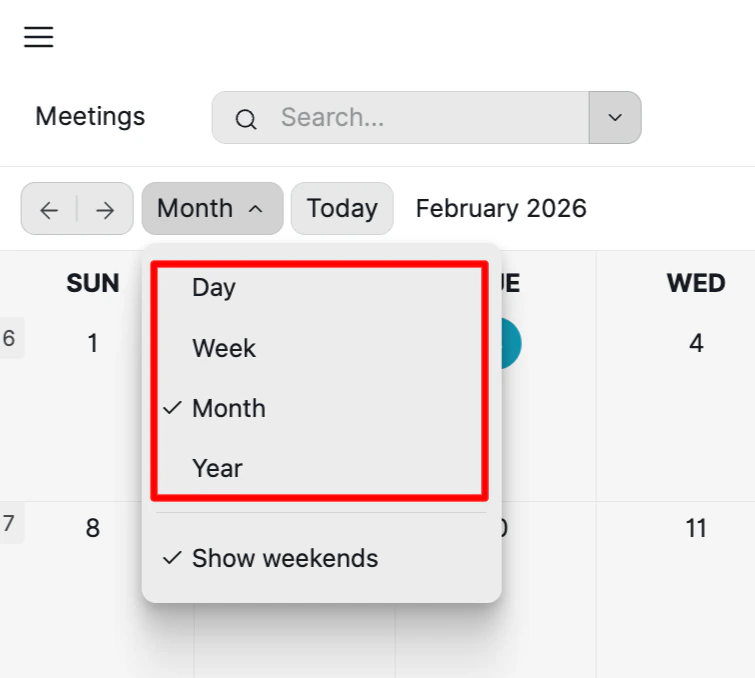
Day: A granular, hourly breakdown perfect for managing a packed schedule of back-to-back meetings.Week: The ideal view for balancing workload and coordinating team availability over the upcoming days.Month: The standard strategic overview to track deadlines and key milestones (Default view).Year: A high-level perspective to visualize annual goals and long-term projects.
- Show/Hide Weekends: You can easily toggle the “Show weekends” option to focus strictly on business days or include personal time in your schedule.
3. Conversational Meeting Scheduling
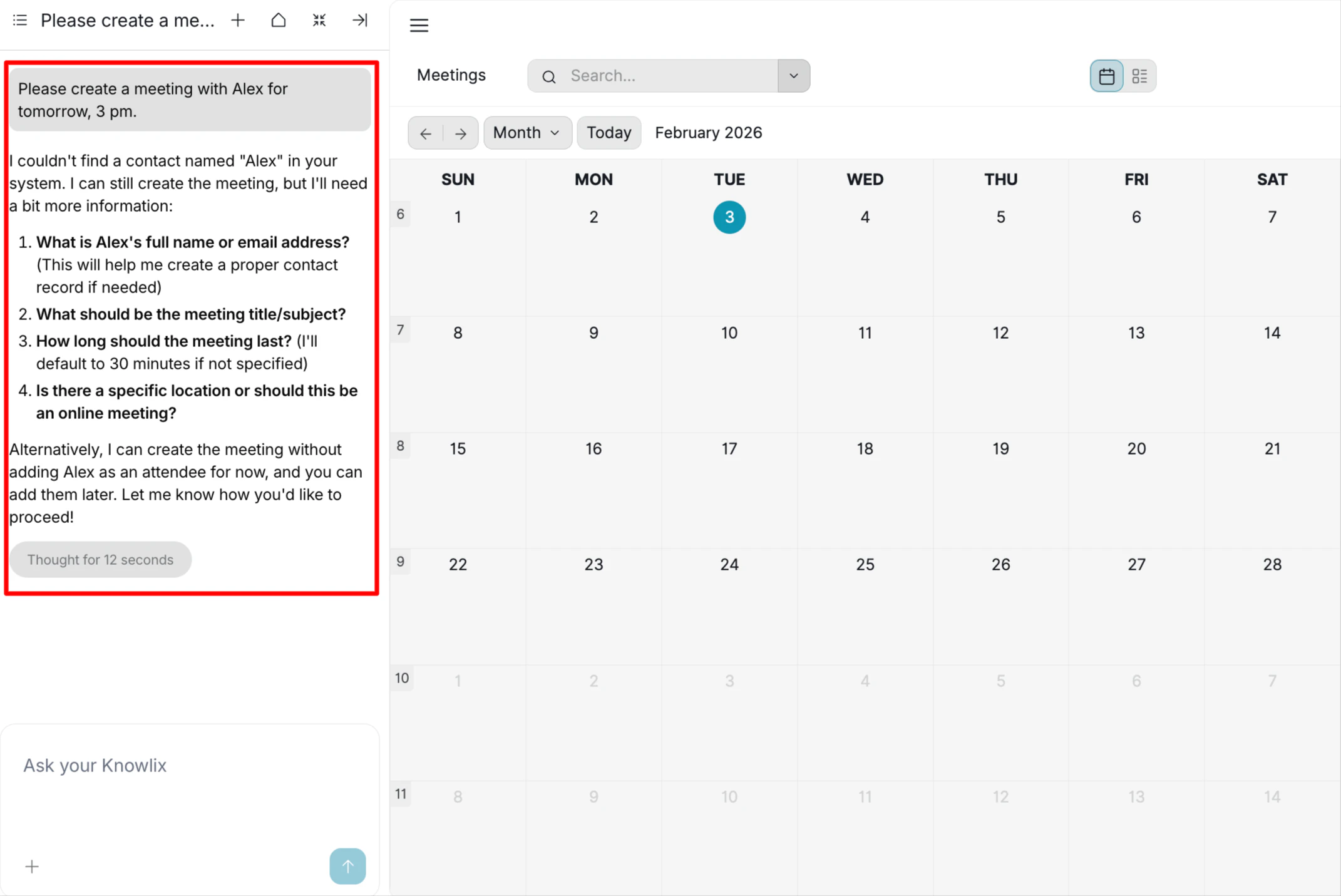
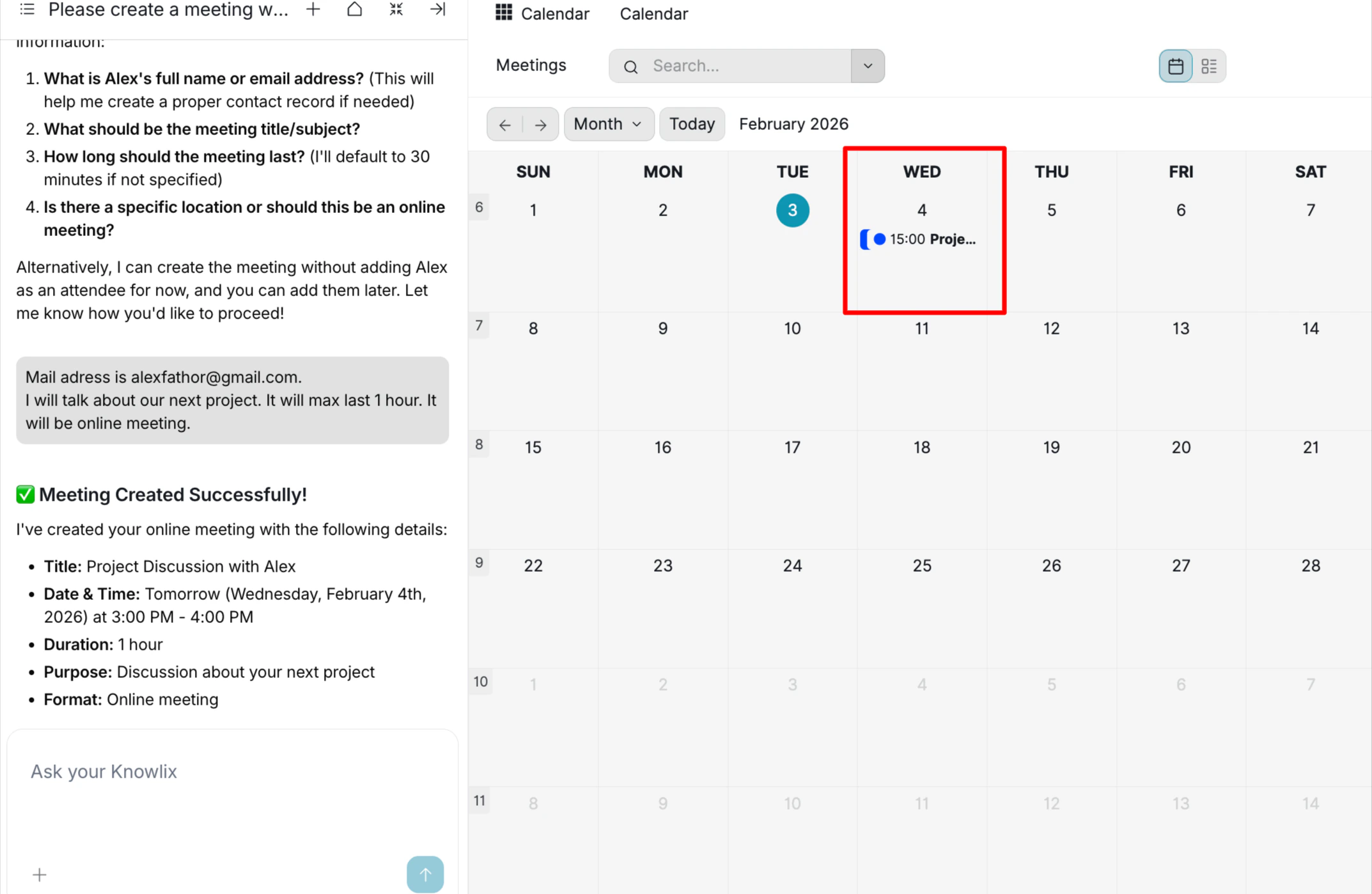
Scheduling a meeting usually involves clicking specific time slots, searching for contacts, and typing out descriptions manually. Knowlix simplifies this into a quick conversation. You simply tell the Assistant what you need, and it handles the logistics. Intelligent Clarification: The Assistant understands that a meeting requires specific details to be effective. If your initial request is vague, the AI will not guess; it will ask for the missing pieces.- Scenario: You ask to “create a meeting with Alex for tomorrow, 3 pm”.
- AI Detection: The system recognizes “Alex” is ambiguous or missing from your contacts. Instead of failing, it prompts you for:
- Full Name or Email Address
- Meeting Subject
- Duration
- Location (Online vs. Physical)
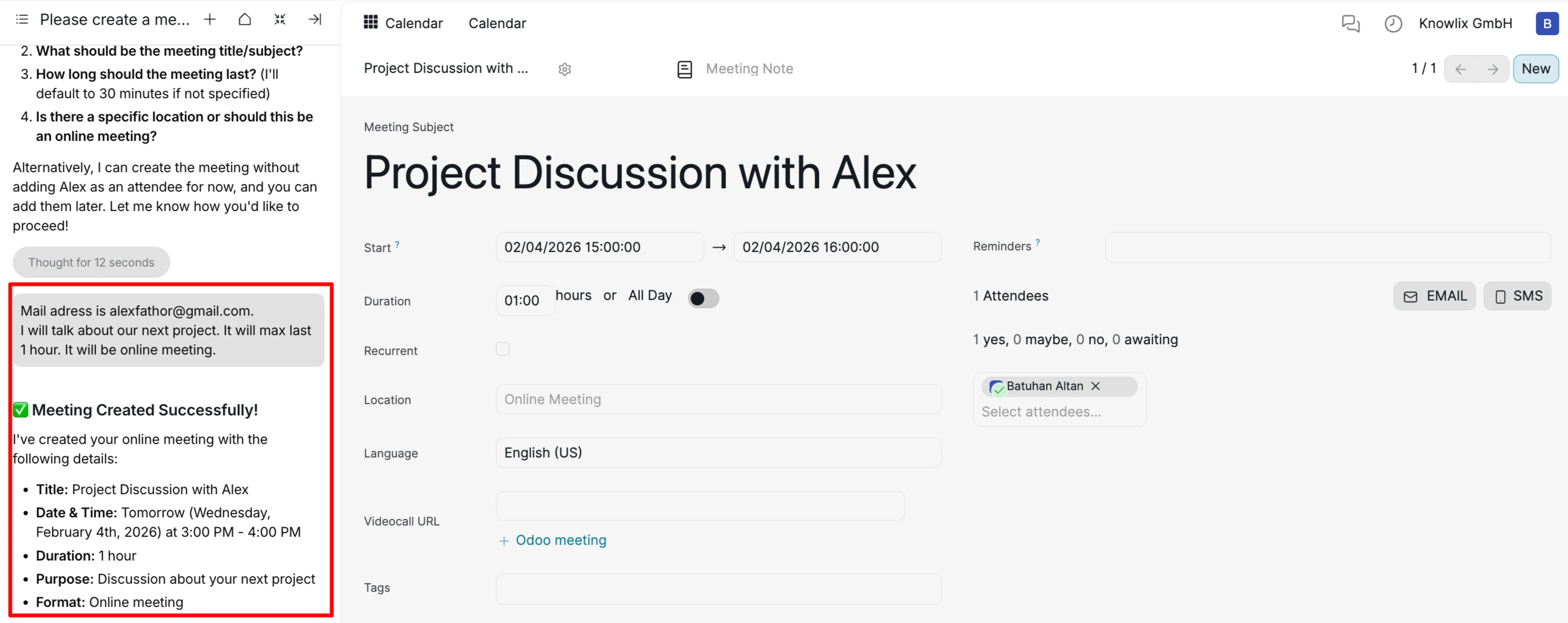
- Smart Parsing: The AI extracts key data points from your natural language input:
- Attendees: Automatically links the provided email to the invite.
- Contextual Title: Generates a professional subject line, “Project Discussion with Alex”, based on your description.
- Timing: Sets the correct Start and End times (3:00 PM - 4:00 PM) based on your “1 hour” input.
4. Event Details & Management Panel
After the Assistant creates the meeting, the Right Panel instantly opens the detailed event card. This gives you a comprehensive view of the booking, allowing you to review all specifics before the meeting starts. Key Information:- Meeting Context: Clearly displays the Subject and the specific Date/Time so you know exactly what was booked.
- Attendee Status: The Attendees section lists everyone invited, confirming that the correct contacts were linked.
- Fine-Tuning: While the AI handles the setup, this panel allows you to manually add Reminders, insert a Video Call URL, or attach Tags for better organization.
5. Quick Event Preview & Actions
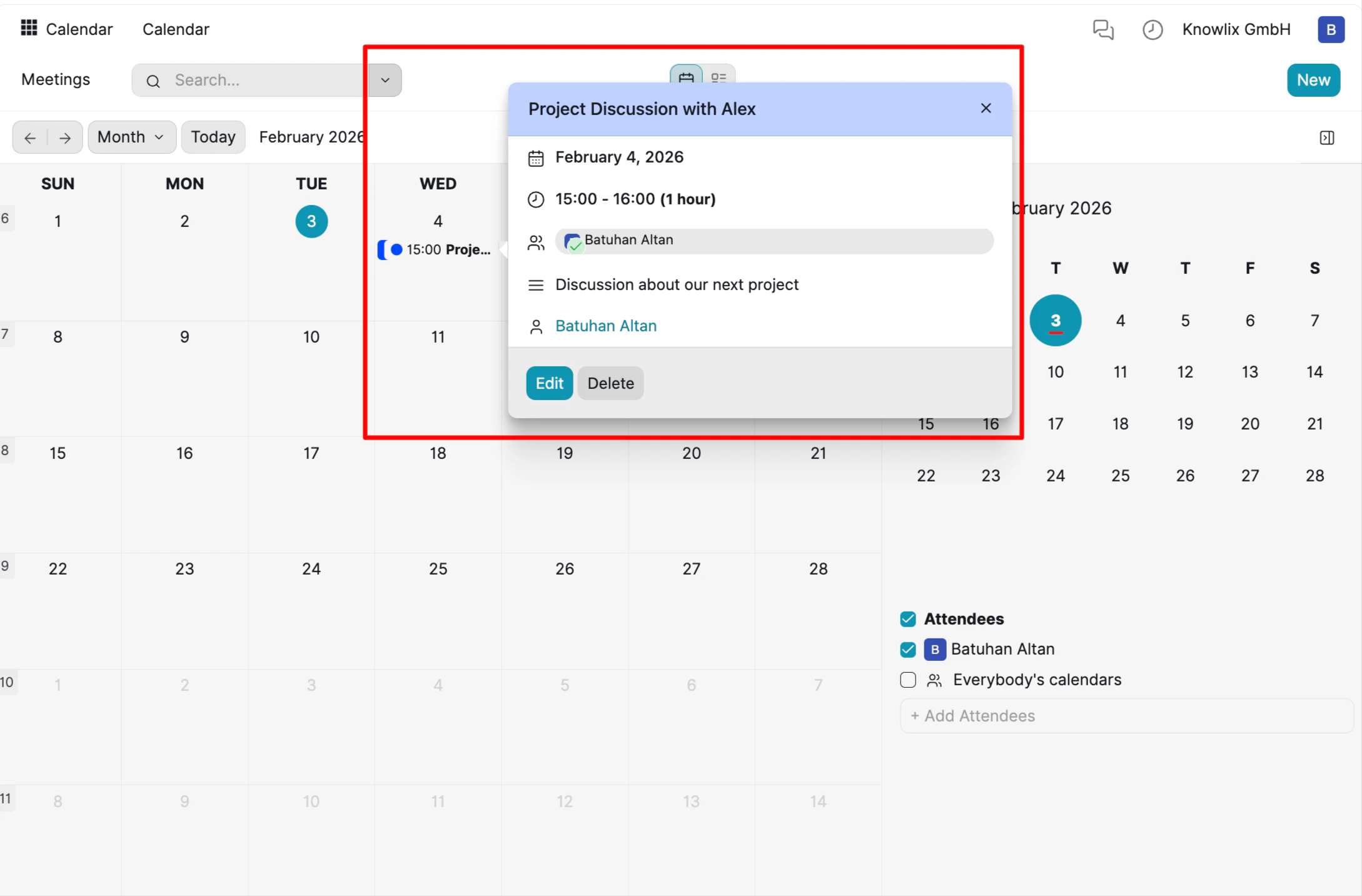
You do not need to open the full event page just to check a time or verify an attendee. Knowlix allows you to access a “Quick View” summary directly from the calendar grid. At-a-Glance Details: By simply interacting with an event on your calendar, a summary card pops up to display the most critical information immediately:- Timing: Instantly verify the Date and Duration.
- Context: Read the meeting description without leaving the view.
- Attendees: See who is joining at a glance.
- Edit: Click to modify details if plans change.
- Delete: Remove cancelled meetings instantly.
6. List View & Custom Reporting
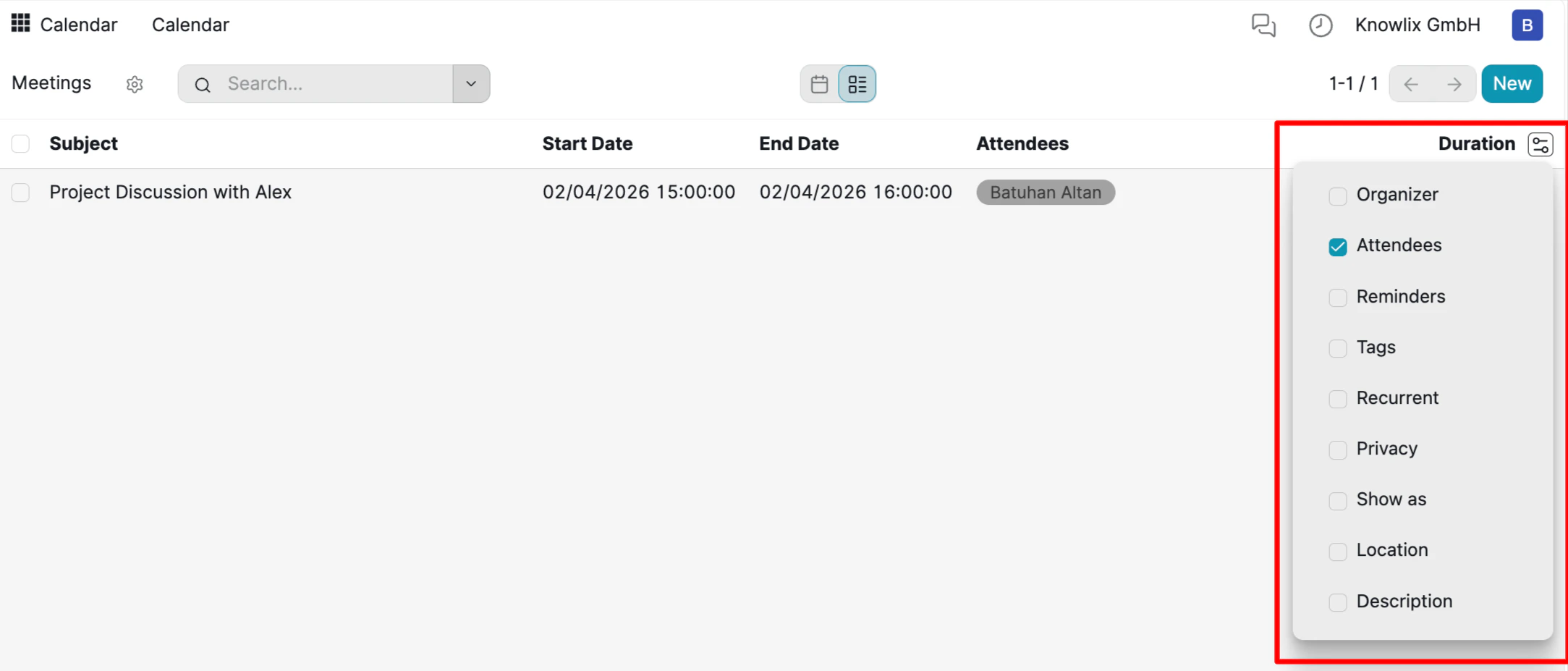
For times when you need to analyze your schedule as data rather than a visual timeline, Knowlix offers a powerful List View. This transforms your calendar into a structured table, making it easy to sort, filter, and customize the information you see. Column Customization: You are not stuck with a default view. You can tailor the table to show exactly the data points relevant to you.- Select Fields: Click the Settings/Slider icon on the far right of the column headers. A dropdown menu will appear, allowing you to check or uncheck fields such as Privacy, Reminders, Location, or Description.
- Dynamic Update: As you toggle these options, the list updates in real-time, allowing you to build a custom report.

More Information
Events
Event planning and attendee management
Surveys
Survey creation and response analysis
Pro Tips: Marketing
AI assistant tips for the Marketing module