
1. The AI Chat Interface
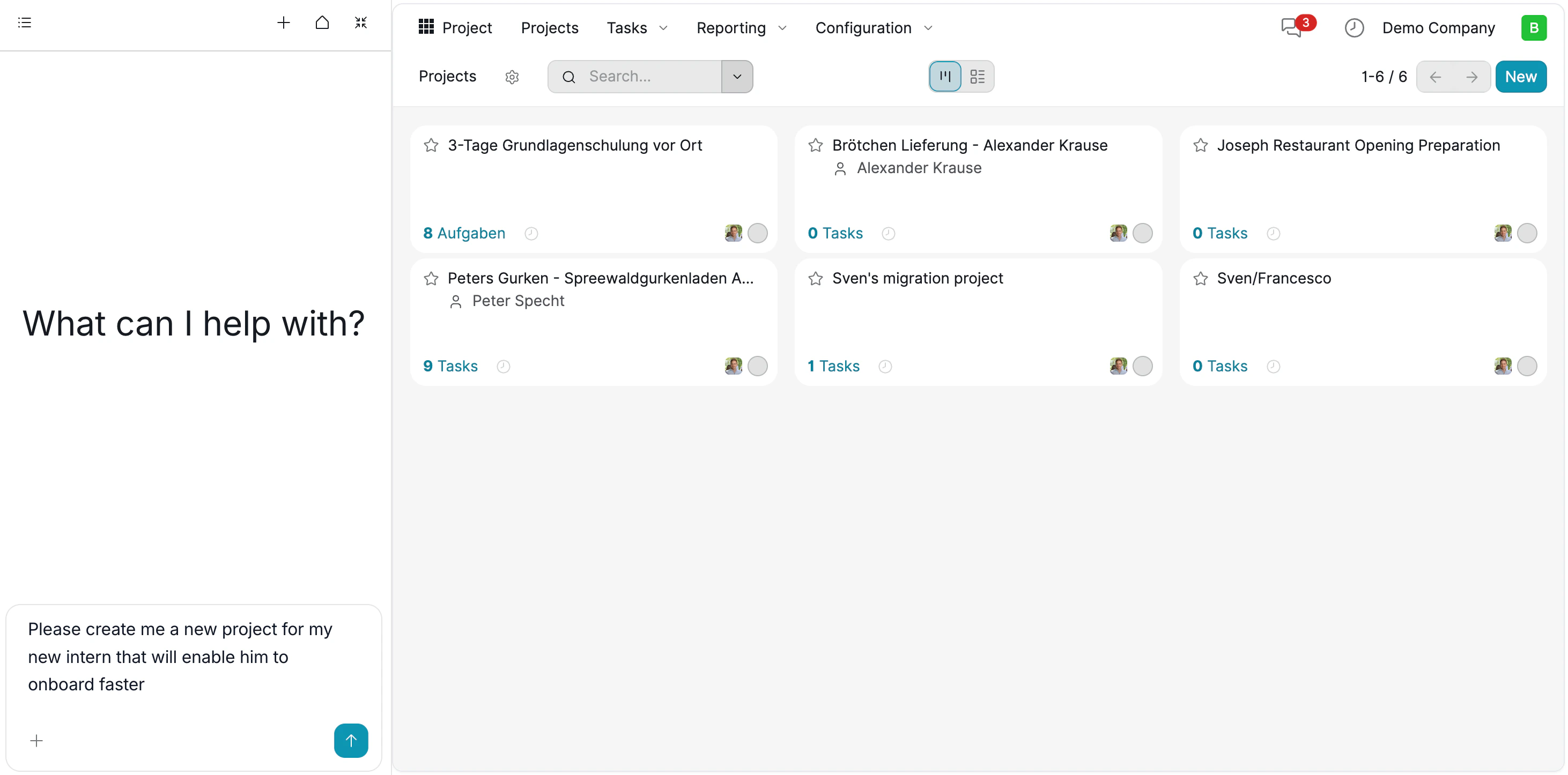
The AI Chat panel is available throughout Knowlix, appearing on the left side of your screen in every module.- “What can I help with?”: The assistant is always ready to receive your commands.
- “Ask your Knowlix”: Type your request in natural language and press Enter or click the send button.
- Context-Aware: The AI understands which module you’re in and adapts its responses accordingly.
- Conversation History: Your chat history is preserved, allowing for follow-up questions and commands.
“Create a new project for my intern to help them onboard faster”
“Show me all unpaid invoices”
“Schedule a meeting with Alex for tomorrow at 3 PM”
2. Creating Records with AI
Instead of navigating through menus and filling out forms, simply describe what you need.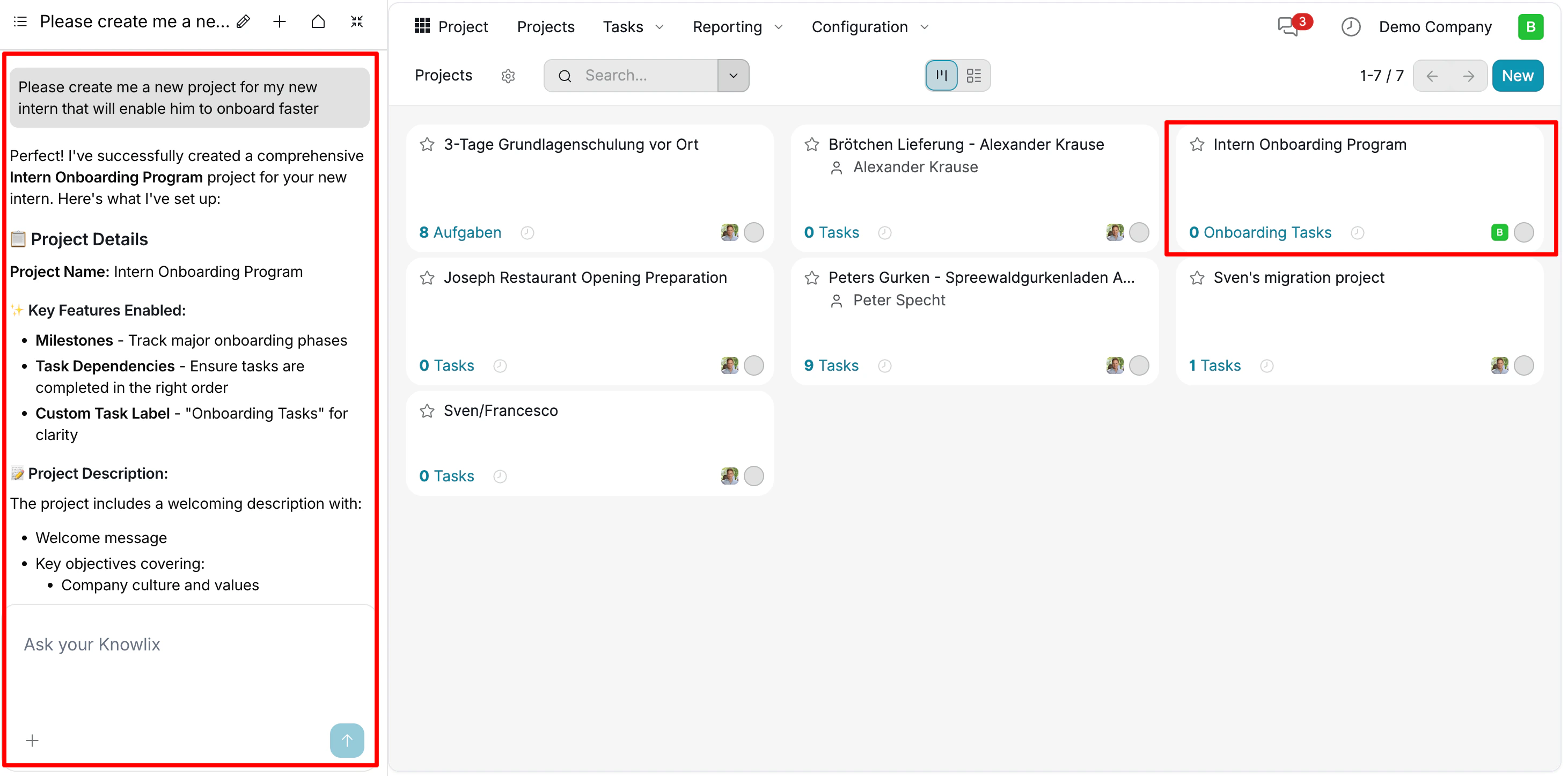
- Identifies the Record Type: Understands whether you need a project, meeting, invoice, lead, or task.
- Extracts Key Details: Pulls names, dates, amounts, and other data from your message.
- Creates Missing Records: If a contact or product doesn’t exist, AI creates it automatically.
- Applies Smart Defaults: Sets reasonable values for fields you didn’t specify.
- Project Name: Intern Onboarding Program
- Key Features Enabled: Milestones, Task Dependencies, Custom Task Labels
- Project Description: Includes welcome message and key objectives
3. AI Clarifying Questions
When your request is missing important information, the AI asks smart clarifying questions instead of making assumptions.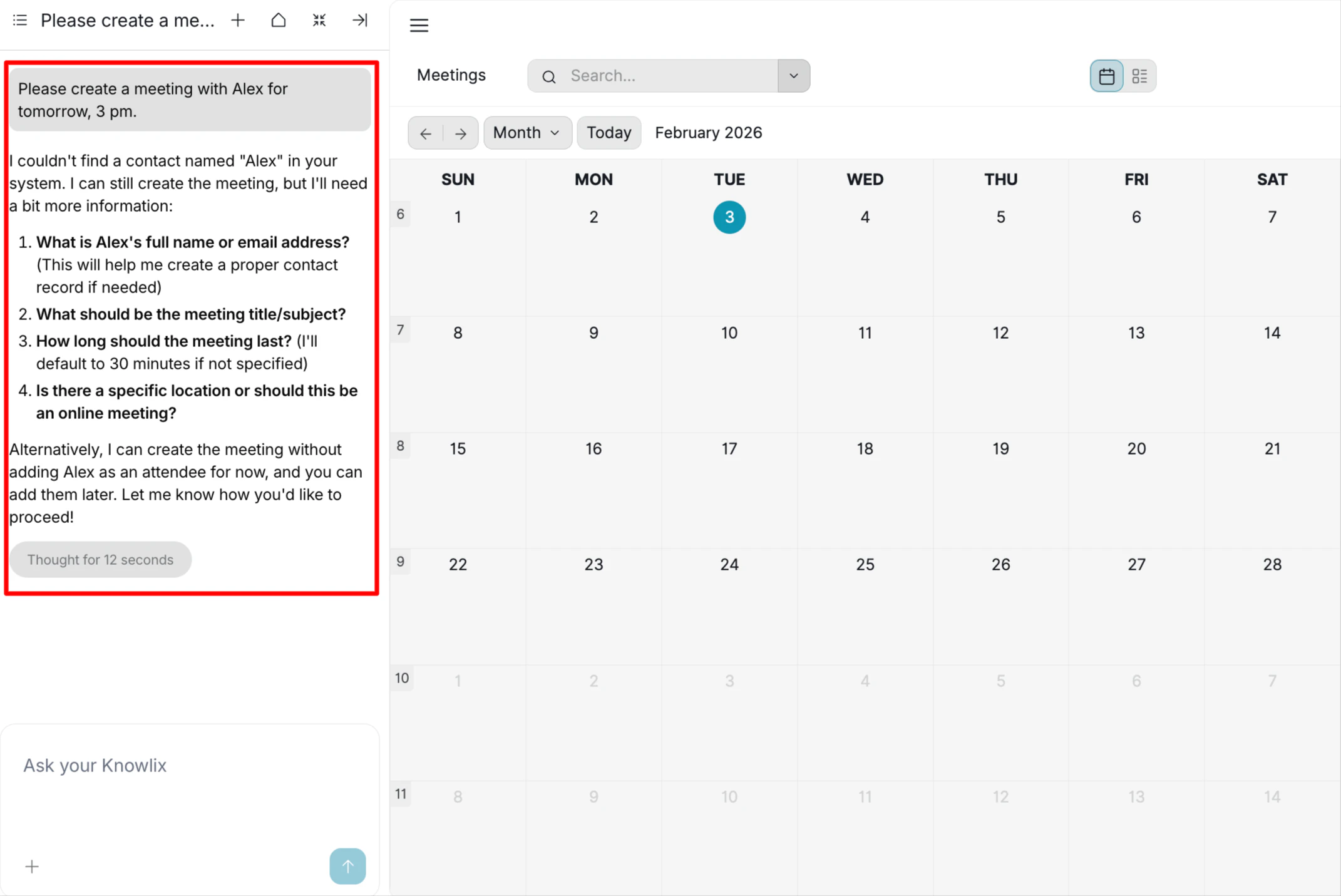
- What is Alex’s full name or email address? (Contact not found in system)
- What should be the meeting title/subject?
- How long should the meeting last? (Defaults to 30 minutes if not specified)
- Is there a specific location or should this be an online meeting?
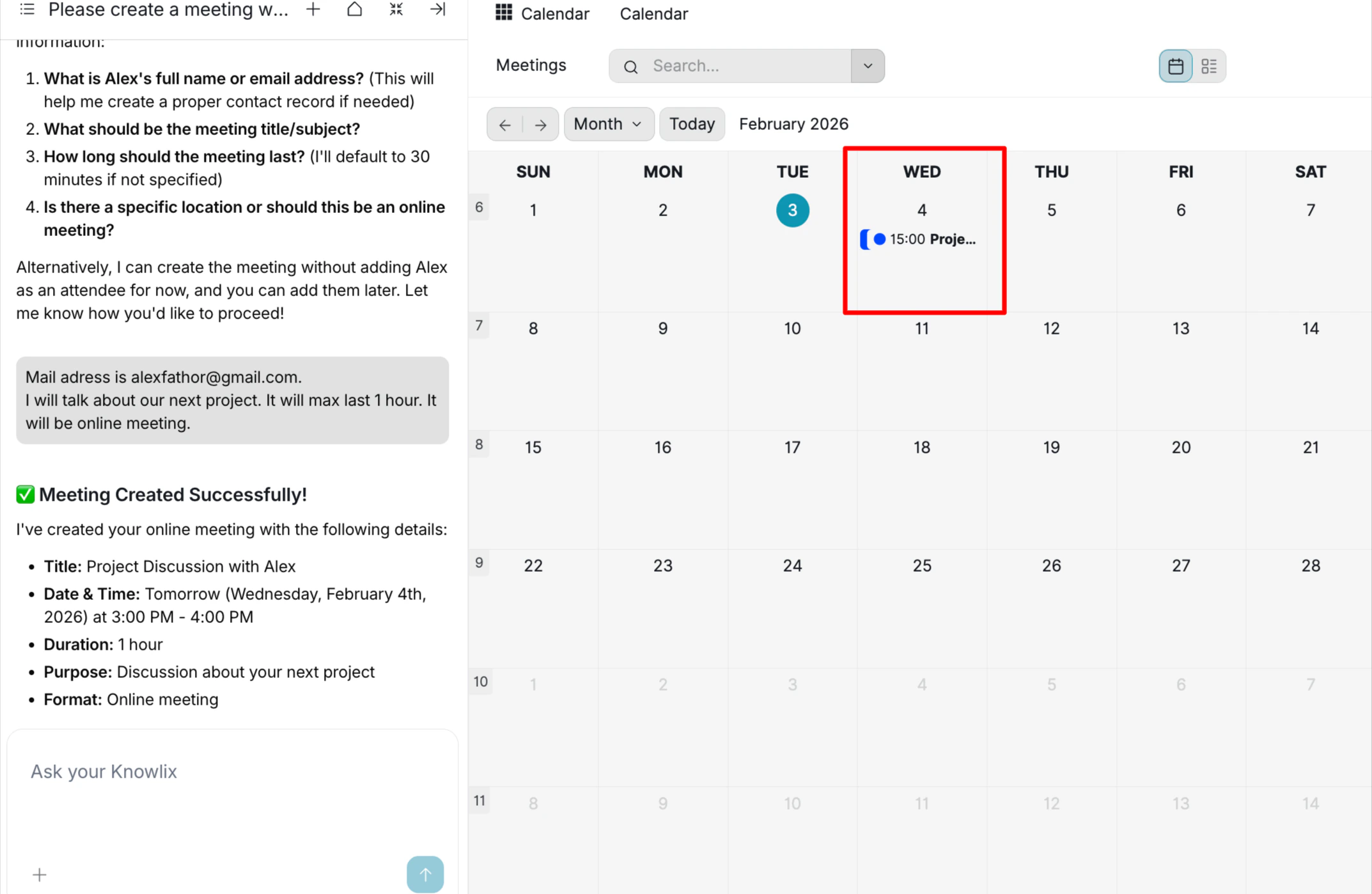
- Title: Project Discussion with Alex
- Date & Time: Tomorrow (Wednesday, February 4th, 2026) at 3:00 PM - 4:00 PM
- Duration: 1 hour
- Purpose: Discussion about your next project
- Format: Online meeting
4. Follow-up Commands and Editing
Continue the conversation to refine your work or make changes.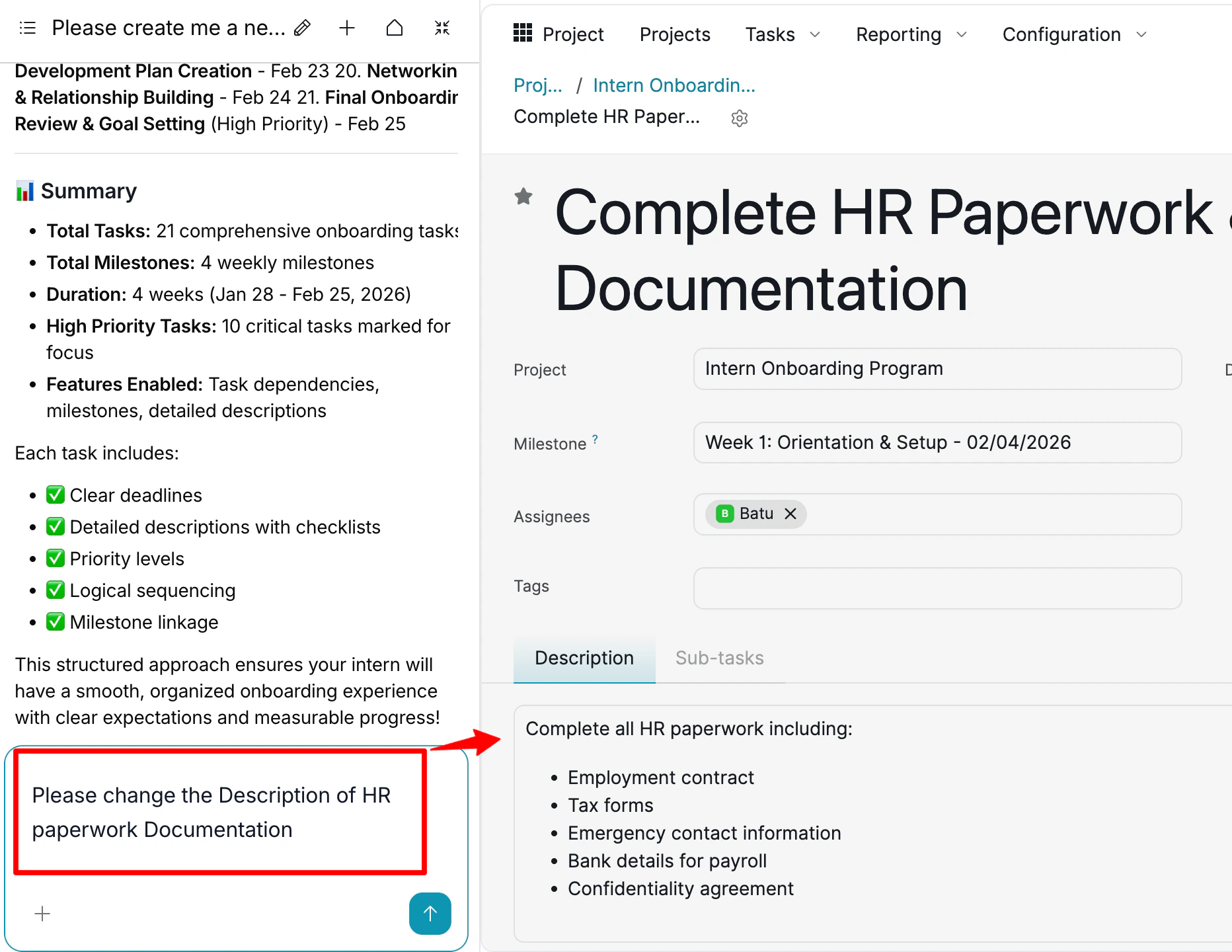
“Now create milestones and specific onboarding tasks. The Project manager will be Jack Brown.”
- Assigning Jack Brown as Project Manager (creates contact if needed)
- Creating a 4-Week Onboarding Structure
- Adding 6 Tasks with clear deadlines and descriptions
“Please change the Description of HR paperwork Documentation”
- Create new records in any module
- Update existing record fields
- Ask questions about your data (“How much does Johnson HVAC owe us?”)
- Generate reports (“Show me sales performance for last month”)
- Navigate to specific records (“Open the latest invoice for Adora microships”)
More Information
Discuss
Internal messaging and channel management
Knowledge Base
Internal wiki and knowledge management
Pro Tips: Productivity
AI assistant tips for the Productivity module