
- Outlook Calendar Sync: Two-way synchronization with Microsoft Outlook
- Meeting Detection: Automatically imports your meetings to Knowlix
- AI Transcription: Real-time meeting transcription with speaker identification
- Smart Summaries: AI-generated meeting summaries with action items
- Unified Calendar: Manage all your events in one place
1. Access Microsoft Entra Admin Center
Start by registering a new application in Microsoft Entra ID (formerly Azure AD).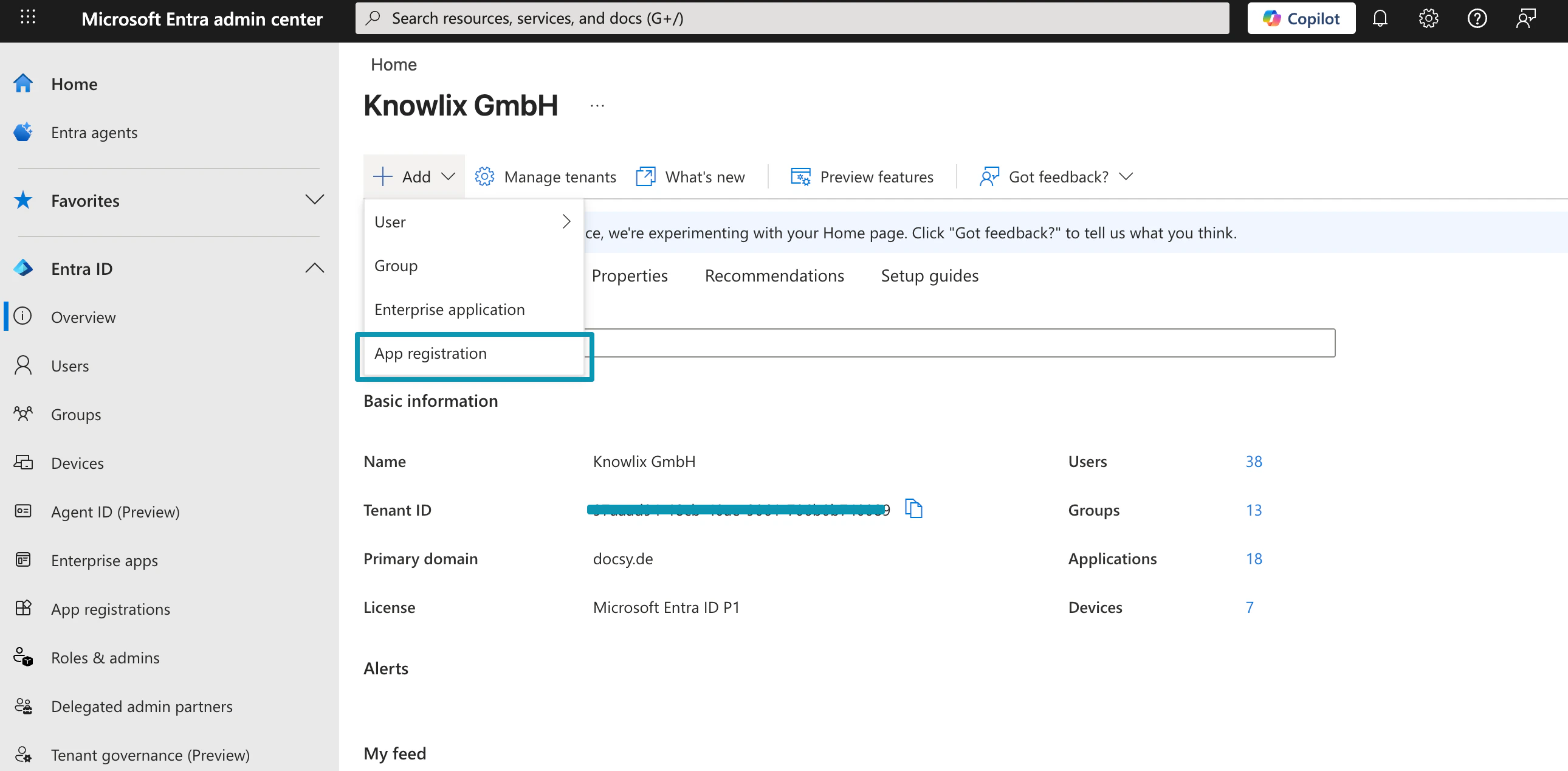
- Sign in to Microsoft Entra Admin Center with your admin account
- In the left sidebar, navigate to Entra ID
- Click the + Add dropdown in the top menu
- Select App registration from the options
2. Register the Application
Fill out the registration form to create your Knowlix integration app.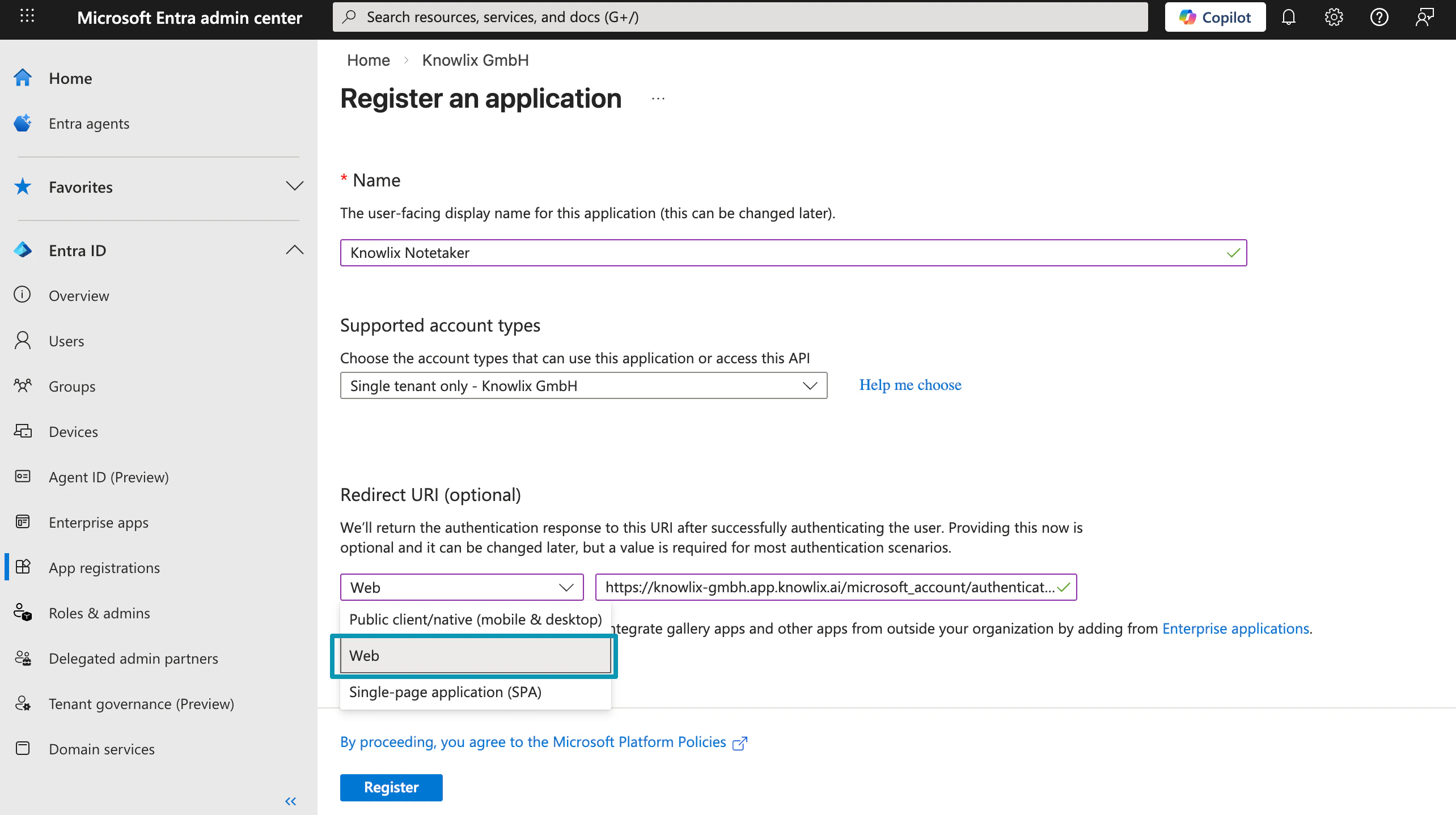
- Name: Enter a descriptive name (e.g.,
Knowlix Notetaker) - Supported account types: Select Single tenant only - [Your Organization] for company use
- Redirect URI (optional):
- Platform: Select Web
- URL: Enter
https://[your-company].app.knowlix.ai/microsoft_account/authentication
3. Copy Your Credentials
After registration, the app overview page displays your essential credentials.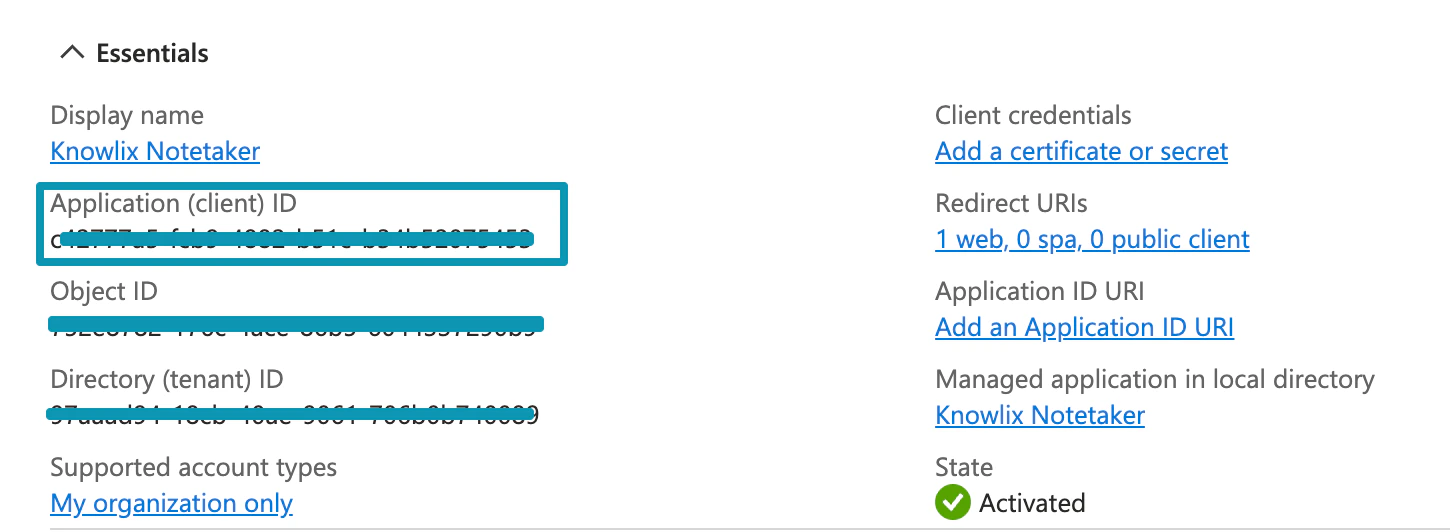
- Application (client) ID: Your unique app identifier (highlighted in blue box)
- Directory (tenant) ID: Your organization’s tenant identifier
- Redirect URIs: Shows “1 web, 0 spa, 0 public client”
- State: Shows green checkmark with “Activated”
4. Create Client Secret
Generate a secret key for secure authentication between Knowlix and Microsoft.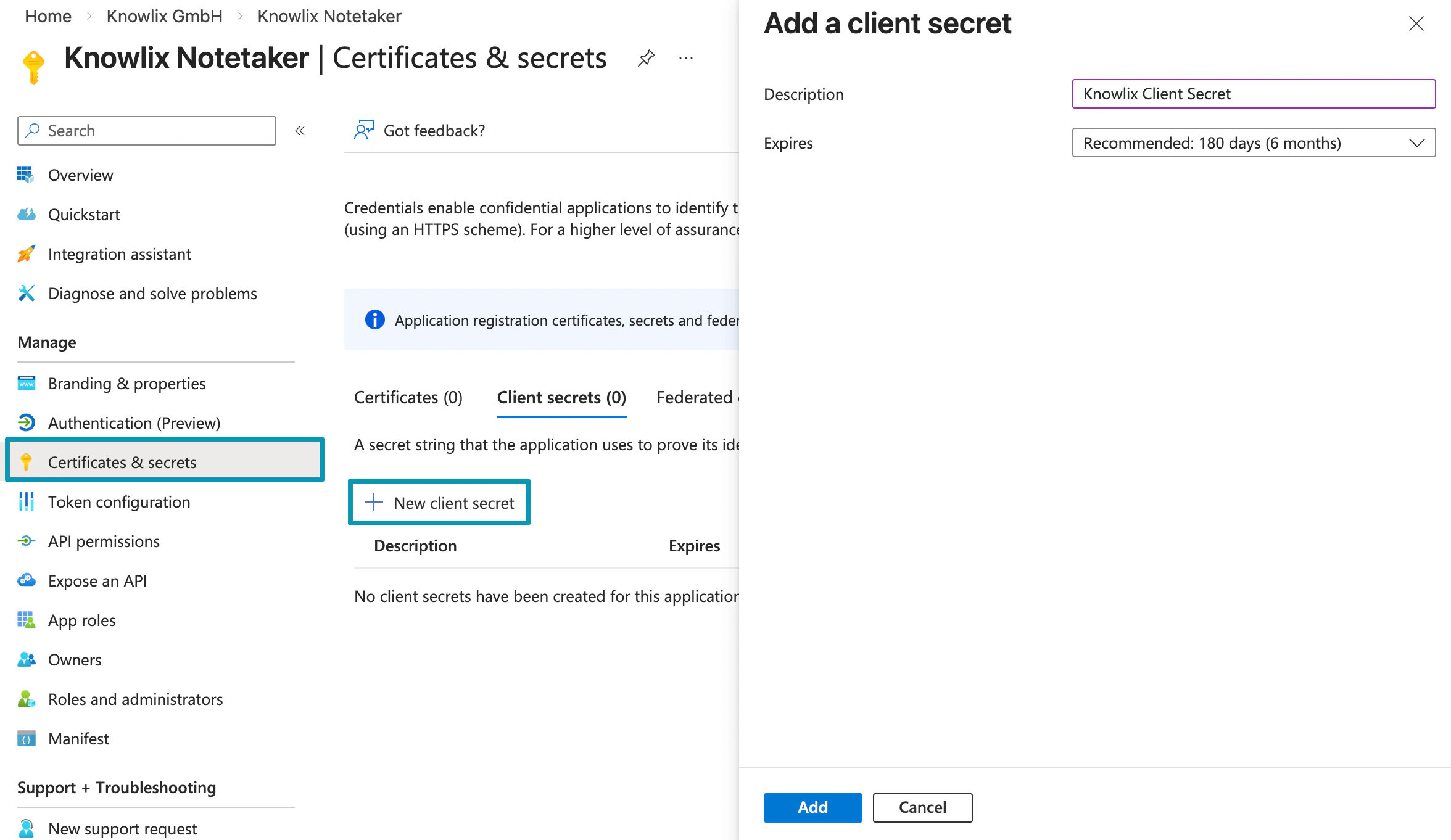
- In the left sidebar, click Certificates & secrets
- Click + New client secret
- In the modal that appears:
- Description: Enter a name (e.g.,
Knowlix Client Secret) - Expires: Select recommended duration (180 days / 6 months)
- Description: Enter a name (e.g.,
- Click Add
5. Open Calendar Settings in Knowlix
Now configure Knowlix to use your Azure credentials.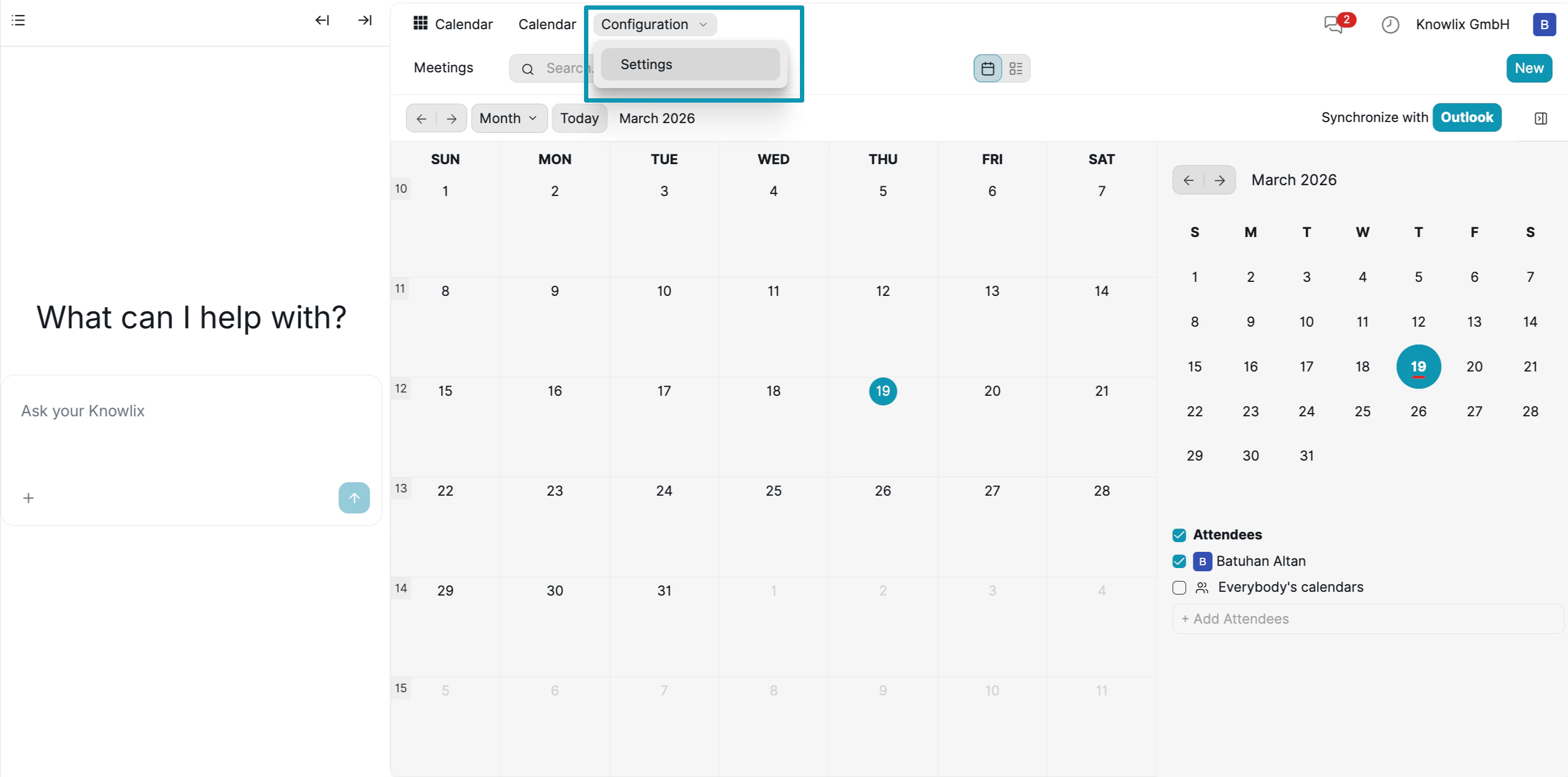
- In Knowlix, navigate to the Calendar module
- Click the Configuration dropdown in the top menu
- Select Settings
6. Enter Azure Credentials
Connect your Microsoft app to Knowlix by entering the credentials you copied earlier.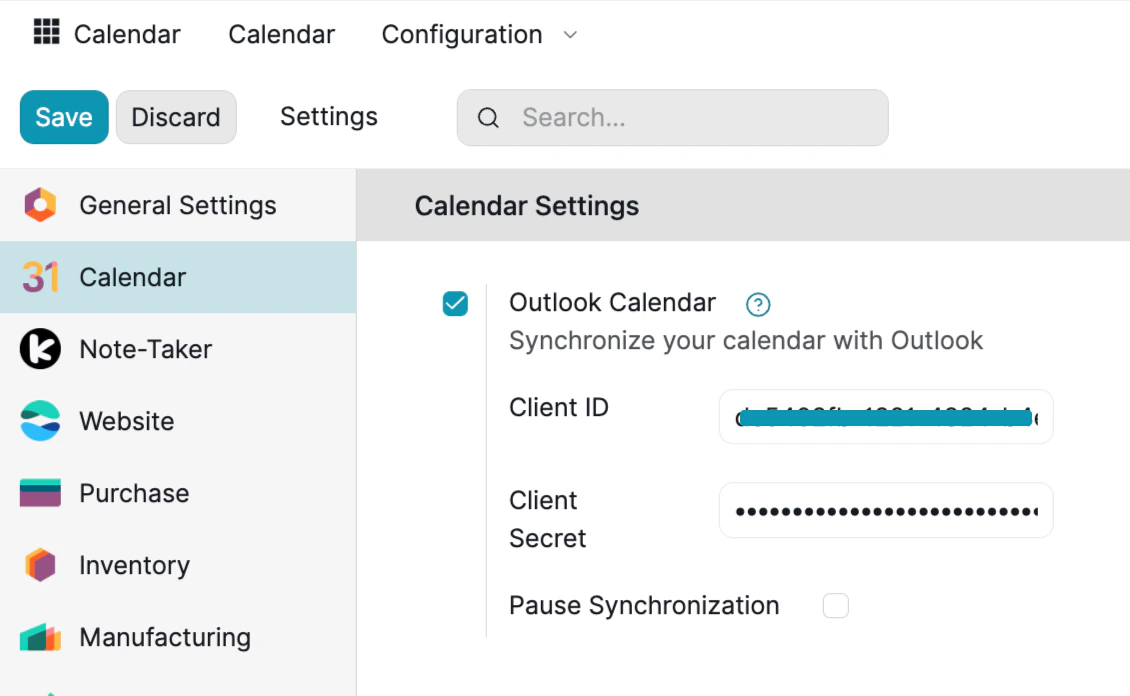
- In the left sidebar, select Calendar
- Check the Outlook Calendar checkbox to enable synchronization
- Enter your credentials:
- Client ID: Paste your Application (client) ID from Azure
- Client Secret: Paste the secret value you created
- Leave Pause Synchronization unchecked to enable automatic sync
- Click Save at the top
You can also access Note-Taker settings from this same menu for additional AI features.
7. Synchronize with Outlook
Initiate the first sync to connect your calendars.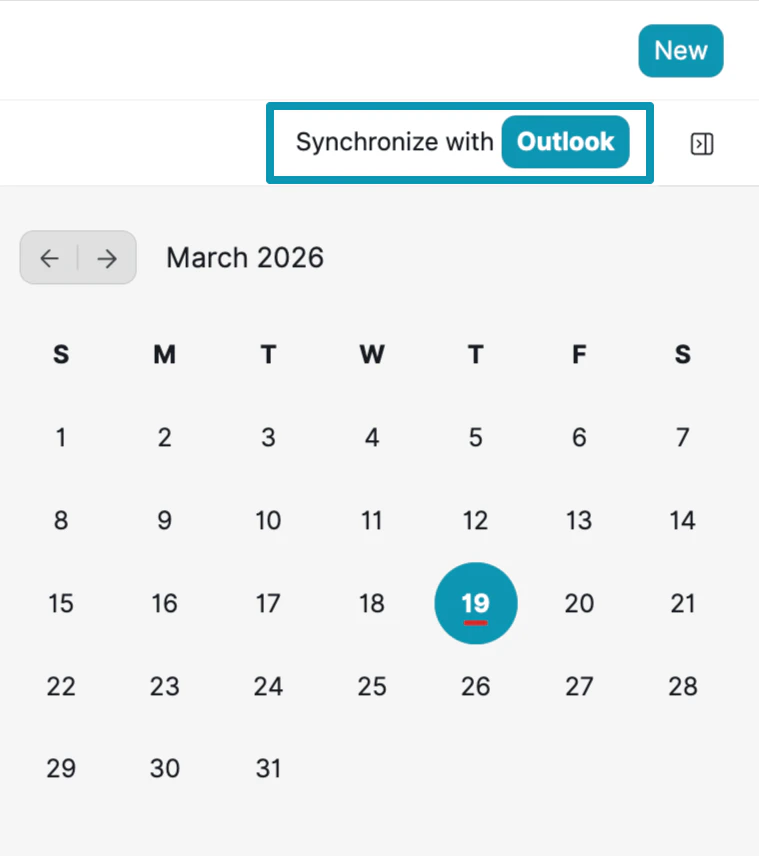
- Return to the Calendar main view
- Click the Synchronize with Outlook button (highlighted in blue)
- Sign in with your Microsoft 365 / Outlook account when prompted
- Accept the permission request
Using AI Notetaker Features
With Outlook connected, you can now use the AI Notetaker capabilities: Meeting Sync:- All your Outlook meetings appear in the Knowlix Calendar
- New meetings created in Knowlix sync back to Outlook
- Changes in either calendar are reflected in both
“What meetings do I have tomorrow?”
“Schedule a meeting with the sales team next Tuesday at 2 PM”
“Summarize my meetings from last week”
- Enable AI transcription for any meeting
- After meetings, AI generates summaries with key points and action items
- Transcripts are searchable and linked to calendar events