1. Project Management Dashboard
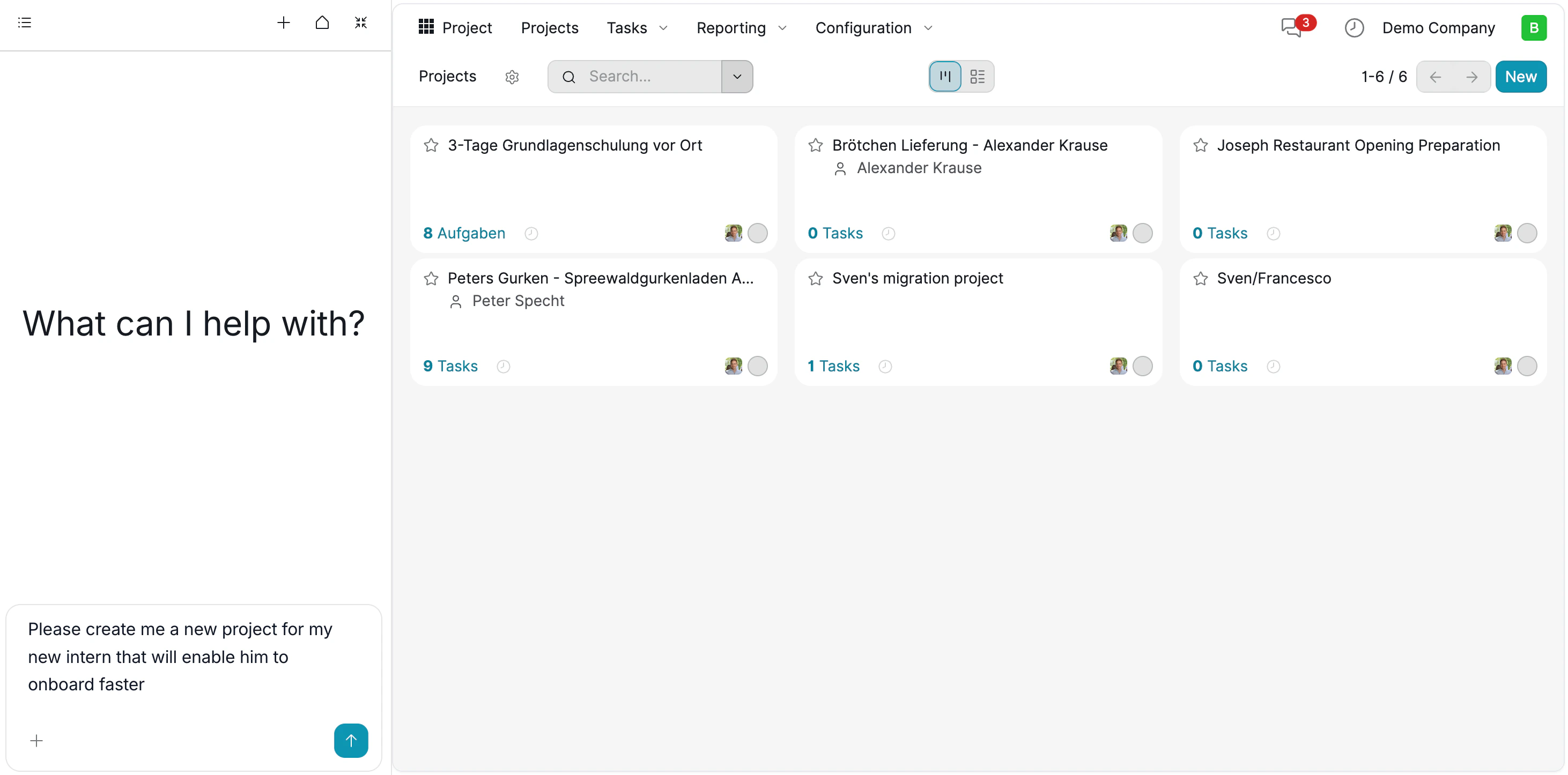
The Projects dashboard combines intuitive visual interfaces with AI-powered project initialization to streamline team collaboration. Visual Overview (Kanban View)- Project Cards: Each project is displayed as a card (e.g., Sven’s migration project, Joseph Restaurant Opening).
- Quick Stats: You can instantly see the workload for each project, indicated by the task counter (e.g., 8 Tasks, 1 Task).
- Team Assignment: User avatars on the cards show who is leading or contributing to the project.
2. AI-Driven Project Initialization
Creating a project is no longer just about naming a folder; it is about defining a goal. You can instruct the Assistant to set up a project based on a specific objective. Example Command:“Please create me a new project for my new intern that will enable him to onboard faster”
3. Intelligent Project Configuration
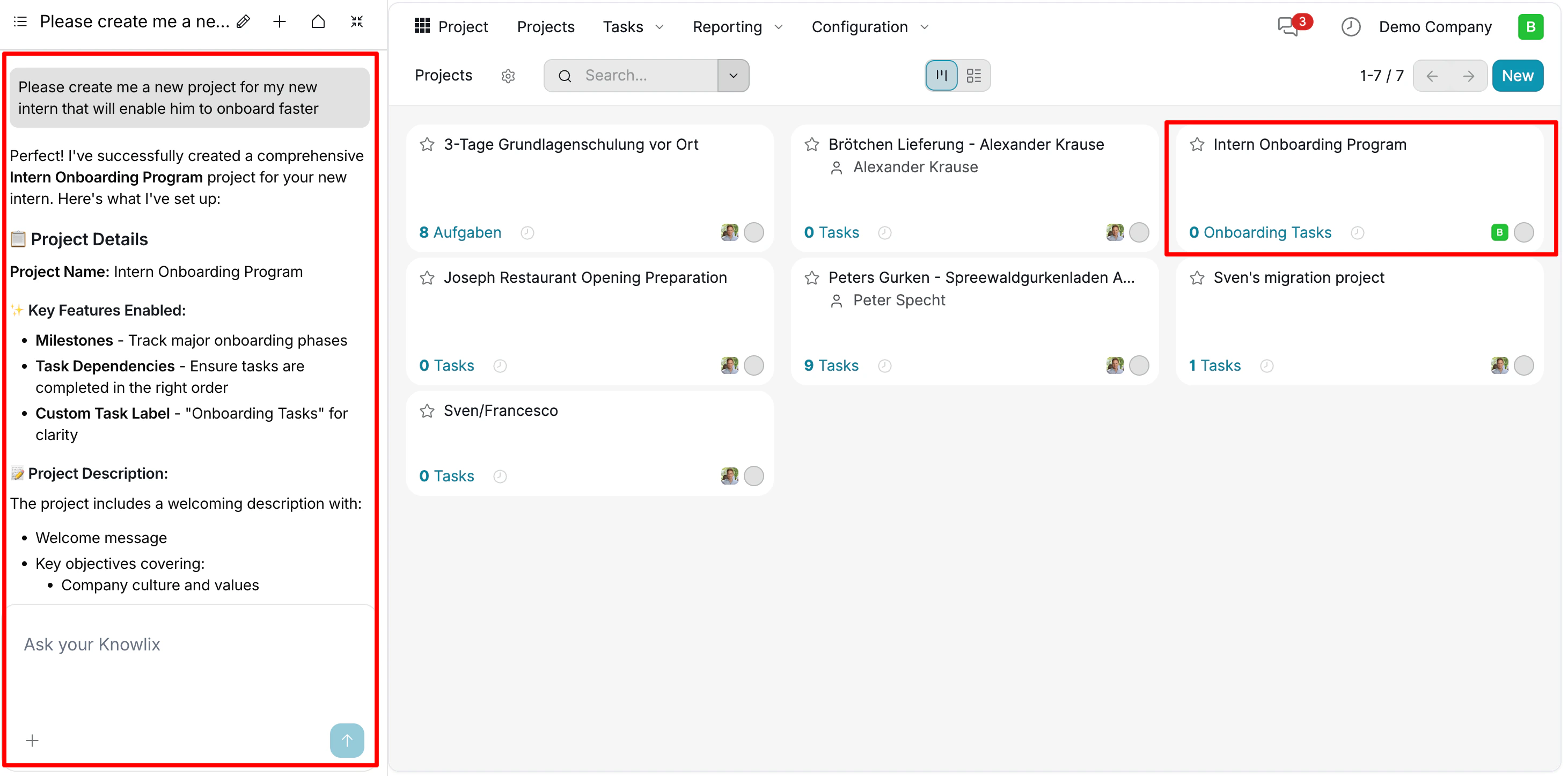
After submitting your request, the Knowlix Assistant does more than just create a folder; it intelligently configures the project’s settings to match your specific goal. Automated Setup Results:- Smart Naming: The project was automatically titled “Intern Onboarding Program” to reflect its purpose clearly.
- Feature Activation: Recognizing that onboarding requires structure, the AI enabled advanced settings:
- Milestones: To track major phases of the internship.
- Task Dependencies: Ensuring tasks are completed in the correct order.
- Content Generation: The AI populated the Project Description with a welcome message and key objectives (e.g., Company Culture & Values) to provide immediate context for the new team member.
4. Automated Workflow & Task Generation
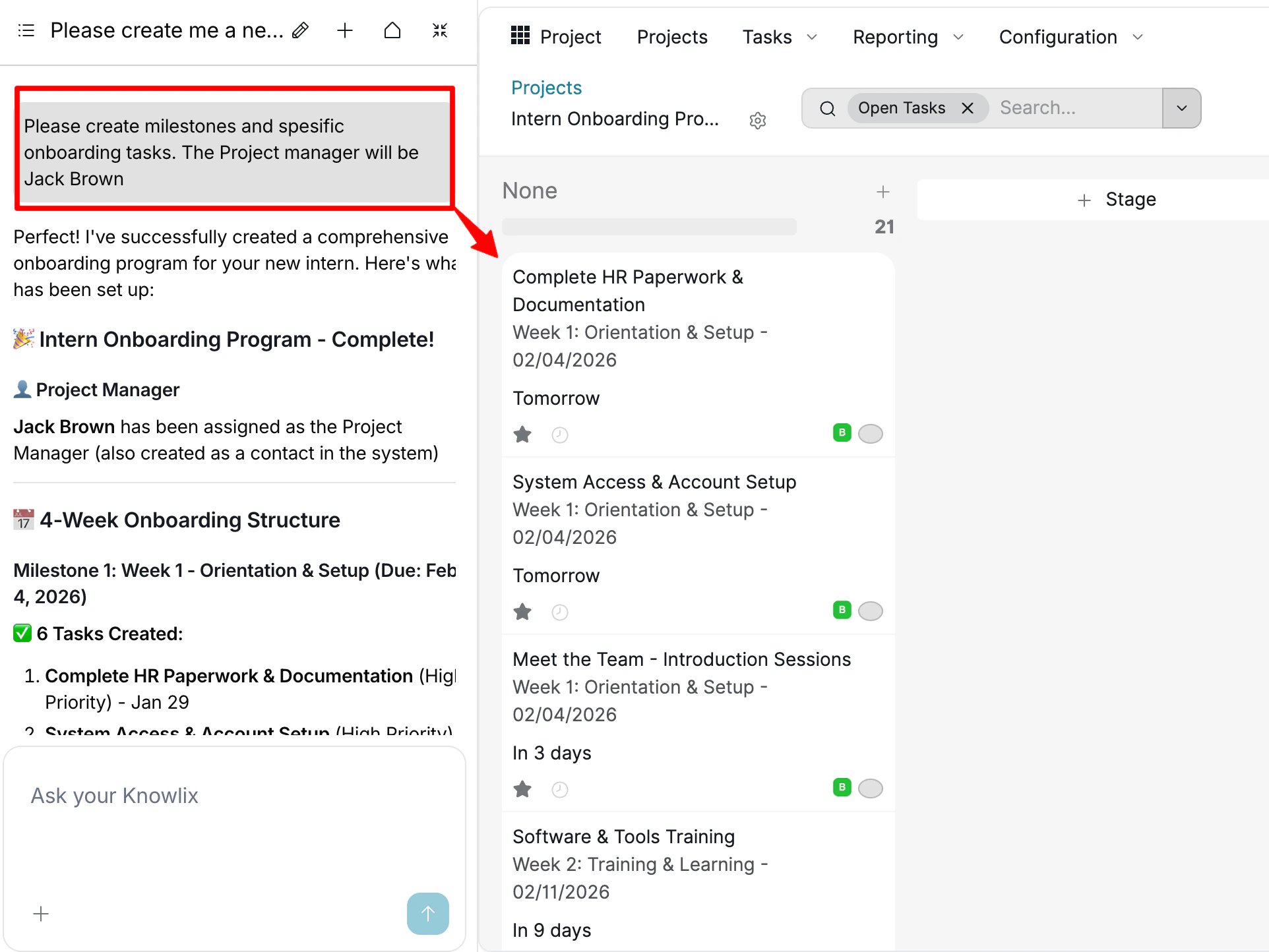
Once a project is initialized, you can use the Knowlix Assistant to instantly populate it with a structured work plan. The AI uses the project’s context (e.g., “Onboarding”) to generate relevant tasks rather than requiring manual entry for every item. Command Execution:“Please create milestones and specific onboarding tasks. The Project manager will be Jack Brown”
- Contextual Task Creation: The Assistant generated industry-standard onboarding tasks such as “Complete HR Paperwork & Documentation” and “System Access & Account Setup”. It automatically marked critical tasks as High Priority.
- Intelligent Resource Assignment: The system identified “Jack Brown” as the Project Manager. If Jack Brown did not exist in the database, the AI automatically created his contact record and assigned him to the project.
- Milestone Structuring: Instead of a flat list, the AI organized the workflow into a time-based structure (e.g., “Milestone 1: Week 1 - Orientation & Setup”), setting logical due dates for each task (e.g., “Tomorrow” or “In 3 days”).
5. AI-Powered Editing & Refinement
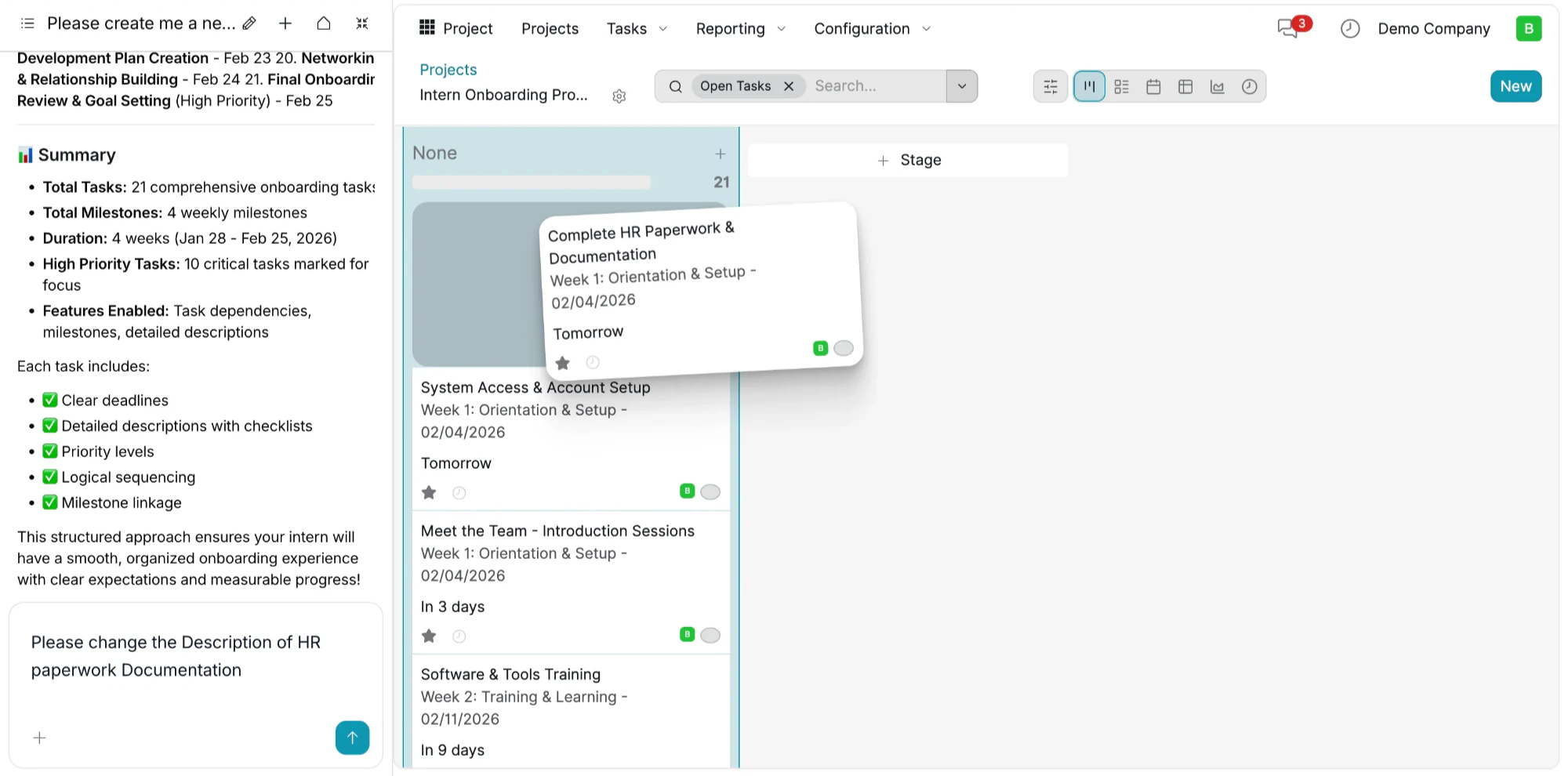
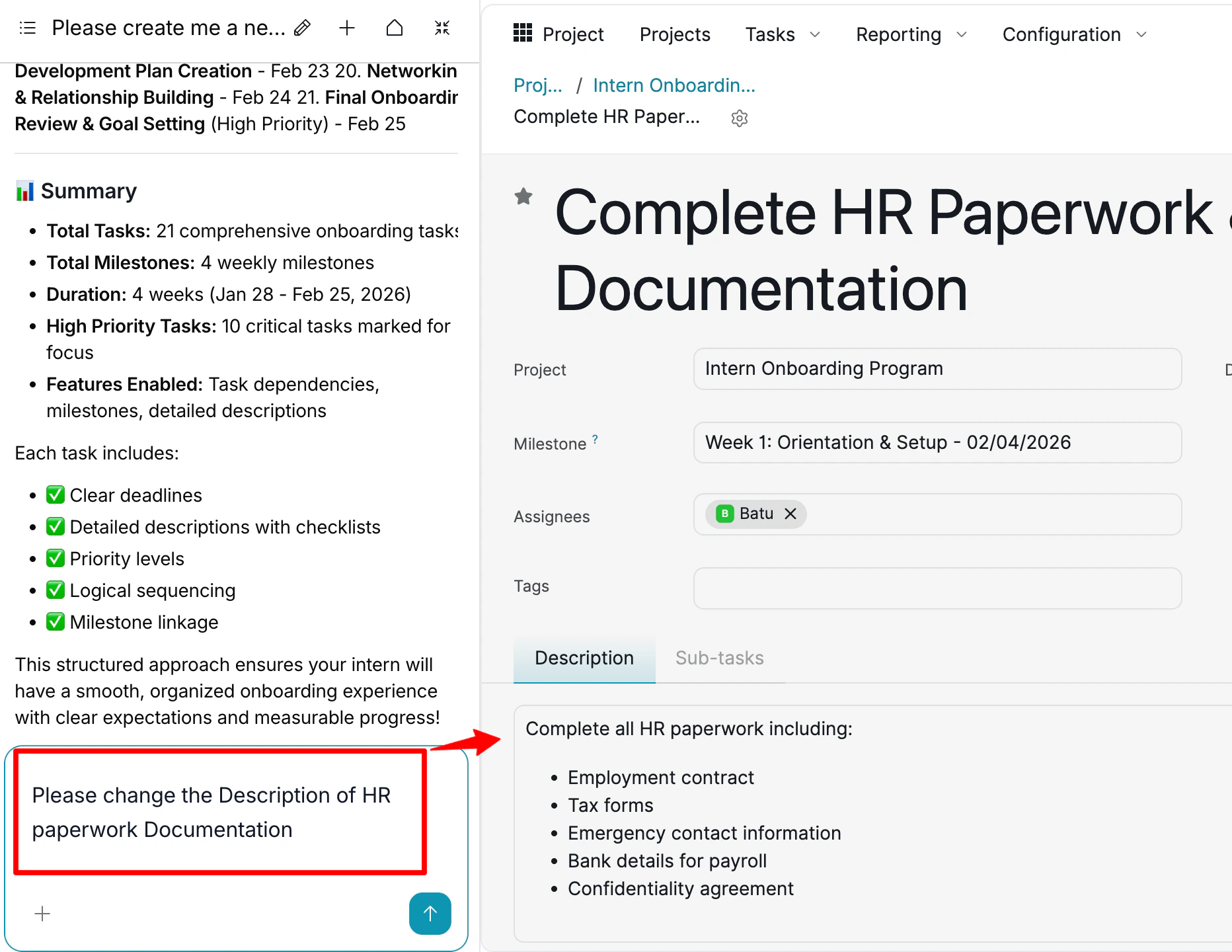
Knowlix allows you to modify any aspect of your projects, tasks, or documents using natural language. If a detail needs updating or expanding, simply instruct the Assistant to make the change. Contextual Updates:- The Command: The user asked the Assistant to “change the Description of HR paperwork Documentation”.
- The AI Execution: Instead of just leaving it blank or asking for text, the AI understood what “HR Paperwork” entails. It automatically populated the Description field with a relevant, bulleted checklist (Employment contract, Tax forms, etc.).
6. Flexible Task Organization: Manual & AI
Knowlix offers a hybrid workflow that gives you total control over how you organize your projects. You are not limited to just one method; you can switch seamlessly between visual interactions and AI commands. Intuitive Drag-and-Drop (Manual): For visual thinkers, the Kanban board offers full manual control. You can simply click and hold a task card (e.g., Complete HR Paperwork) to move it across different stages of progress.- Reorder Tasks: Prioritize items by dragging them up or down within a column.
- Create Stages: You can easily expand your workflow by clicking + Stage or dragging tasks into new areas to define custom process steps.
Example Command: “Move the HR Paperwork task to ‘In Progress’ and create a new stage called ‘Review’.”